Wiring Studio Documentation
Wiring Studio is a browser-based wire harness design application. You create electrical wiring diagrams, assign pin-to-pin connections, and generate production documents — all from your browser with no installation required.
The application is built for electrical engineers, harness designers, and technicians who need to design cable assemblies, document wiring, and produce bills of materials without enterprise CAD software.
Core Views
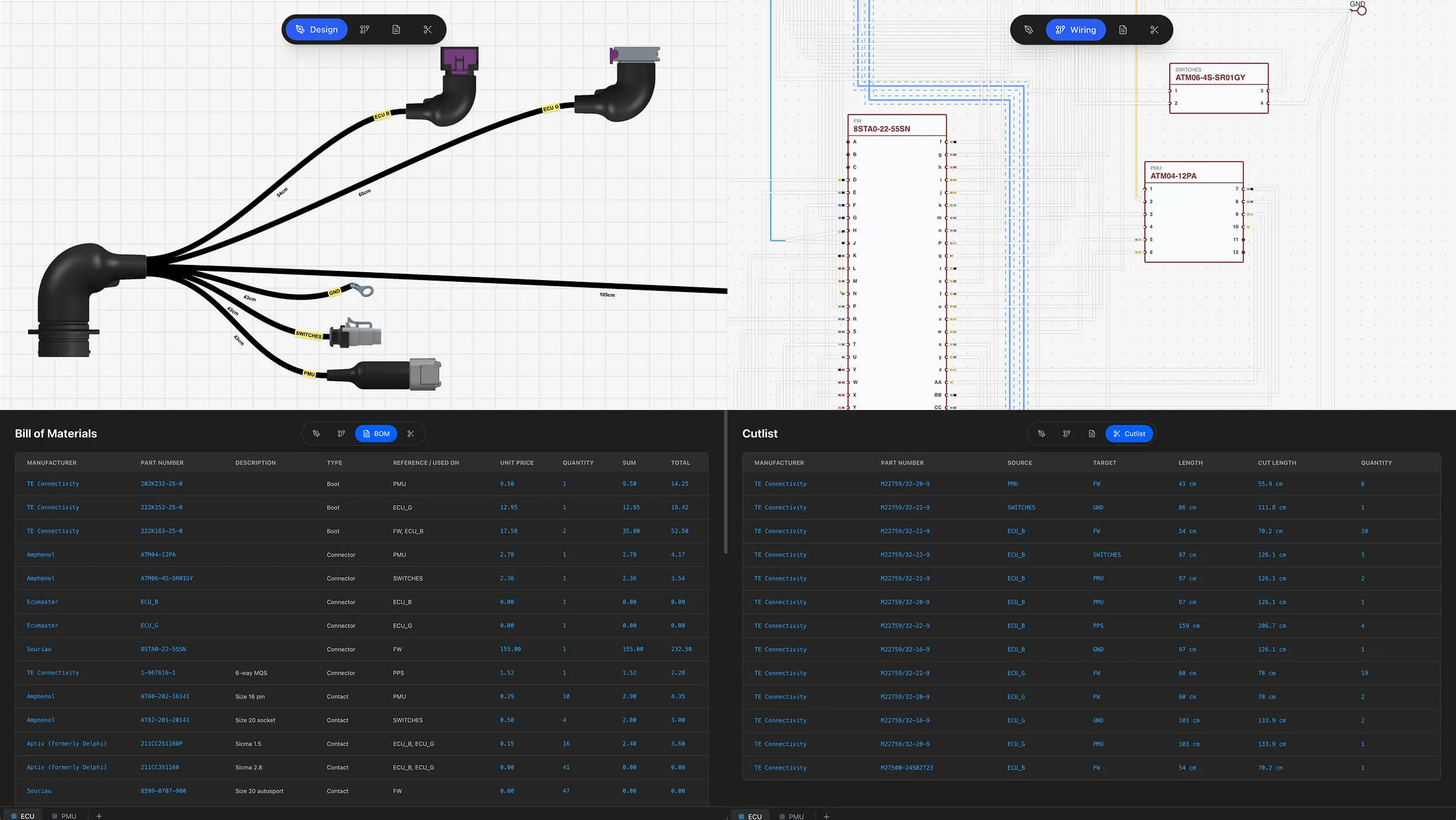
Every project in Wiring Studio has four view modes, accessible from the Floating Toolbar at the top of the workspace. Each view serves a distinct purpose in the harness design workflow.
Design View
The Design View is a formboard-style schematic canvas where you place connectors, route cables, and define the physical layout of your wire harness. You add components via right-click context menu — connectors, ring terminals, branch points, splices, diodes, and resistors. Cables snap to connection points automatically, and you set lengths, coverings, and labels directly on each cable.
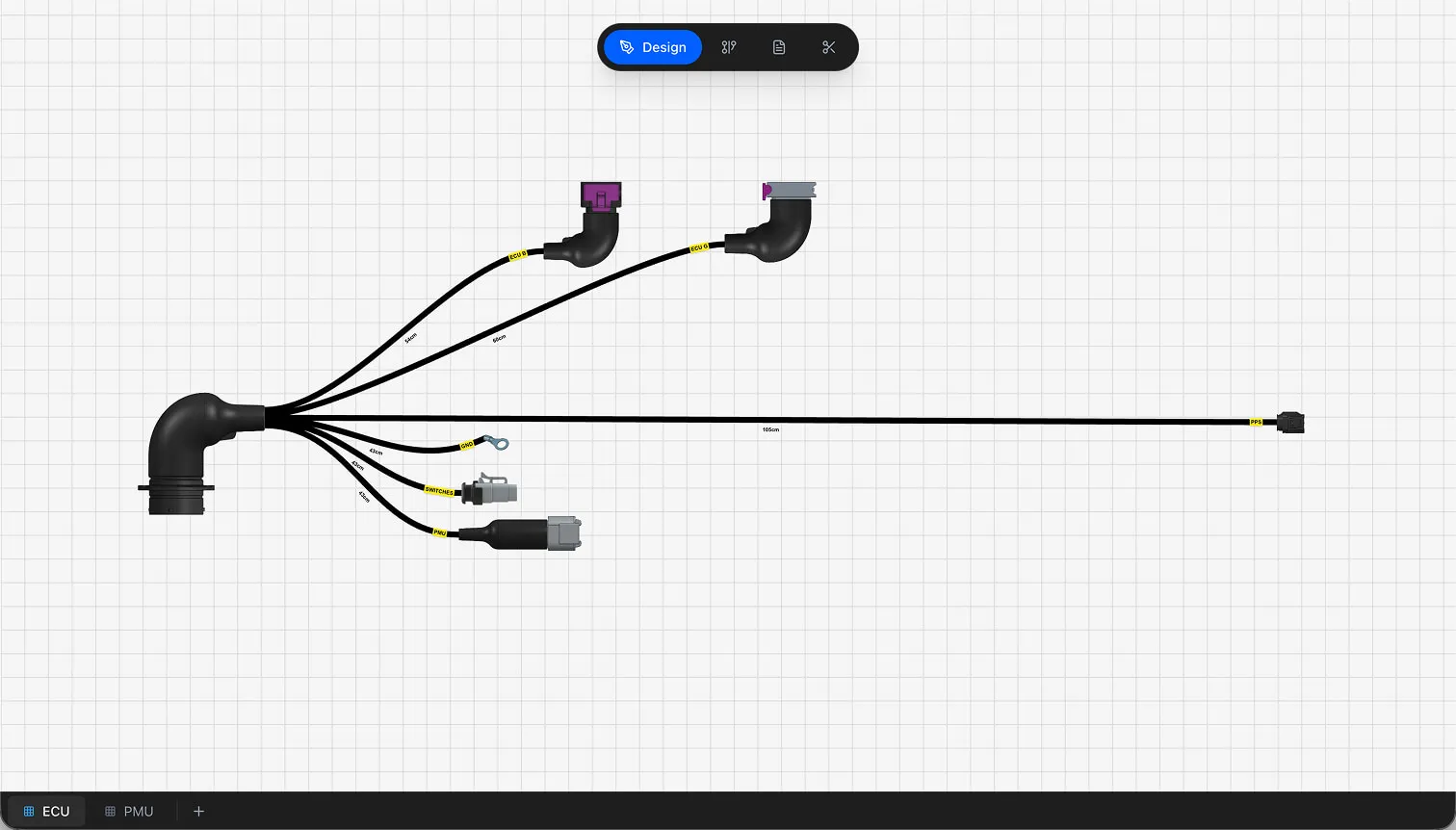
Learn more in the Design View guide.
Wiring View
The Wiring View is an electrical diagram editor for pin-to-pin wire connections. It renders connectors with their cavities and lets you route wires between specific pins. You can create twisted pairs, configure shielded/multicore cables, and use AI-powered auto-routing to generate wire paths automatically.
Learn more in the Wiring View guide.
BOM View
The BOM view generates a bill of materials table automatically from your design. It aggregates all parts — connectors, contacts, wires, seals, coverings, labels, and accessories — with quantities, unit prices, and totals. A price multiplier lets you add markup for overhead or profit.
Learn more in the BOM & Cut List guide.
Cut List View
The Cut List view calculates wire cut lengths from your design. Each wire connection gets a row with source, target, base length, and cut length (base length multiplied by a configurable safety margin). This gives your production team exact measurements for wire preparation.
Learn more in the BOM & Cut List guide.
Key Features
- Schematic canvas — Place and route components on a pan/zoom canvas with grid alignment and snap-to-connection. See Design View.
- Cable curve shaping — Reshape cables with waypoints and tangent handles for clean, precise routing. See Design View.
- Pin-to-pin wiring — Assign wires to specific connector cavities with contacts, seals, and color codes. See Pin Configuration.
- Network names — Name connected groups of wires to identify circuits, with automatic propagation across the entire network. See Wiring View.
- Twisted pairs and shielded cables — Group wires into twisted pairs or configure multicore shielded cables with strand mapping and per-strand colors. See Cable Shielding.
- Cable layer editor — Assign wires to concentric layers with lay direction and filler wires for accurate cable construction. See Cable Shielding.
- Reusable components — Save harness sub-assemblies as reusable components and insert them into any project with a single click. See Reusable Components.
- Parts library — Manage connectors, wires, contacts, and 16+ part categories with AI-assisted image and description generation. See Parts Library.
- Auto-generated BOM — Bill of materials with quantities, pricing, and multipliers calculated from your design data. Edit parts directly from the BOM table. See BOM & Cut List.
- Wire cut list — Cut lengths with configurable safety margin for wire preparation. See BOM & Cut List.
- Multi-sheet projects — Organize complex harnesses across multiple sheets. See Sheets & Workspaces.
- PDF export — Generate production documents with selectable views, sheets, and column toggles. See PDF Export.
- Wire color marking — Assign heat shrink color codes to wires for identification. See Wire Colors and Marking.
- Team collaboration — Share projects and parts libraries within organizations. See Collaboration.
- Project settings — Configure units, multipliers, and marker lengths per project. See Project Settings.
- Keyboard shortcuts — Canvas navigation and editing shortcuts. See Keyboard Shortcuts.
- Excel import — Drop in a harness spreadsheet and an AI agent builds a project from it — components, wiring, cables, and pin assignments. See Excel Import.
Why Wiring Studio
Traditional wire harness design relies on enterprise CAD platforms that require local installation, expensive licenses, and significant training. Wiring Studio takes a different approach.
- Browser-based — No installation. Open your browser and start designing. Works on any platform with a modern browser.
- Real-time BOM and cut lists — Parts, quantities, and wire lengths update automatically as you design. No manual counting or spreadsheet exports.
- Integrated parts library — Manage your component inventory in the same tool where you design. AI can generate part images and descriptions from manufacturer data.
- Cloud-based projects — Your designs are stored in the cloud with real-time sync. Access them from any device.
- Team collaboration — Organizations share projects and parts libraries. Multiple team members can work on the same project simultaneously.
- Affordable — Free tier for evaluation. Paid plans for individuals and teams at a fraction of enterprise CAD pricing. See Pricing and Plans.
Getting Started
If you are new to Wiring Studio, start with the Getting Started guide. It walks you through account creation, project setup, and building your first wire harness from scratch.
For specific topics, use the feature guides linked throughout this page. Each guide covers one area of the application in detail with step-by-step instructions and reference tables.