BOM & Cut List
Wiring Studio generates a Bill of Materials (BOM) and a Cut List automatically from your design and wiring data. Both views update in real time as you add components, assign wires, and set cable lengths. Switch to the BOM or Cut List view using the Floating Toolbar at the top of the workspace.
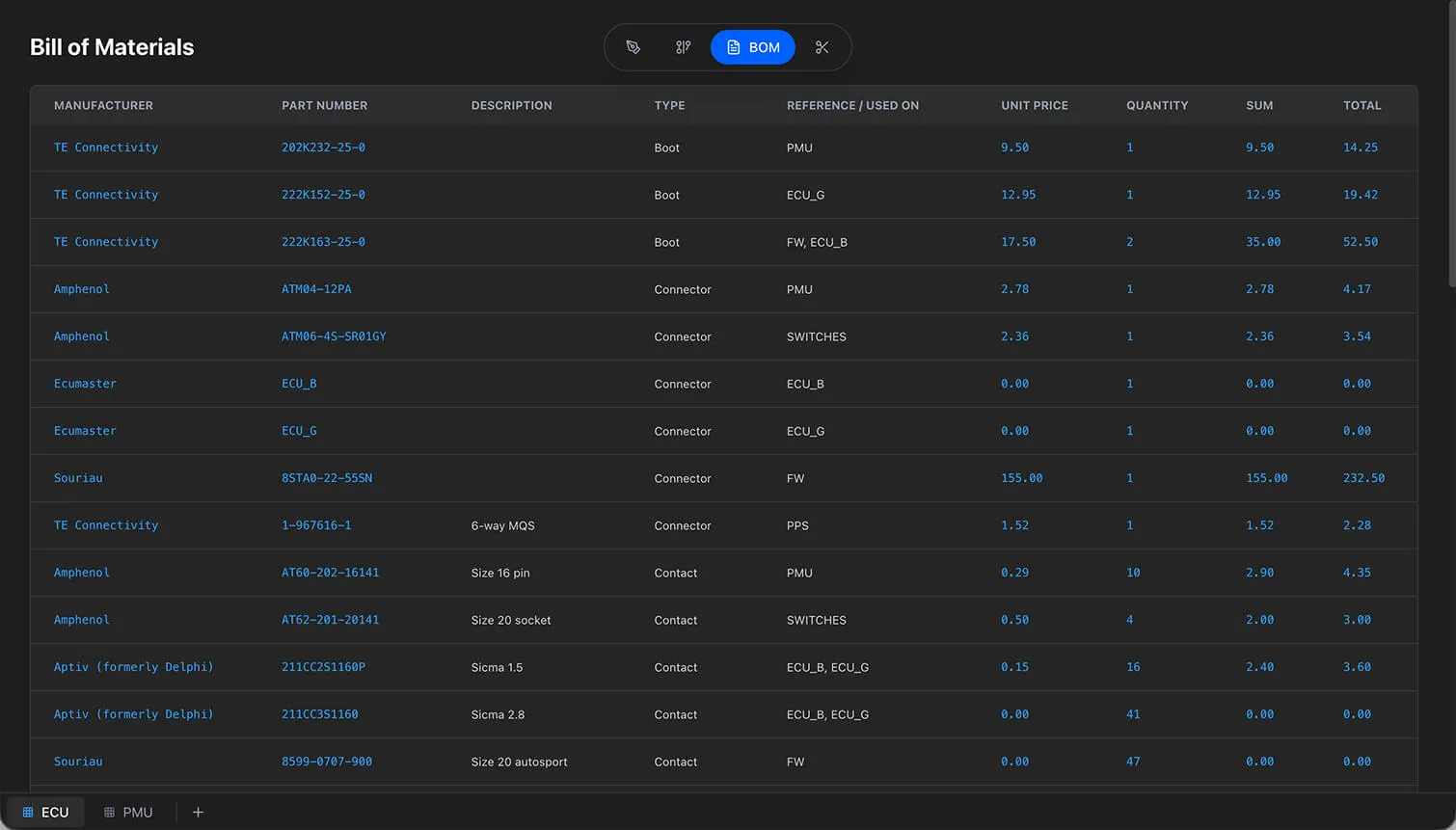
Bill of Materials
The BOM view aggregates every part used in your project into a single table with quantities, pricing, and totals.
What the BOM Includes
The BOM pulls data from two sources:
- Components — Connector parts, contacts, wire seals, wires, coverings, heat shrink markers, and labels assigned through Pin Configuration
- Extra parts — Accessories (boots, backshells, locks, ferrules) added to components and shielded cables
Parts are grouped by part ID. If the same wire part is used across multiple connections, it appears as a single BOM row with the total quantity aggregated.
BOM Table Columns
| Column | Description |
|---|---|
| Manufacturer | Part manufacturer from the Parts Library |
| Part Number | Manufacturer's part number |
| Description | Part description |
| Type | Category name (e.g., "Connector", "Wire", "Contact", "Heat Shrink") |
| Reference / Used On | Component name(s) using this part |
| Unit Price | Price per unit, with suffix for length-based parts (e.g., "/ft", "/m") |
| Quantity | Count or total length with unit |
| Sum |
Unit Price x Quantity
|
| Total |
Sum x Price Multiplier
|

BOM Calculations
Quantity calculation:
- Count-based parts (connectors, contacts, seals) — Simple count of how many times the part is used
- Length-based parts (wires, coverings, heat shrink, labels) — Sum of all assigned lengths across connections
Pricing formulas:
Sum = Unit Price x Quantity
Total = Sum x Price Multiplier
The Price Multiplier is set in Project Settings (default: 1.05, adding 5%). Use it for material markup, overhead costs, or profit margin.
For wires specifically, the Cutlist Multiplier is applied to the wire length before the BOM calculates the quantity. This ensures the BOM reflects the actual cut lengths rather than the design lengths.
Unit Display
Length quantities display according to your project unit setting:
- Metric — Auto-converts: mm if < 1 cm, cm for standard lengths, m if > 100 cm
- Imperial — Fractional inches (e.g., "3 1/4", "7/8", "12 3/8")
Rounding is applied to 2 decimal places.
Summary Row
The bottom of the BOM table shows grand totals:
- Sum total — Sum of all Sum values
- Grand total — Sum of all Total values (with price multiplier applied)
Tip
Use the price multiplier in Project Settings to calculate material cost with markup. Set it to 1.0 for raw material cost, or 1.10 for a 10% markup.
Cut List
The Cut List view lists every wire connection with its cut length, giving your production team exact measurements for wire preparation.
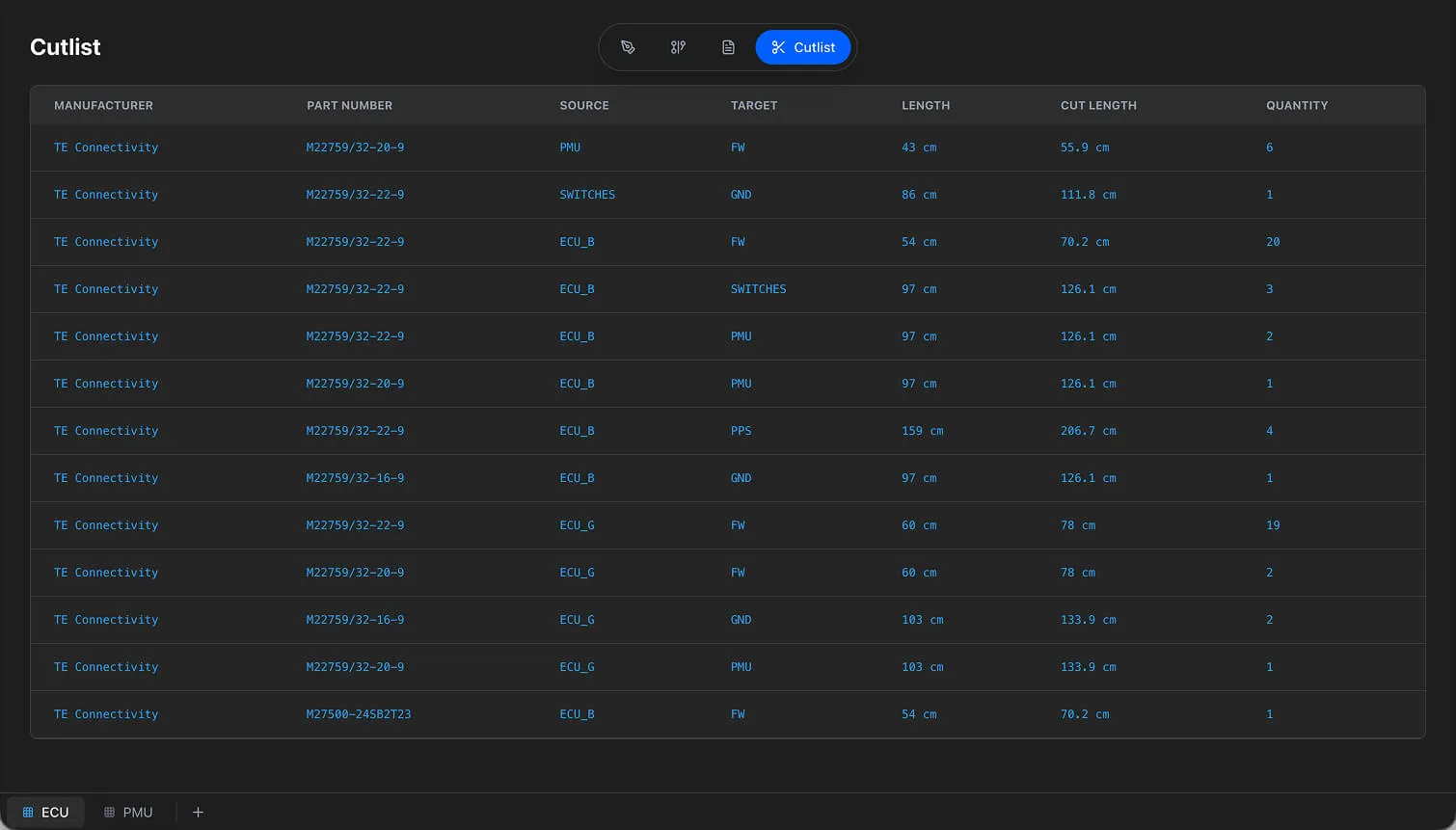
What the Cut List Includes
The cut list shows only wiring edges that have a wire part assigned. Each unique source-to-target wire connection gets one row. If no wires have been assigned in Pin Configuration, the cut list is empty.
Cut List Table Columns
| Column | Description |
|---|---|
| Manufacturer | Wire manufacturer from the library |
| Part Number | Wire part number |
| Source | Source component name |
| Target | Target component name |
| Length | Base wire length from the design |
| Cut Length |
Length x Cutlist Multiplier
|
| Quantity | Number of identical connections |
Wire Length Calculation
Wire lengths come from the cable length property set in the Design View. If no length is set on a cable, the system calculates the Euclidean distance between the connected components.
The Cutlist Multiplier adds a safety margin to every wire:
Cut Length = Base Length x Cutlist MultiplierThe default cutlist multiplier is 1.05 (5% extra). This accounts for termination length, routing slack, and stripping waste. Adjust it in Project Settings.
Tip
Set the cutlist multiplier to 1.0 for exact lengths, or increase it to 1.10 for longer harnesses where routing slack is significant.
Shielded Cable Handling
Shielded cables appear in the cut list with their individual strands listed as separate entries. Each strand gets its own row with source, target, and cut length. Shield connections (drain wires) are tracked separately from strand conductors.
See Cable Shielding for details on multicore cable configuration.
Unit Conversion
All lengths are stored internally as both centimeters and inches. The display format follows the project unit setting:
- Metric — Centimeters or meters (auto-converted based on magnitude)
- Imperial — Fractional inches
Switching units in Project Settings changes the display format without affecting the stored values.
Editing Parts from the BOM
Click any part number in the BOM table (displayed in blue) to open the part editor directly. This lets you update part properties — manufacturer, description, pricing — without leaving the BOM view or navigating to the Parts Library separately. Changes apply immediately to all references across your project.
Filler Wires
Filler wires added through the Cable Layer Editor are included in both the BOM and Cut List. Filler wire quantities and lengths are calculated from the cable edge length, matching the actual cable run in your design. This ensures accurate material costing for concentrically twisted cable assemblies.
Empty States
When no data is available:
- BOM — Shows an empty state message prompting you to add components and assign parts
- Cut List — Shows an empty state message prompting you to configure wire connections in Pin Configuration
Exporting BOM and Cut List
Both the BOM and Cut List can be included in your PDF export. The export dialog lets you toggle individual columns on or off, so you can produce focused documents — for example, a BOM without pricing for client distribution, or a cut list with only source, target, and cut length for the shop floor.