Wire Colors and Marking
Wiring Studio supports a color coding system for wire identification using heat shrink markers. Each wire connection can carry one or more color code bands that identify it at termination points. Color codes are assigned in Pin Configuration, rendered visually in the Wiring View, and tracked in the BOM with material quantities.
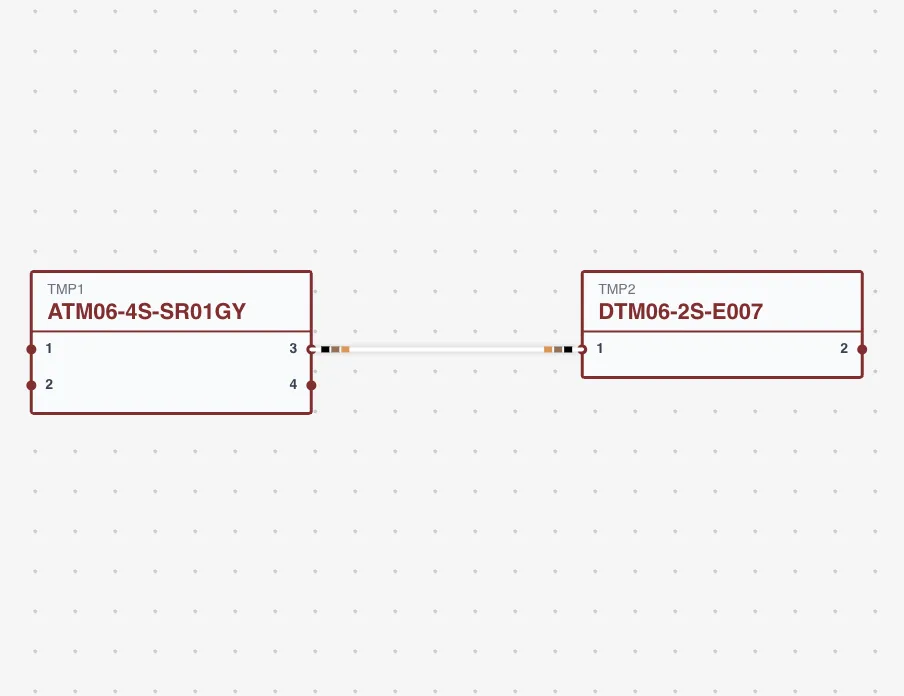
Color Code Assignment
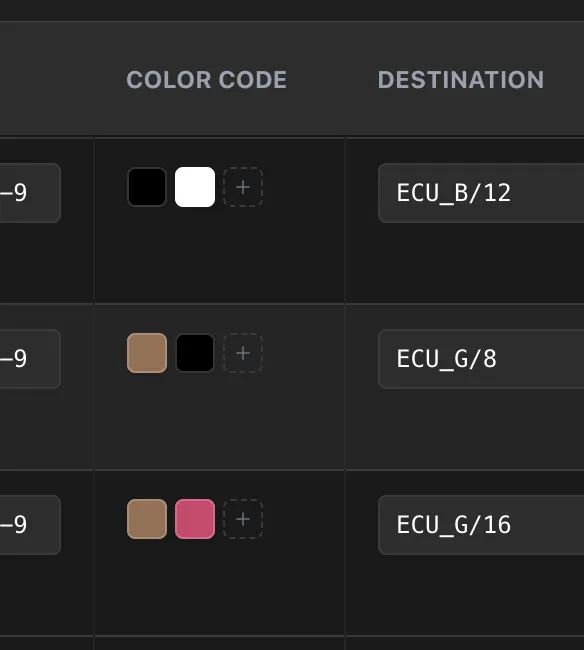
Color codes are assigned per wire connection in the Pin Configuration dialog.
Adding Color Codes
- 1
Open Pin Configuration for a component
- 2
Find the wired cavity row
- 3
Click the Color Code column
- 4
Select one or more Heat Shrink parts from the Parts Library
- 5
Each selected part adds a color band to the wire
You can add multiple markers to a single wire connection for multi-band identification schemes. The order of color code parts determines the band order on the wire.
Tip
Multi-band color codes are useful in systems with many wires of the same gauge and color. A two-band scheme (e.g., red-white, red-blue, red-green) can identify dozens of individual circuits.
Heat Shrink Parts
Color code markers use Heat Shrink parts from the Parts Library. Each heat shrink part has:
- Manufacturer — Part manufacturer
- Part Number — Manufacturer's part number
- Description — Part description
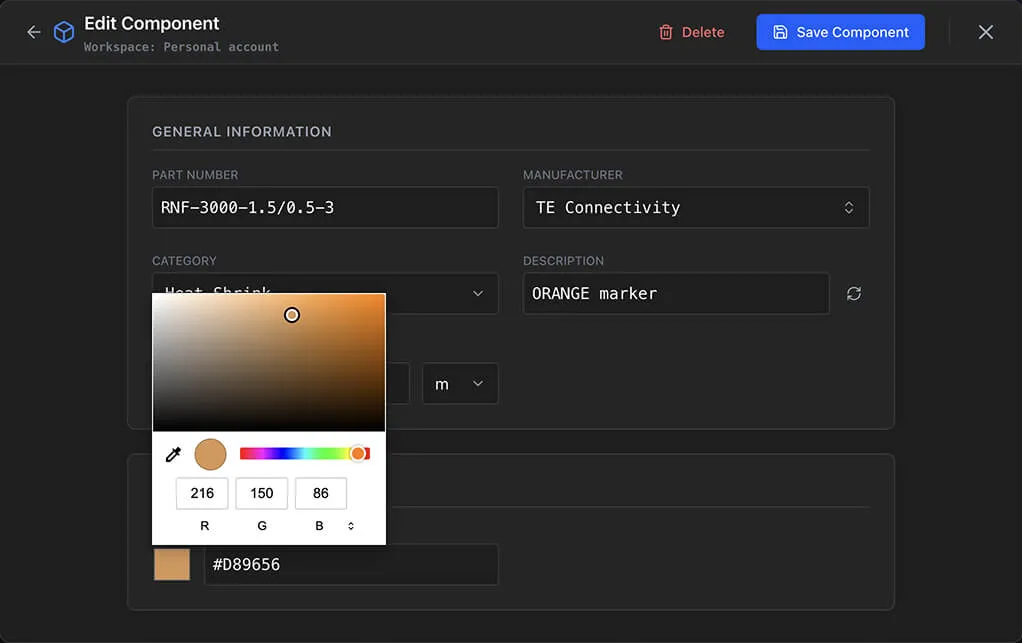
- Color — The marker color (stored as a CSS/hex value, e.g., "#FF0000" for red)
- Price — Per millimeter (length-based pricing)
Creating Heat Shrink Parts
- 1
Open the Parts Library
- 2
Click Add Part and select Heat Shrink
- 3
Enter manufacturer, part number, and description
- 4
Set the Color to match the actual marker color
- 5
Set the price per mm
- 6
Save
Create one heat shrink part per color in your marking system. A typical set might include red, blue, green, yellow, white, black, orange, and brown.
Marker Length
The Marker Length setting in Project Settings controls the length of each color code marker.
- Metric default — 4 mm
- Imperial default — 0.75 inches
This value determines:
- How much heat shrink material is used per marker
- The BOM quantity calculation for heat shrink parts
Adjust the marker length to match your actual heat shrink sleeve length. If your process uses 6 mm sleeves, set the marker length to 6 mm.
Visual Rendering in Wiring View
Color code markers appear as colored strips or bands on wires in the Wiring View. The rendering matches the color property of each heat shrink part.
- Single-band — One colored strip near the wire termination
- Multi-band — Multiple colored strips in sequence along the wire
- Order — Bands appear in the order they were assigned in Pin Configuration
This visual representation matches the physical marking system, making the wiring diagram a direct reference for assembly technicians.
Wire Base Colors
Separate from color code markers, each wire part in the Parts Library has a base color property.
- Purpose — Represents the wire insulation color
- Storage — CSS/hex color string (e.g., "#000000" for black, "#FF0000" for red)
- Rendering — The wire stroke color in the Wiring View uses this base color
- Distinction — Base wire color is a permanent property of the wire part. Color code markers are per-connection overlays.
When viewing the wiring diagram, the wire line color reflects the base color, and the heat shrink marker bands overlay it at termination points.
Color Codes in the BOM
Heat shrink color code parts appear as line items in the BOM.
- Grouping — Heat shrink parts are grouped by part ID (same as all other BOM items)
- Quantity
— Calculated as:
number of connections x marker length - Unit — Displayed in project units (mm or inches)
- Pricing
—
Unit Price x Quantityfor the Sum column, then multiplied by price multiplier for Total
For example, if a red heat shrink marker is used on 10 wire connections and the marker length is 4 mm, the BOM shows a quantity of 40 mm (or 4 cm) for that heat shrink part.
Twisted Pair Group Colors
The Wiring View uses a separate color system for twisted pair groups. These colors are visual indicators only and are not related to physical wire marking.
- Assignment — Random color from a palette when wires are twisted
- Palette — 10 colors: red, teal, blue, green, yellow, plum, mint, gold, purple, light blue
- Purpose — Distinguish twisted pair groups visually on the diagram
- Not physical — Group colors do not represent heat shrink or wire color
Do not confuse twisted pair group colors with color code markers. Group colors are purely a diagramming aid.
Best Practices
- Establish a standard — Define your wire color coding scheme before starting a project. Create all heat shrink parts in the Parts Library upfront.
- Use multi-band codes — For systems with many wires, a two or three-band scheme provides more unique combinations than single-band.
- Match physical process — Set the marker length in Project Settings to match your actual heat shrink sleeve length.
- Review before export — Check color codes in the Wiring View before generating a PDF export. Verify that bands are visible and correctly assigned.
- Consistent across team — When working in an organization, use the shared parts library to ensure all team members use the same heat shrink parts and colors.