Getting Started
This guide walks you through creating an account, setting up your first project, and building a basic wire harness in Wiring Studio. By the end, you will have a working design with connectors, cables, pin assignments, and an auto-generated bill of materials.
Sign Up
Navigate to Wiring Studio and click Sign Up. Enter your email address and we will send you a one-time password (OTP) to verify your account. No credit card is required — the free plan includes 3 projects to get started.

The Projects Page
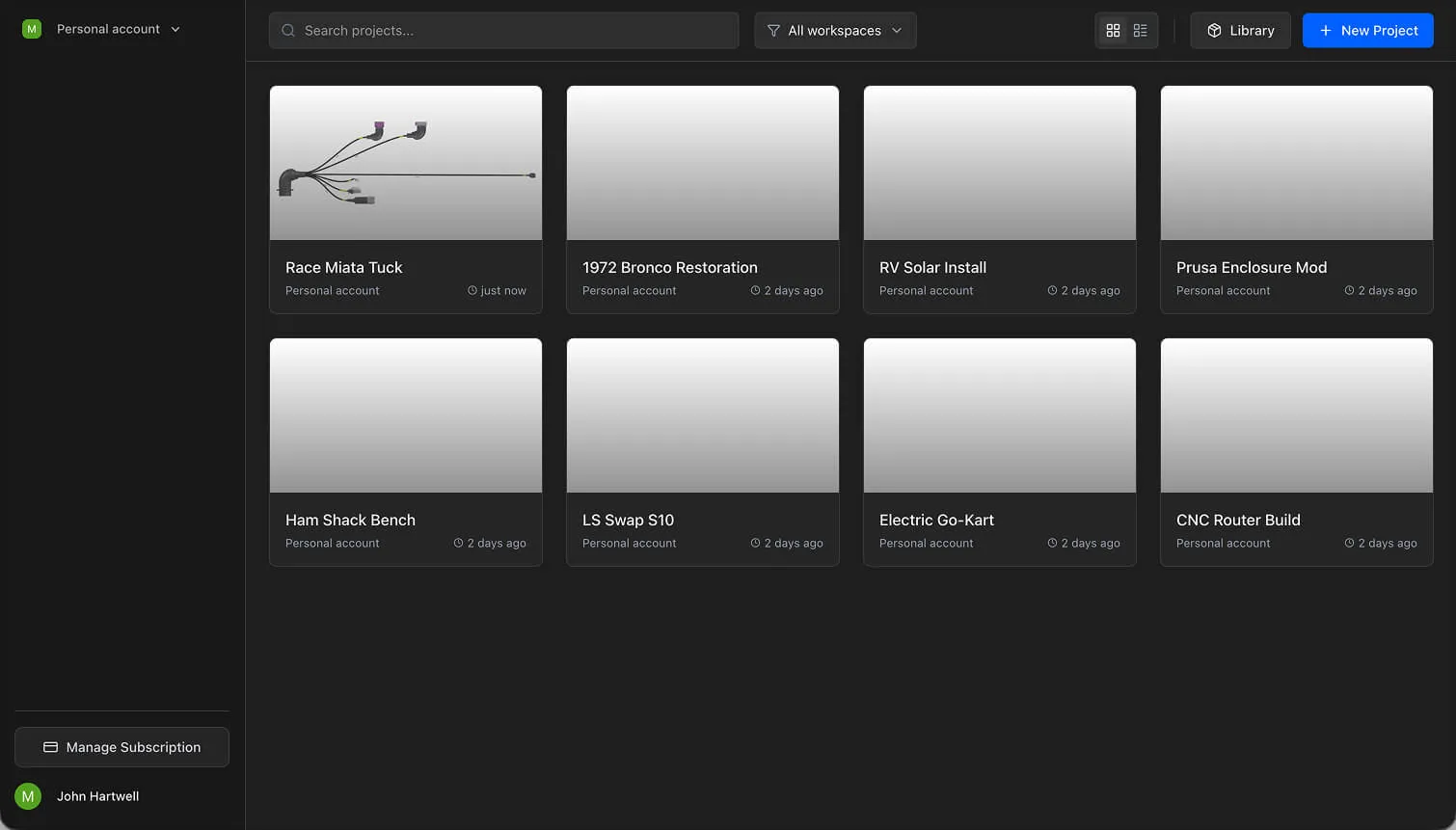
After signing in, you land on the Projects page. This is your project dashboard.
Views and Filtering
- Grid view — Displays projects as cards with thumbnails and last-modified dates
- Table view — Displays projects in a compact list format
- Search — Filter projects by name using the search bar
- Workspace filter — Switch between Personal projects and Organization projects
Project Cards
Each project card shows the project name, a canvas thumbnail, and the last modified date. Click a card to open the project editor.
Creating a Project
Click the New Project button in the top-right corner of the Projects page. Wiring Studio creates a new project with a default name and opens the editor immediately. You can rename the project later in Project Properties.
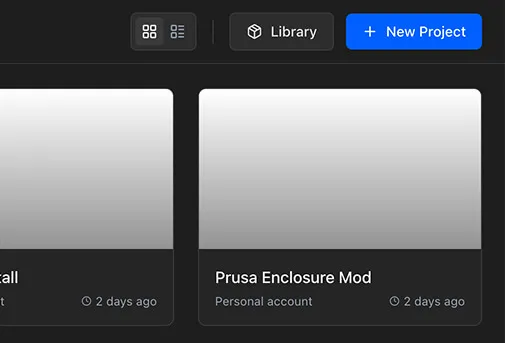
Each new project starts with one sheet and metric units by default. You can change units and other settings in Project Settings.
Tip
Already documenting this harness in a spreadsheet? Use Excel Import instead — drop in your workbook and an AI agent builds the project for you, so you don't have to re-enter components and wiring by hand.
The Project Editor
The project editor is your main workspace. It has three key areas.
Floating Toolbar
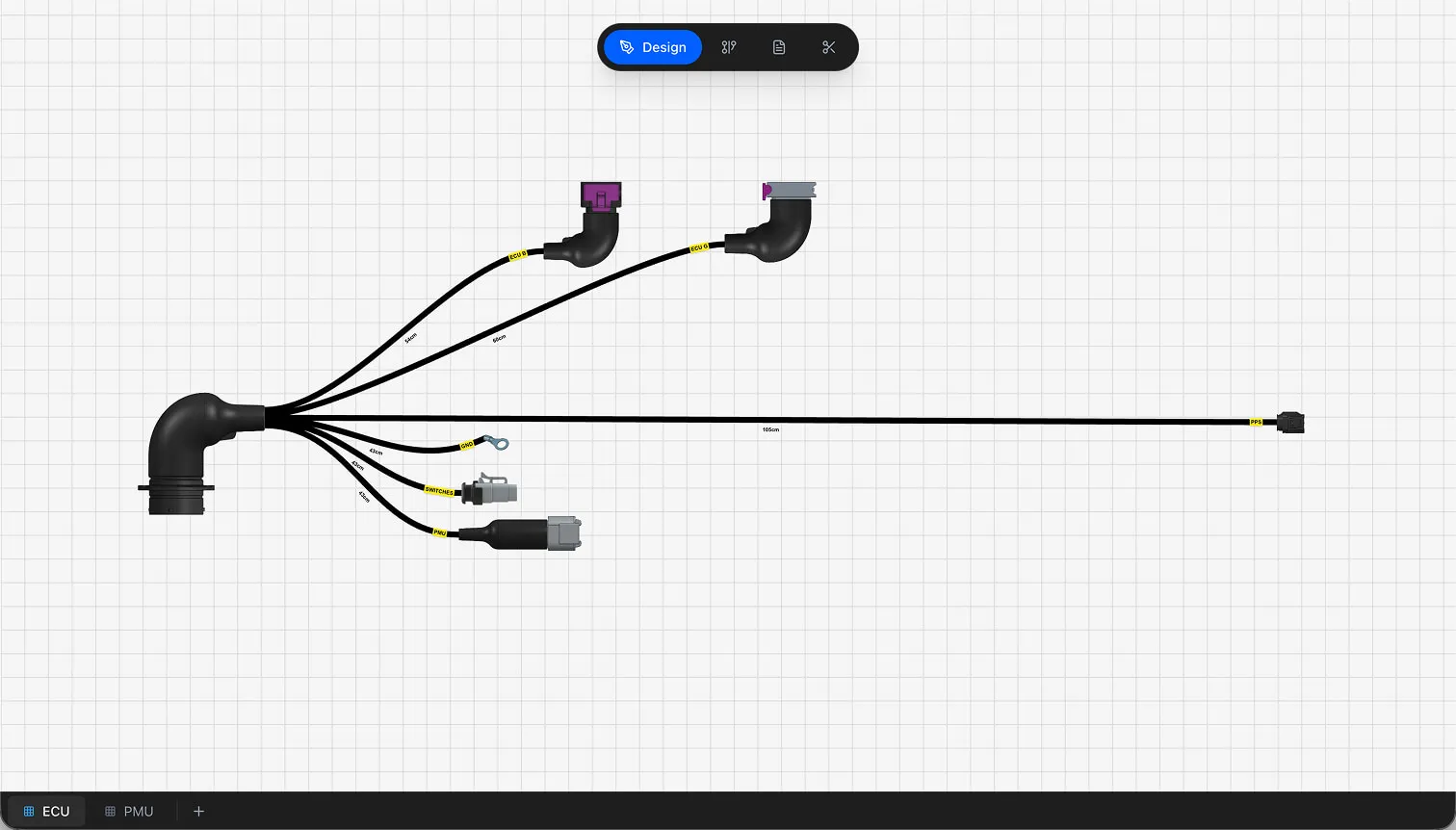
The Floating Toolbar sits at the top center of the workspace. It contains four view buttons:
- Design — Schematic layout canvas
- Wiring — Pin-to-pin electrical diagram
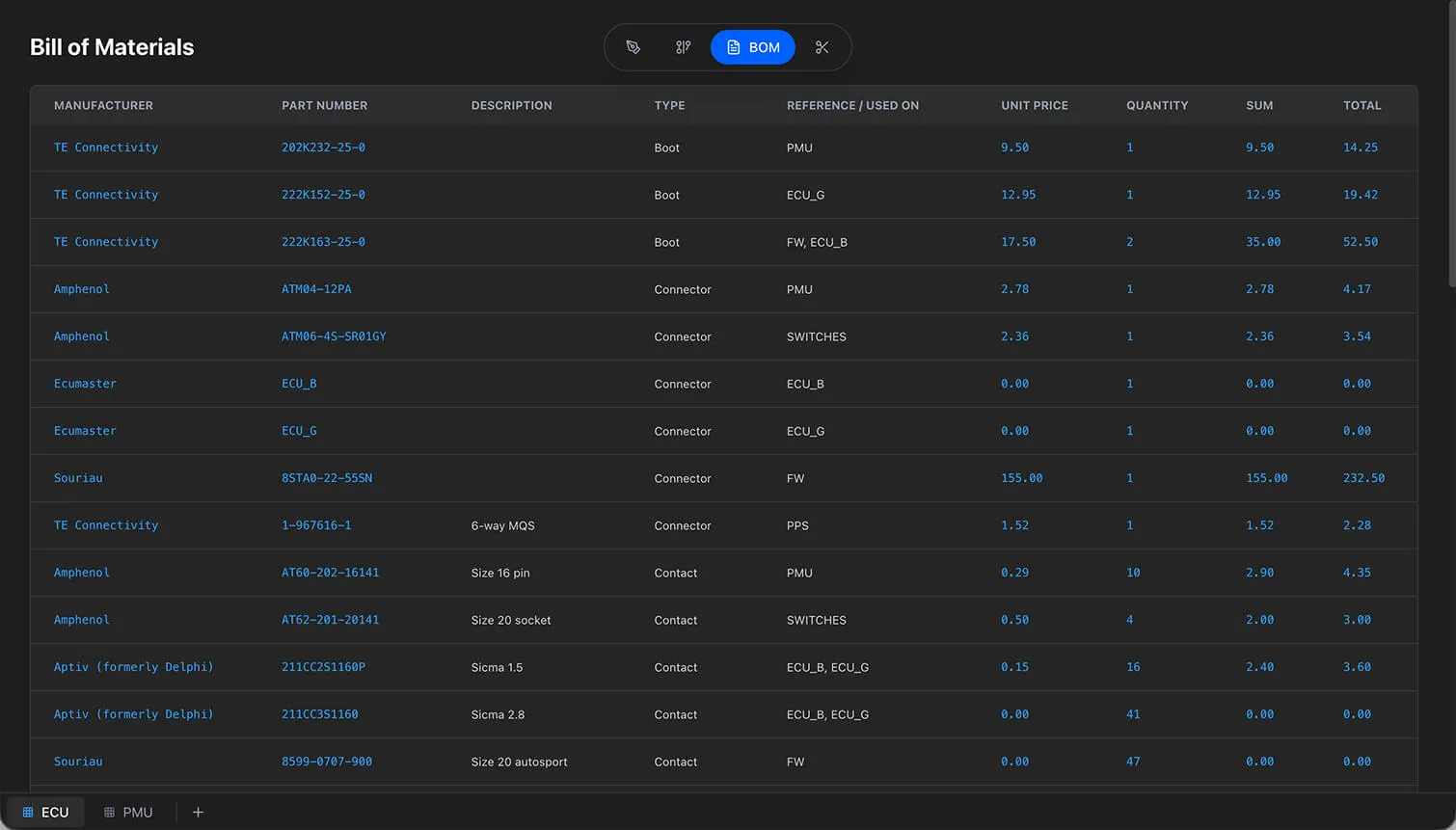
- BOM — Bill of materials table
- Cutlist — Wire cut list table
Click a button to switch between views. The active view is highlighted.
Canvas
The Canvas occupies the main workspace area. In Design View and Wiring View, it is a pan/zoom canvas where you build your harness.
- Pan — Click and drag on an empty area to move the viewport
- Zoom — Scroll the mouse wheel to zoom in andout
- Grid — A reference grid helps you align components
Sheet Bar
The Sheet Bar at the bottom of the workspace shows your project sheets as tabs. Click a tab to switch sheets. Double-click to rename. Use the + button to add new sheets (subject to plan limits).
Building Your First Harness
Follow these steps to create a basic two-connector harness with wired connections.
Step 1: Add Parts to the Library
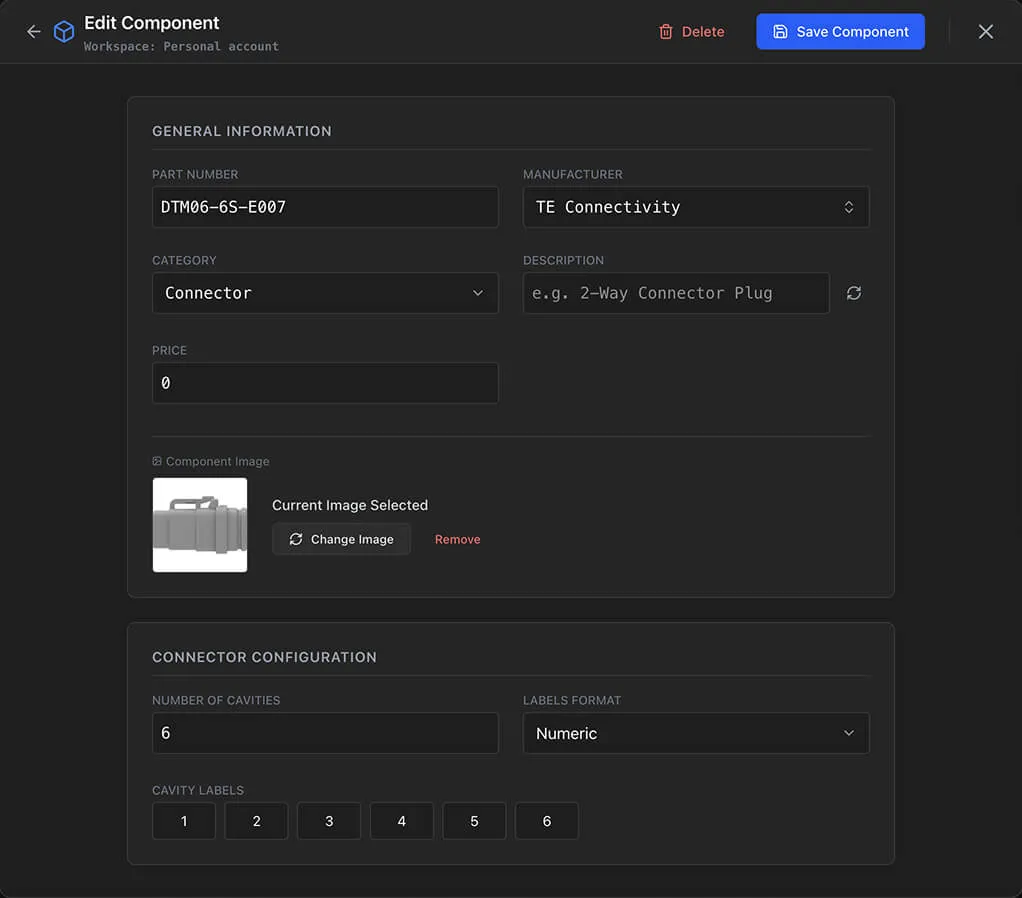
Open the Parts Library from the toolbar. You need at least two parts to start: a connector and a wire.
- 1
Click Add Part and select the Connector category
- 2
Enter a Manufacturer, Part Number, and Description (e.g., "Molex", "19418-0024", "24-Pin ECU Connector")
- 3
Set the Cavities count (e.g., 24)
- 4
Save the part
- 5
Repeat to add a Wire part — set gauge, color, and pricing
Tip
You can use AI to generate part images and descriptions. Click the AI button next to the image or description field.
See the Parts Library guide for details on all part categories and fields.
Step 2: Place Connectors on the Design Canvas
Switch to the Design View if not already active.
- 1
Right-click on the canvas to open the context menu
- 2
Select Add Connector
- 3
In the Component Dialog, enter a Name (e.g., "J1") and select your connector part from the library
- 4
Click Save — the connector appears on the canvas
- 5
Repeat to add a second connector (e.g., "J2")
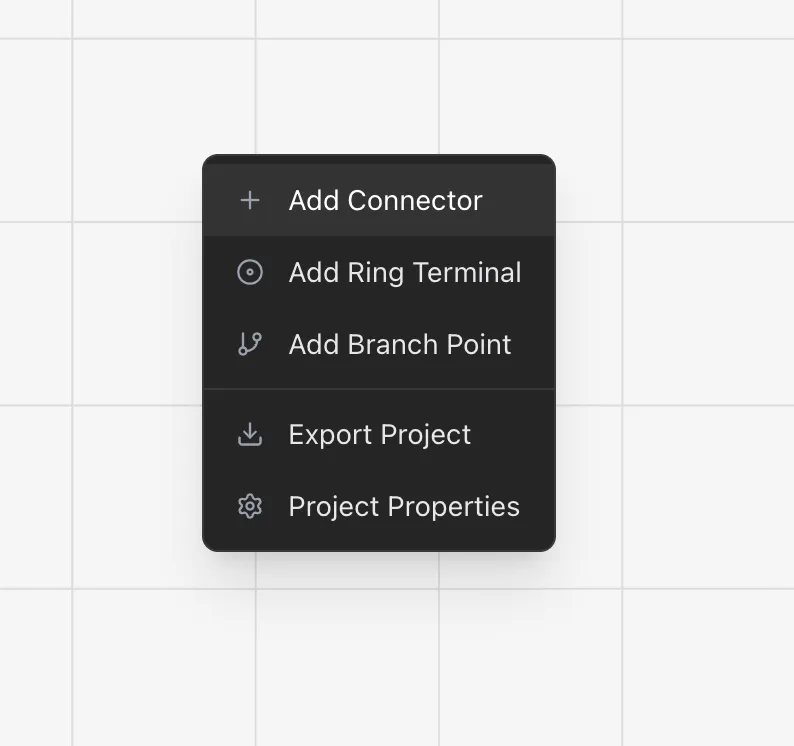
Drag connectors to position them on the canvas. Use right-click on a component for additional actions like Rotate, Flip, Duplicate, and Delete.
Step 3: Route a Cable
Connect the two connectors with a cable:
- 1
Click a connection point on J1 (a small circle on the component)
- 2
A dashed blue line follows your cursor
- 3
Move to a connection point on J2
- 4
Click to complete the connection — the cable snaps into place
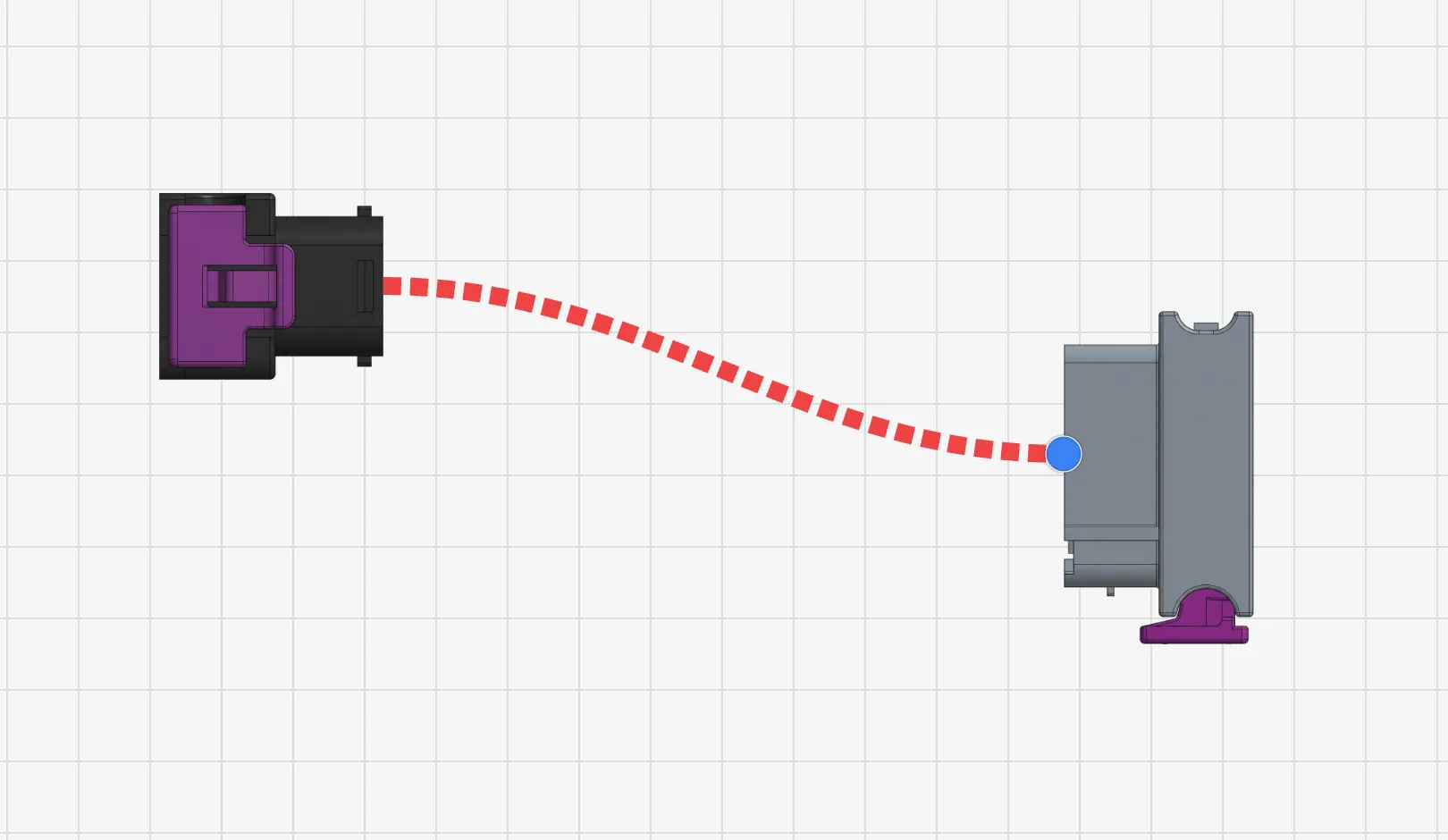
Right-click the cable to set its Length, Covering, and Labels. Cable length is used by the cut list for wire length calculations.
Step 4: Configure Pin Assignments
Right-click on J1 and select Pin Configuration. The Pin Configuration dialog shows a row for each cavity.
- 1
Select a Wire part for the first cavity
- 2
Optionally select a Contact part and Wire Seal
- 3
Add Color Code markers (heat shrink parts)
- 4
Set the Destination to J2 and choose the target cavity
- 5
Repeat for each wired cavity
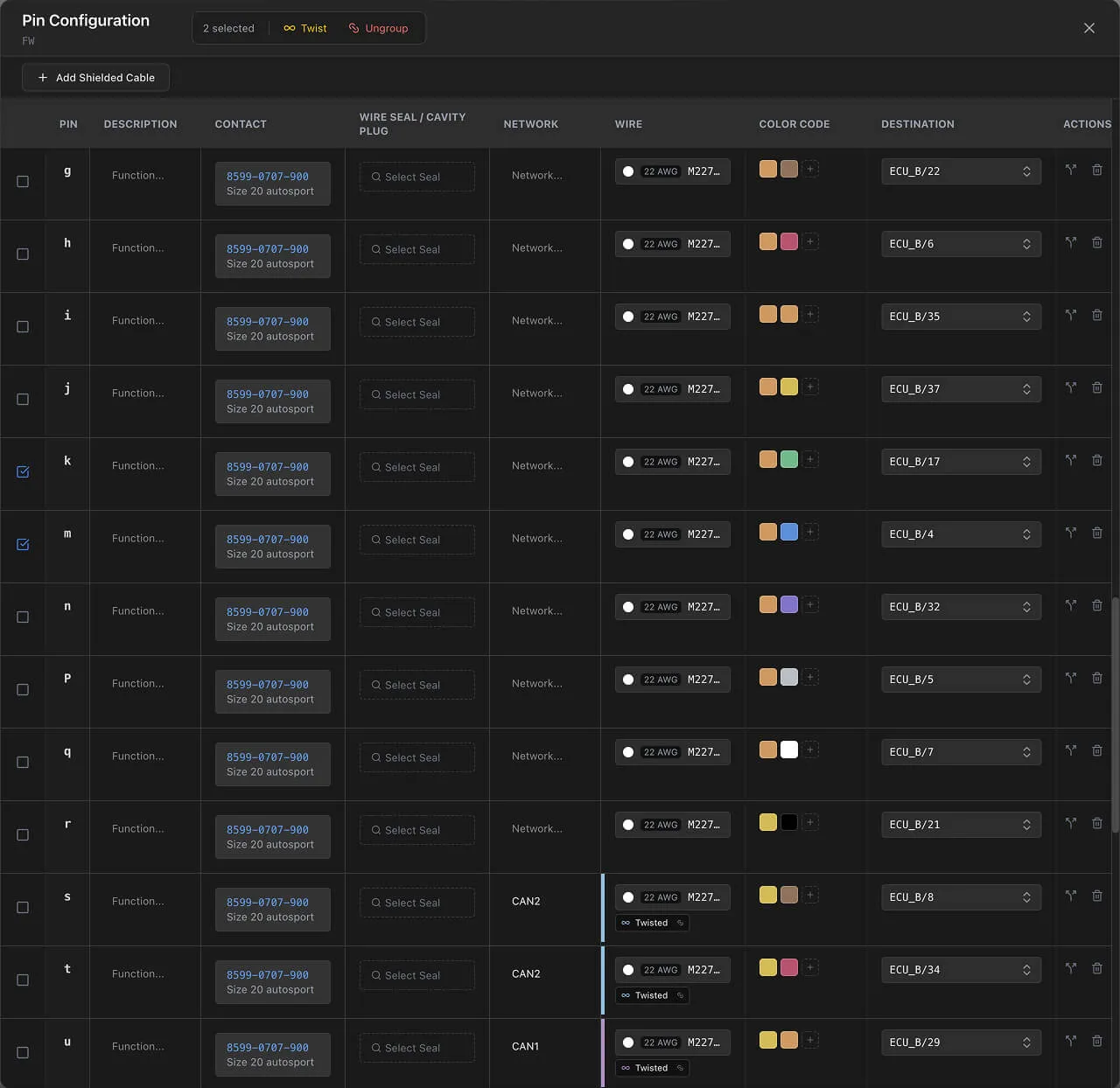
Changes propagate automatically to the Wiring View, BOM, and Cut List. See the Pin Configuration guide for details on double-crimp, twisted pairs, and shielded cables.
Step 5: Review the Wiring Diagram
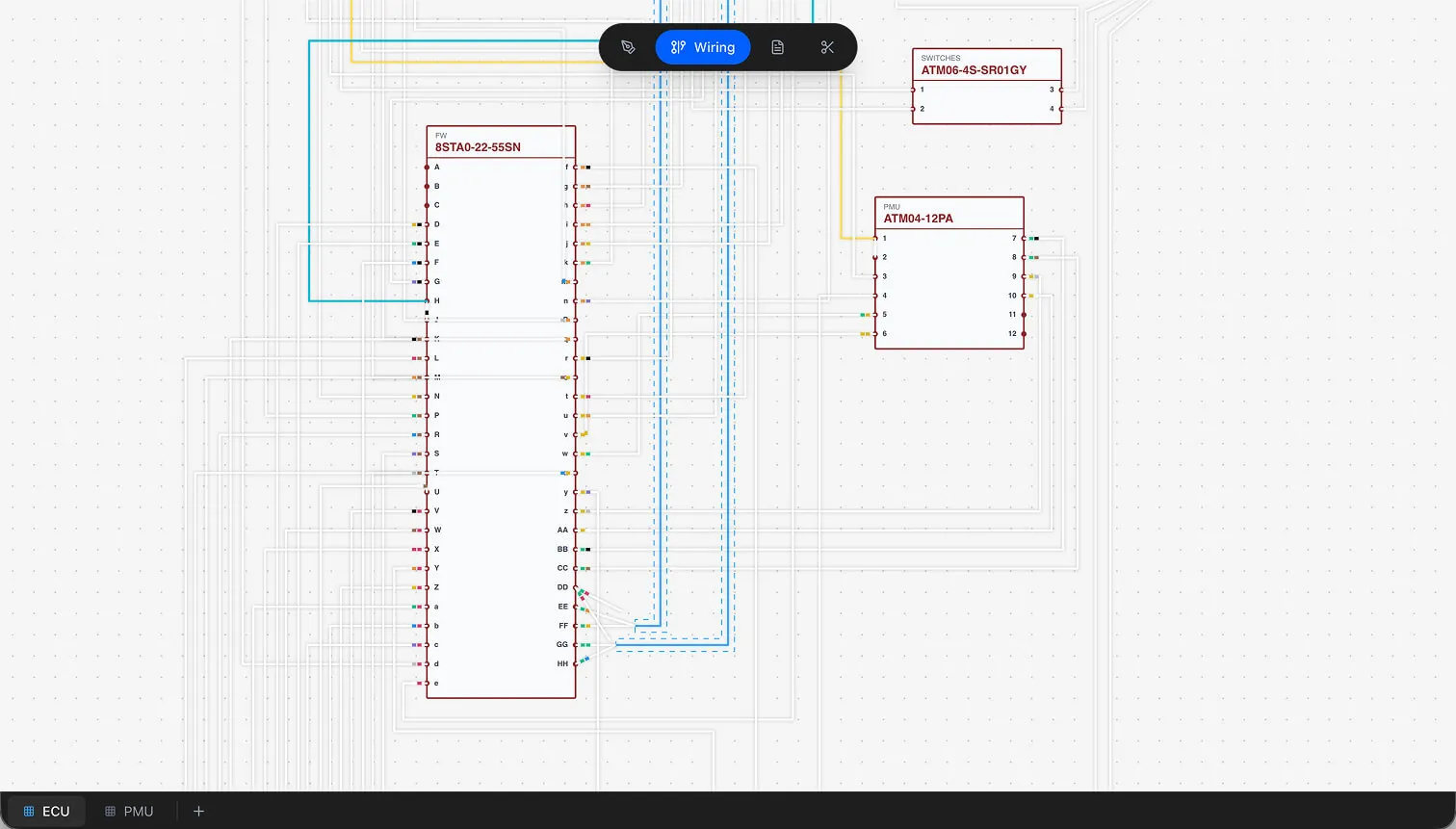
Switch to the Wiring View to see your pin-to-pin connections rendered as a schematic diagram. Wires route between specific cavities on each connector. You can drag polyline control points to adjust wire paths.
Step 6: Check BOM and Cut List
Switch to the BOM view. Wiring Studio aggregates all parts — connectors, wires, contacts, seals, color codes, and accessories — into a table with quantities, prices, and totals.
Switch to the Cut List view to see wire cut lengths. Each wire connection gets a row with source, target, base length, and cut length (multiplied by the cutlist safety margin).
Organizations
Wiring Studio supports team collaboration through Organizations. To work with a team:
- 1
Click the workspace dropdown in the header
- 2
Select Create Organization
- 3
Invite team members by email
- 4
Subscribe to the Team plan for editing access
Organization members share a common Parts Library and can access all org-owned projects. See Collaboration for details.
Next Steps
- Design View — Learn all canvas interactions, component types, and cable routing
- Parts Library — Manage your component inventory across 16+ categories
- Pin Configuration — Assign wires, contacts, and color codes at the cavity level
- Keyboard Shortcuts — Speed up your workflow with hotkeys