Pin Configuration
The Pin Configuration dialog is where you assign wires, contacts, and destinations at the cavity level. Every connector, diode, resistor, and splice in your design has a pin configuration that defines its electrical connections. These assignments drive the Wiring View,BOM, and Cut List automatically.
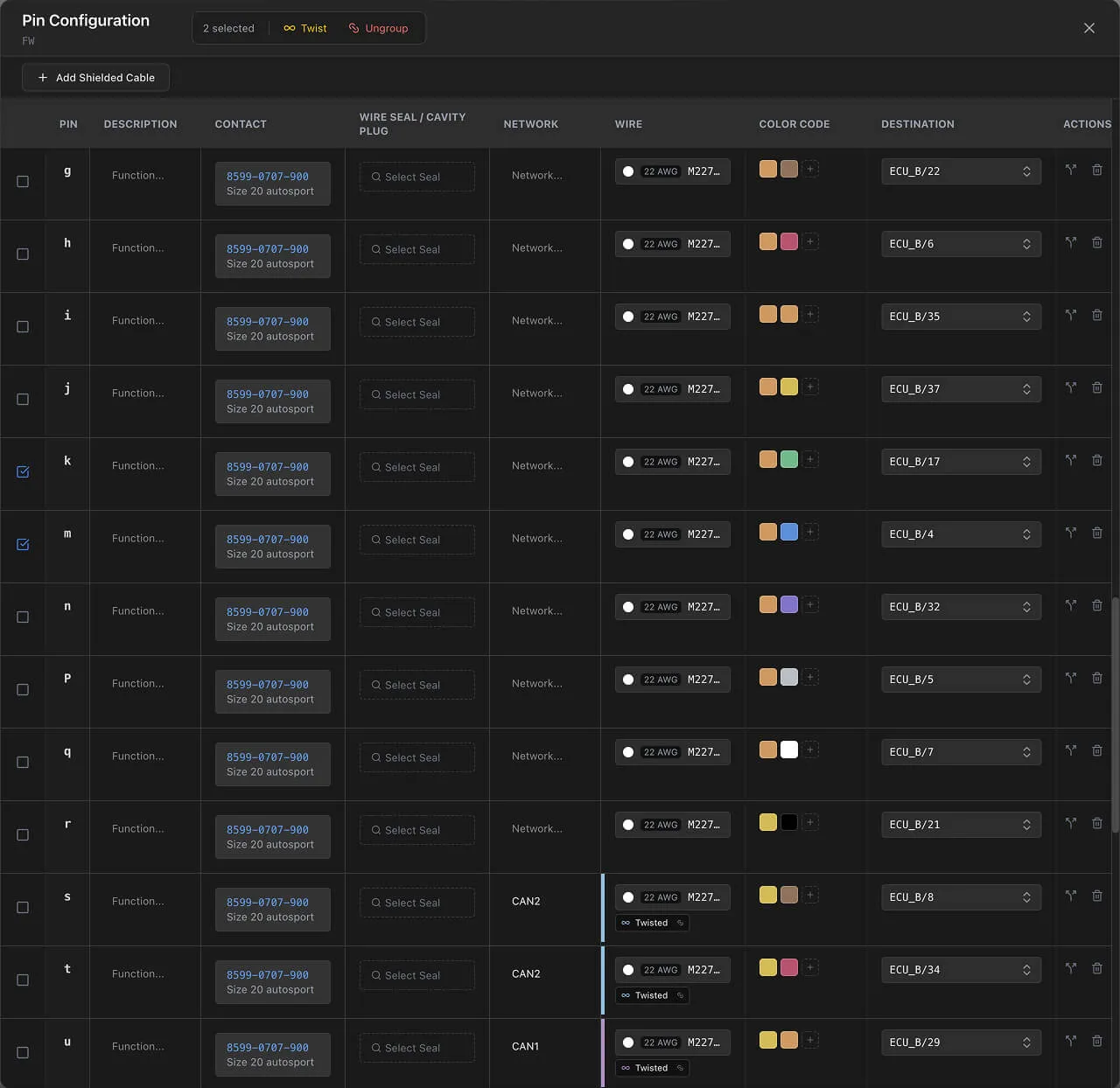
Opening Pin Configuration
Right-click a component on the canvas (in either Design View or Wiring View) and select Pin Configuration. The dialog is available for all connectable component types:
- Connectors — One row per cavity (based on the cavity count set in the Parts Library)
- Diodes — Two rows: Anode and Cathode
- Resistors — Two rows: Pin 1 and Pin 2
- Splices / Branch Points — Single row with cavity 0
Pin Configuration Table
The table has one row per cavity. Each row contains the following columns:

| Column | Description |
|---|---|
| Checkbox | Multi-select for twist and ungroup operations |
| Pin | Cavity number or label (alphabetic, numeric, or custom) |
| Description | Free-text notes for the pin's purpose (e.g., "12V Ignition", "CAN-H") |
| Contact | Contact part from the library, with gauge range validation |
| Wire Seal / Cavity Plug | Seal or plug part from the library |
| Wire | Wire part selection (gauge, color, shielded status) |
| Color Code | One or more heat shrink color markers |
| Destination | Target component and cavity dropdown |
| Actions | Row-specific operations |
Assigning Wire Connections
To wire a cavity:
- 1
Click the Wire cell and select a wire part from the Parts Library. The wire part defines gauge, color, and whether it is shielded.
- 2
Optionally click the Contact cell and select a contact part. Contacts have gauge range validation — the contact's min/max gauge must be compatible with the selected wire.
- 3
Optionally click the Wire Seal / Cavity Plug cell to select a seal or plug part.
- 4
Click the Color Code cell to add heat shrink color markers. You can add multiple markers for multi-band identification. See Wire Colors and Marking.
- 5
Click the Destination cell and select the target component and cavity from the dropdown.
When you set a destination, Wiring Studio creates a wiring edge that appears in the Wiring View. The wire, contact, seal, and color code parts all appear in the BOM.
Tip
Use the Description field to document each pin's function (e.g., "Ground", "Sensor Signal", "12V Supply"). This makes the pin configuration table a reference document for your harness.
Double-Crimp
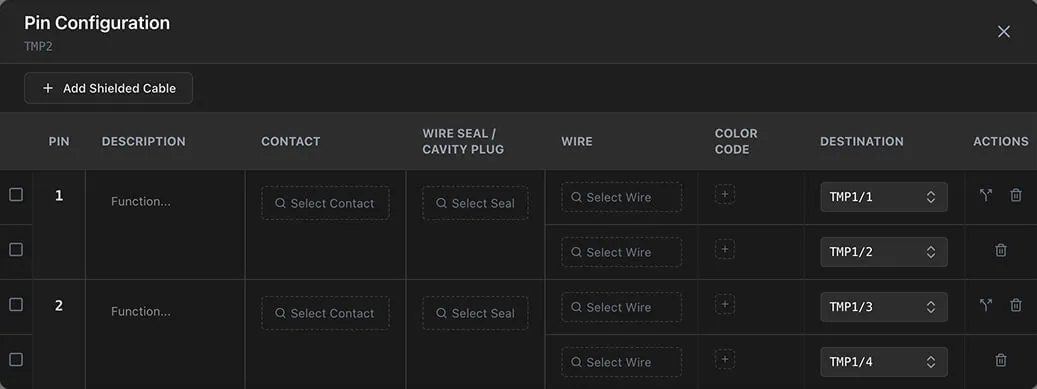
A single cavity can have multiple wire connections. This is called double-crimp — one contact crimped onto two or more wires.
- Each cavity row can expand to show multiple destination rows
- Each destination is a separate wiring edge with the same source cavity
- Add additional destinations by clicking the add button in the Actions column
Double-crimp is common when a single connector pin feeds multiple downstream connections, such as power distribution from one pin to several branch circuits.
Twisted Pairs
You can group wire connections into twisted pairs directly from the Pin Configuration dialog.
Creating a Twisted Pair
- 1
Check the Checkbox column on two or more wired cavity rows
- 2
A selection toolbar appears above the table
- 3
Click Twist to group the selected connections
Twist Behavior
- All ungrouped — Creates a new twisted pair group with a random color from the palette (10 colors)
- One existing group + ungrouped — Adds the ungrouped connections to the existing group
- Multiple groups — Merges all into a single new group, cleaning up orphaned old groups
Ungrouping
- 1
Check the grouped connections
- 2
Click Ungroup in the selection toolbar
- 3
Connections are removed from the group
- 4
If a group is left with only one connection, it is automatically dissolved
Twisted pair groups are visible in the Wiring View with a shared color indicator.
Shielded Cable Configuration
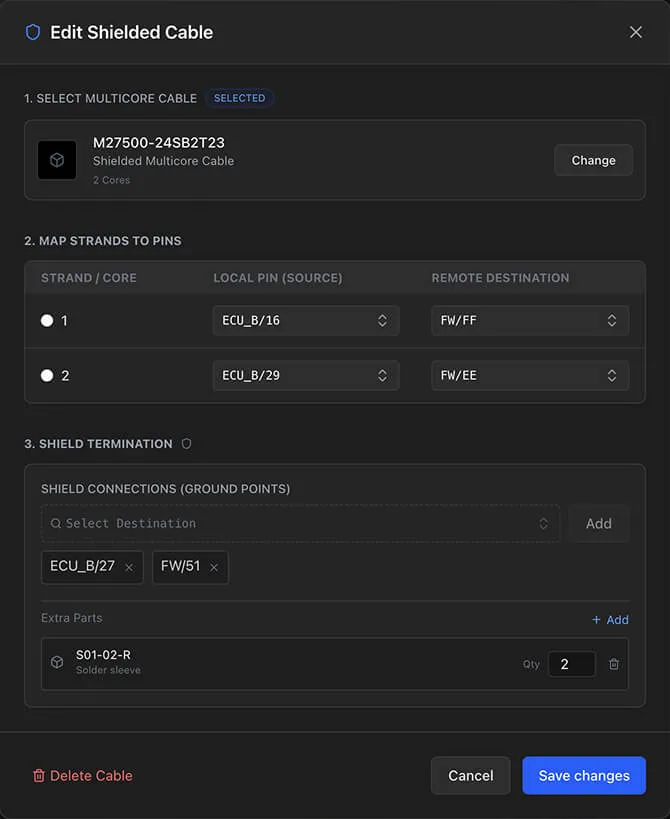
For multicore shielded cables, the Pin Configuration dialog provides a dedicated setup flow.
Adding a Shielded Cable
- 1
Click the Add Shielded Cable button at the bottom of the dialog
- 2
Select a shielded wire part from the library (the part must have isShielded enabled and a strandsCount defined)
- 3
The shielded cable dialog opens
Strand Mapping
Map each strand (inner conductor) to its source and destination:
- Source — Select the source component and cavity
- Destination — Select the target component and cavity
- Both source and destination are required for the strand to be created as a wiring edge
The strand index determines order within the cable.
Shield Termination
Shield connections use the special cavity
-1
to represent the cable shield. You can add multiple shield
terminations — for example, a drain wire connected to ground at both
ends of the cable.
Each shield connection is stored as a wiring edge and appears in the Wiring View with a distinct visual style.
Extra Parts
Attach accessories to the shielded cable assembly:
- Part — Select from the library (drain wires, ferrites, grommets, etc.)
- Quantity — Number of items
- Length — Optional length for length-based parts
Extra parts appear in the BOM with their quantities and pricing.
See the Cable Shielding guide for a detailed walkthrough.
How Changes Propagate
Pin configuration changes flow through the entire application:
- Wiring View — Wire connections, color codes, and twisted pair groups render automatically
- BOM — Wire parts, contacts, seals, heat shrink markers, and accessories appear with quantities and pricing
- Cut List — Wire connections with assigned parts generate cut list entries with lengths from the design
- Design View — Cable connections between components reflect the pin configuration
All propagation is automatic and real-time. There is no manual sync step.
Info
Pin configuration changes are applied immediately. There is no undo for pin configuration edits — review your changes carefully before closing the dialog.