PDF Export
Wiring Studio exports your project as a professional PDF document that includes design layouts, wiring schematics, bills of materials, and cut lists. Use the export to produce production documentation, client deliverables, or archival records.
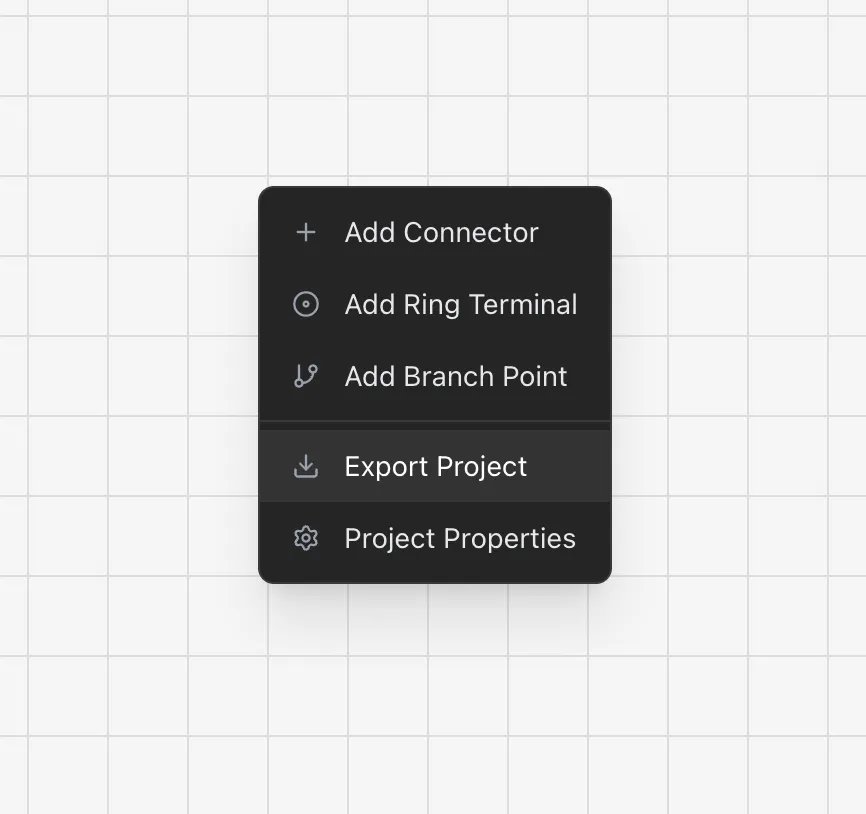
Opening the Export Dialog
Right-click anywhere on the canvas and select Export Project, or use the export option in the floating toolbar. The Export Dialog opens with configuration options for your PDF.
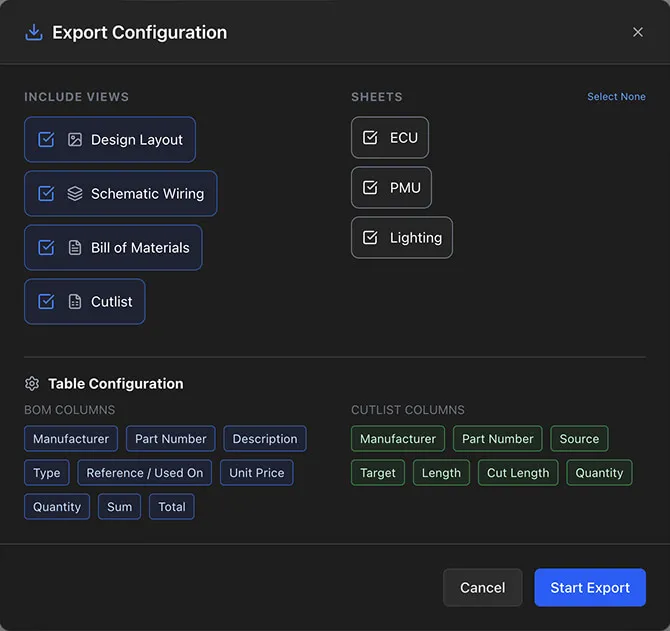
Selecting Views to Include
The Export Dialog shows checkboxes for each view type:
- Design Layout — Captures the Design View canvas as an image, showing all connectors, cables, and labels
- Schematic Wiring — Captures the Wiring View canvas as an image, showing pin-to-pin connections
- Bill of Materials — Includes the full BOM table with parts, quantities, and pricing
- Cut List — Includes the Cut List table with wire lengths and cut measurements
Check or uncheck each view to control what appears in the final PDF. At least one view must be selected.
Sheet Selection
Below the view checkboxes, you can select which sheets to include in the export. By default, all sheets are selected.
- Check or uncheck individual sheets
- Use Select All or Select None toggles for quick selection
Each selected sheet generates its own set of pages in the PDF.
Tip
To export a single sheet's BOM, uncheck all other sheets and all views except Bill of Materials. This produces a focused, single-purpose document.
Table Column Toggles
For the BOM and Cut List views, you can toggle individual columns on or off. This controls which columns appear in the exported tables.
BOM Columns
- Manufacturer — Part manufacturer
- Part Number — Manufacturer's part number
- Description — Part description
- Type — Part category
- Reference — Component name using the part
- Unit Price — Price per unit
- Quantity — Count or length
- Sum — Unit price times quantity
- Total — Sum times price multiplier
Cut List Columns
- Manufacturer — Wire manufacturer
- Part Number — Wire part number
- Source — Source component name
- Target — Target component name
- Length — Base wire length
- Cut Length — Length times cutlist multiplier
- Quantity — Connection count
Hide columns that are not relevant for your audience. For example, remove Unit Price, Sum, and Total columns when sharing with a client who should not see your material costs.
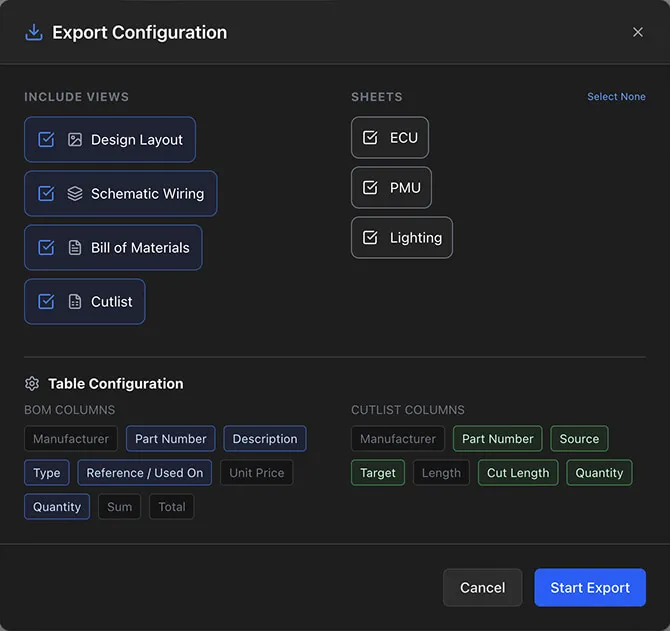
Starting the Export
Click Export to begin generating the PDF. The process runs client-side in your browser.
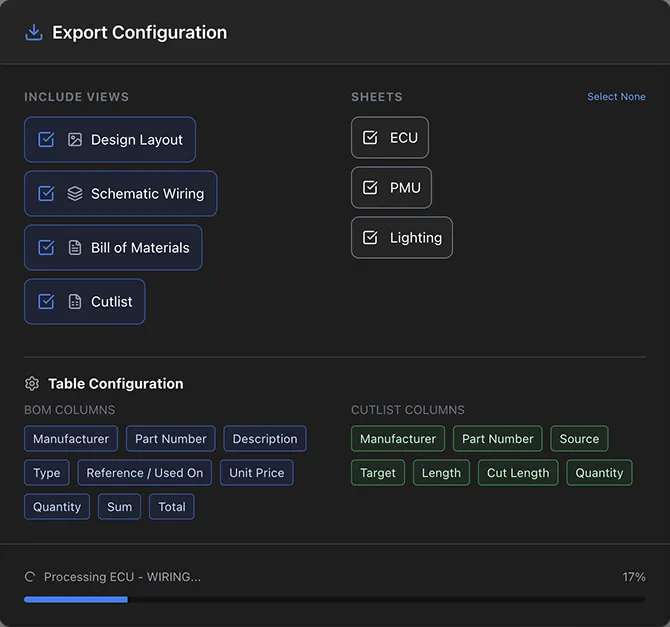
Export Progress
A progress indicator shows the current status with messages like:
- "Preparing Design Layout..."
- "Generating Schematic Wiring..."
- "Building Bill of Materials..."
- "Creating Cut List..."
Canvas views (Design Layout and Schematic Wiring) are captured as screenshots from the canvas renderer. Table views (BOM and Cut List) are rendered directly into the PDF.
PDF Output Format
The generated PDF has the following characteristics:
- Filename
—
{ProjectName}.pdf - Page size — Landscape A4
- Title block — Each page includes the project name, sheet name, and date
- Page numbering — "Page X of Y" format on every page
- Styling — Consistent with the application's dark theme
Page Layout
- Each selected view starts on a new page
- Canvas captures (Design, Wiring) fill the page area within the title block
- Tables that exceed one page automatically continue on subsequent pages with repeated column headers
- Each sheet's views are grouped together
The PDF downloads automatically when generation completes.
Common Export Scenarios
- Full project documentation — Select all views and all sheets. This produces a comprehensive document for archival or client delivery.
- Production package — Select BOM and Cut List only. Toggle off the Unit Price, Sum, and Total columns to produce a shop-floor-ready document without cost data.
- Design review — Select Design Layout and Schematic Wiring only. This produces a visual-only document for engineering review meetings.
- Single-sheet BOM — Select only the target sheet and only the BOM view. Useful for quoting a specific harness variant.
Tips for Best Results
- Set cable lengths before exporting — the PDF captures the current state of your design. Missing lengths show as blank in the cut list.
- Review units — Check your Project Settings to ensure the correct measurement system. The PDF uses whatever units are active.
- Use descriptive sheet names — Sheet names appear in the PDF title blocks. "Main Harness" is more useful than "Sheet 1".
- Toggle off unused columns — Fewer columns means wider cells and better readability in the exported tables.
- Check the BOM first — Switch to the BOM view in the app to verify data completeness before exporting.
- Zoom level — The canvas capture for Design Layout and Schematic Wiring views captures the full canvas extent, regardless of your current zoom level. Make sure all components are visible on the canvas before exporting.