Design View
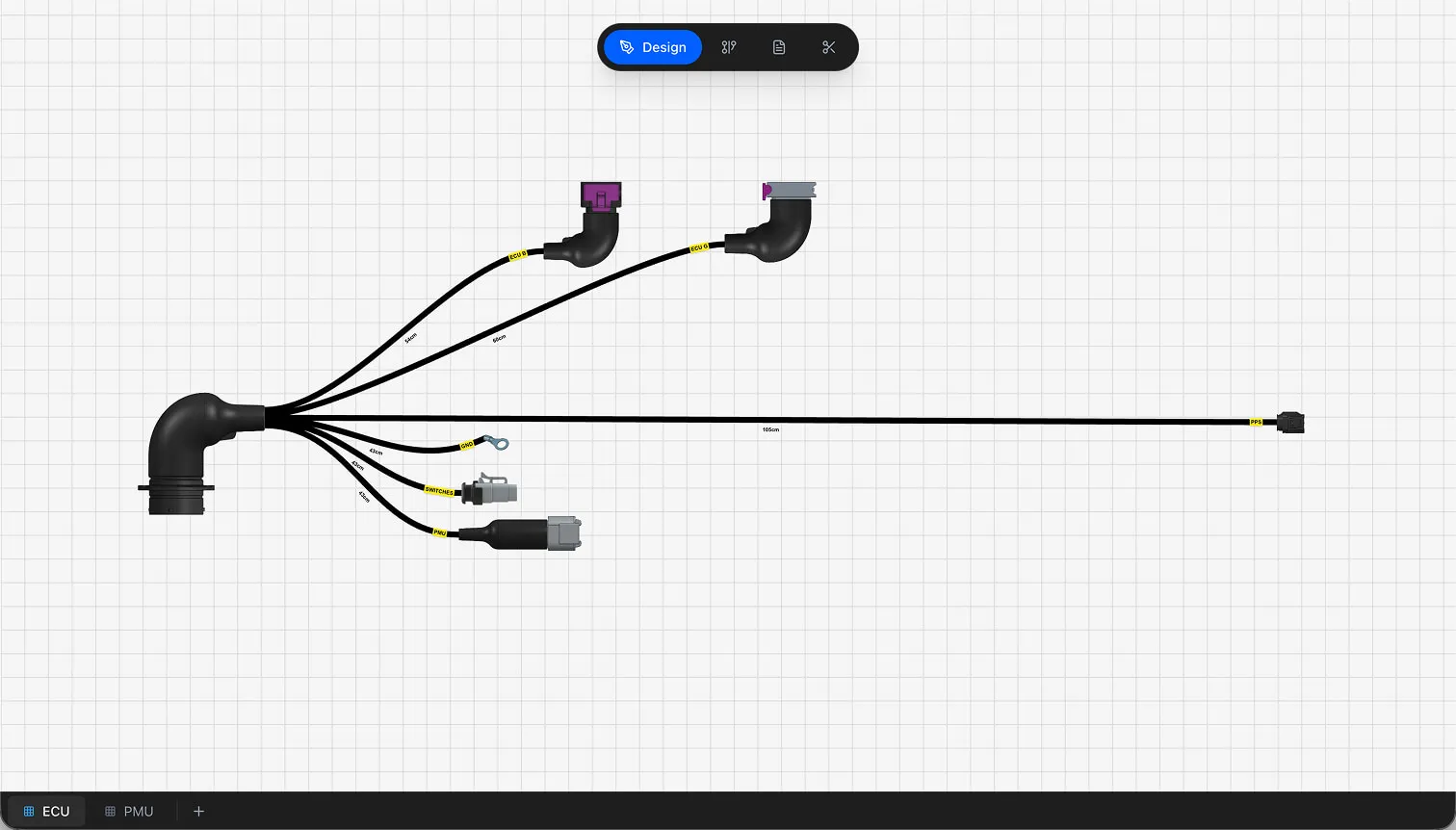
The Design View is the primary canvas where you build the physical layout of your wire harness. It functions as a formboard-style schematic editor — you place components, route cables between them, and define lengths and properties. All changes in the Design View feed into the BOM and Cut List automatically.
Canvas Navigation
The canvas is built on HTML5 Canvas (React Konva) and supports standard pan/zoom navigation.
- Pan — Click and drag on an empty area of the canvas to move the viewport
- Zoom — Scroll the mouse wheel to zoom in and out. The scale range is 0.1x to 10x with a factor of 1.05 per scroll increment.
- Inverted zoom — Hold Ctrl while scrolling to invert the zoom direction
- Grid — A 40px reference grid helps you align components visually
- Deselect — Click on an empty canvas area to deselect all elements
- Auto-Scale to Fit — Scale the entire cable layout to fit the canvas viewport with a single click. Cable curve shapes, control points, and tangent handles are preserved during scaling.
Selecting and Multi-Select
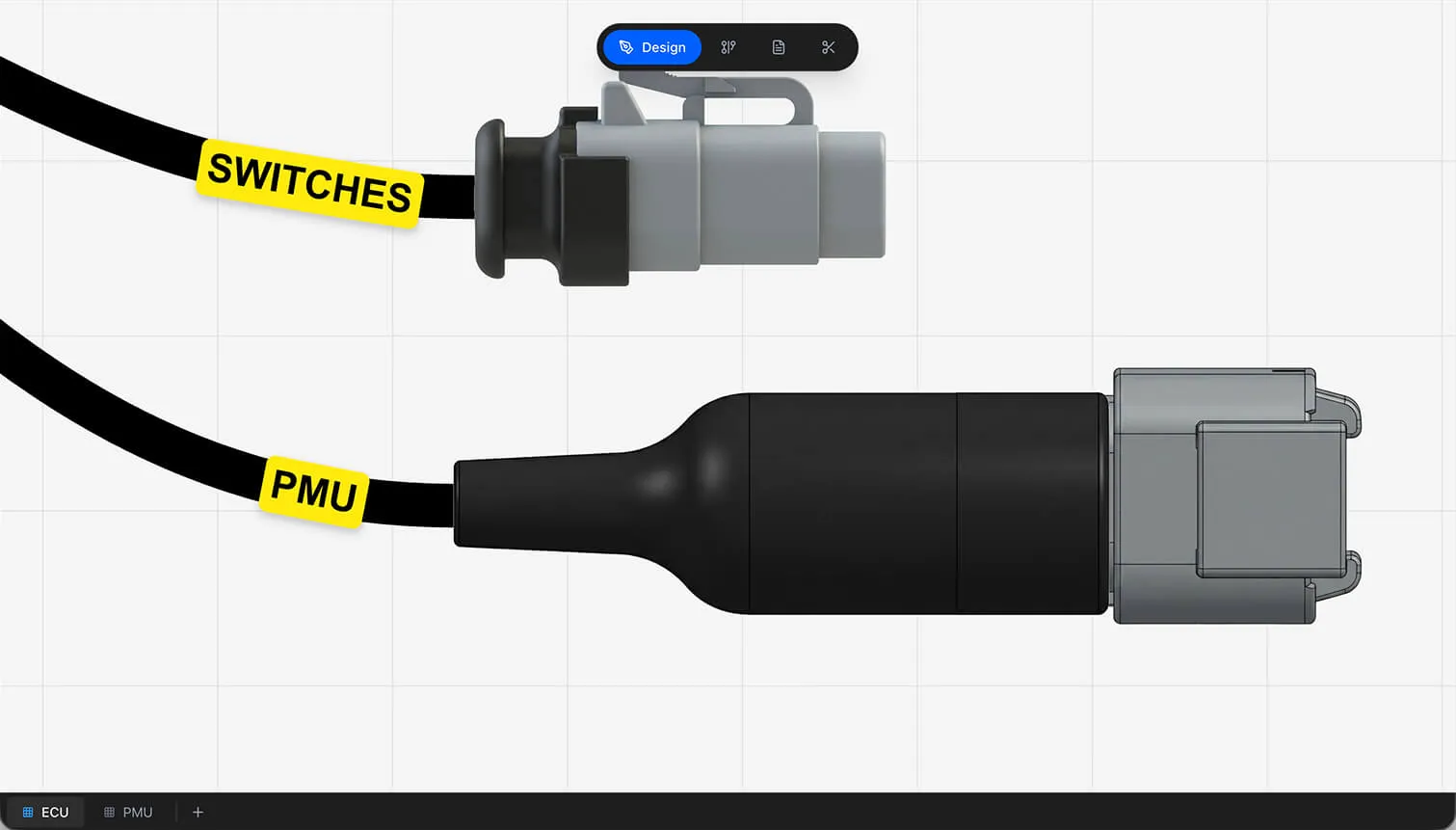
Click a component or cable to select it. The selected element shows a visual highlight and enables context menu actions.
Multi-Select
Hold Shift to select multiple elements at once.
- Shift-click — Toggle individual nodes in and out of the selection
- Shift-drag — Draw a marquee rectangle to select all nodes within the area
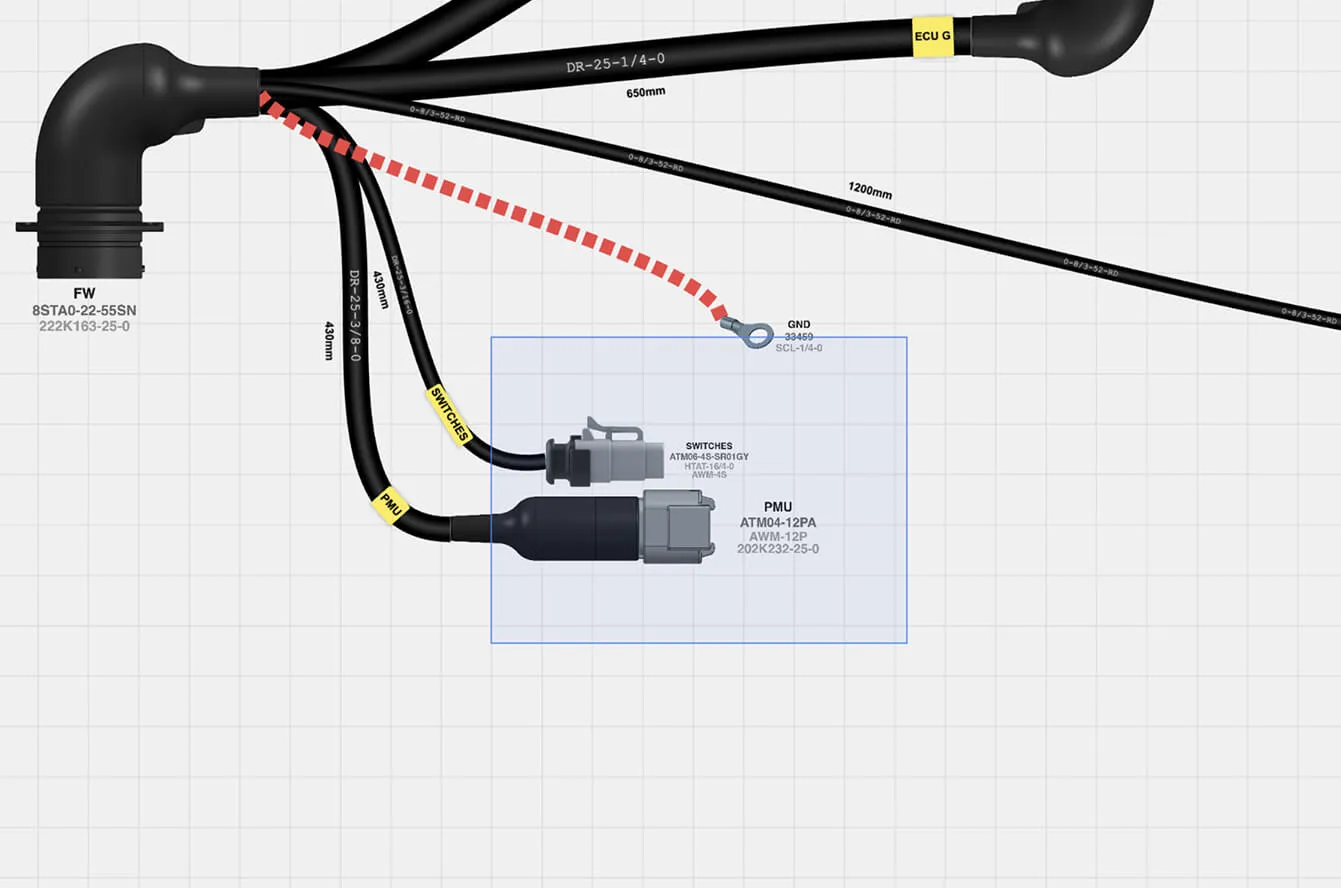
With multiple nodes selected, you can:
- Drag — Move all selected nodes together as a group
- Delete — Press Delete or Backspace to remove all selected nodes
- Save as Component — Right-click and select Save as Component to save the selection as a Reusable Component
Adding Components
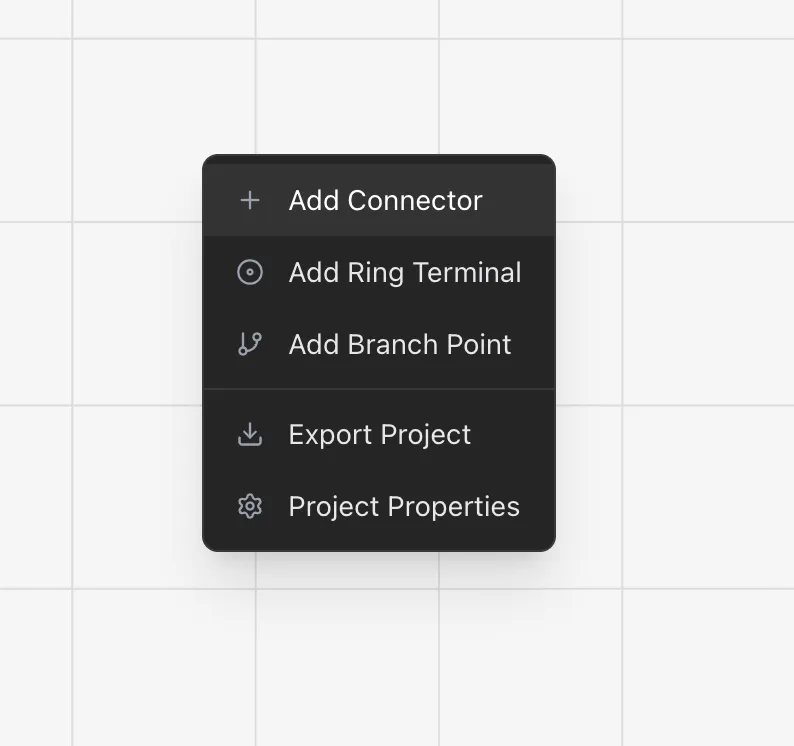
Right-click on an empty area of the canvas to open the context menu. The menu lists all available component types.
Component Types
- Connector — Main electrical connectors with configurable cavity count. The most common component in a wire harness design.
- Ring Terminal — Ring-style crimp terminal connections for bolt-on wiring points.
- Branch Point — Cable routing branch or split points (also called transitions). Use these where cables diverge in your harness.
Info
Splices, diodes, and resistors require a parent component. In the Component Dialog, you select which connector or other component they attach to. This establishes a hierarchical relationship in your design.
The Component Dialog
When you add a component, the Component Dialog appears with the following fields:
- 1
Name — A user-defined identifier for the component (e.g., "J1", "ECU Connector", "TPS Sensor", "COIL_1")
- 2
Main Part — Select a part from your Parts Library. The part determines cavity count, labels, and other properties.
- 3
Parent Component — Required for splice, diode, and resistor types. Select the component this part attaches to.
- 4
Accessories / Extra Parts — Add supplementary items like boots, ferrules, backshells, or locks. Each extra part comes from the library and appears in the BOM.
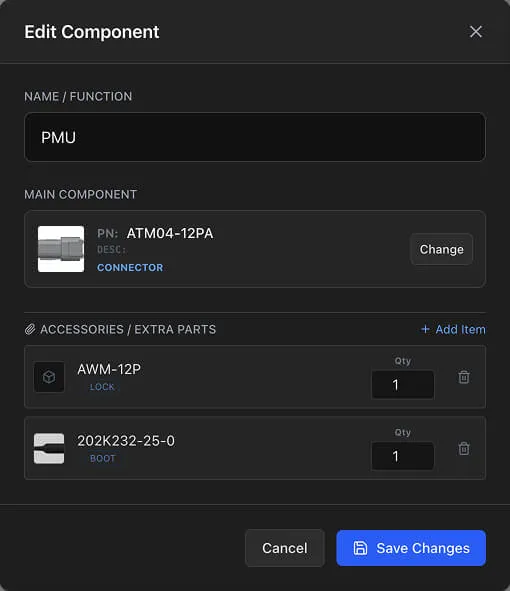
Working with Components
Once placed on the canvas, components support several actions via the right-click context menu.
Move
Click and drag a component to reposition it on the canvas. Components move freely — the grid provides visual alignment but does not enforce snapping.
Rotate
Right-click a component and select Rotate. Set the rotation angle in degrees. Rotation affects how connection points are positioned relative to the component.
Flip
- Flip Horizontal — Mirrors the component left-to-right
- Flip Vertical — Mirrors the component top-to-bottom
Both options are available in the right-click context menu.
Duplicate
Right-click and select Duplicate to create an identical copy of the component. The copy appears at a slight offset from the original. Duplication copies the component name, part, and accessories — you will want to rename the duplicate.
Delete
Right-click and select Delete, or select the component and press Delete / Backspace. Deleting a component also removes all cables and wiring connections associated with it.
Warning
Deleting a component removes all associated cables and wiring data. This is tracked in the undo history, so you can reverse it with Cmd/Ctrl + Z.
Scale
Adjust the scale factor to resize a component on the canvas. This is a visual adjustment that does not affect electrical properties.
Cable Routing
Cables connect components on the design canvas. They represent the physical wire runs in your harness.
Drawing a Cable
- 1
Click a connection point on the source component (a small circle on the component boundary)
- 2
A dashed blue line follows your cursor as you move
- 3
Hover near a connection point on the target component — a blue highlight circle appears when you are in snap range
- 4
Click the target connection point to complete the connection
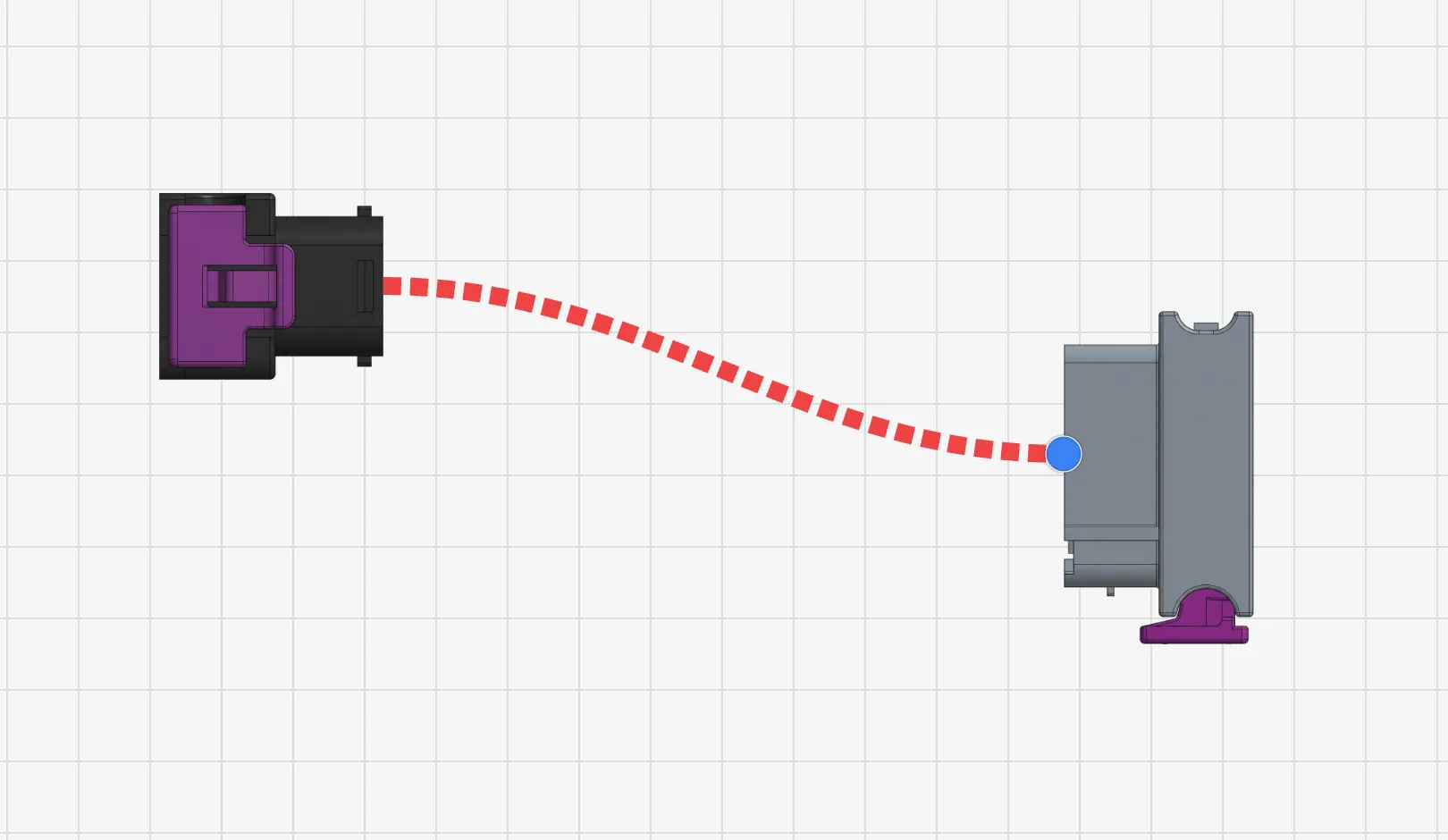
The cable snaps into place and connects the two components. Connection points are stored as relative coordinates from each component's origin, so they stay correct when you move or rotate components.
Branch Point Insertion on Cable
You can insert a branch point directly on an existing cable without manually splitting it.
- Drop connection on cable — While drawing a cable, drop the endpoint onto an existing cable. The cable splits automatically at that position, and a branch point is created.
- Context menu — Right-click an existing cable and select Insert Branch Point. The cable splits at the click position.
Cable length is distributed proportionally between the new segments when splitting.
Snap-to-Connection
When you hover near a component's connection point while drawing a cable, snap-to-connection activates. A blue highlight circle appears on the nearest valid connection point. This visual feedback helps you connect to the correct point.
The snap system searches all connection handlers on all visible nodes and calculates the nearest valid target based on your cursor position.
Tip
If snap-to-connection does not activate, zoom in closer to the target component. Snap range is based on screen distance, so zooming in increases precision.
Cable Curve Shaping
Cables render as smooth curves between components. You can reshape any cable by adding waypoints and adjusting tangent handles.
- Add a waypoint — Click on a cable to insert a control point at that position. A blue circle appears on the curve.
- Drag a waypoint — Click and drag a waypoint to reshape the cable curve
- Remove a waypoint — Double-click a waypoint to delete it
- Tangent handles — Each waypoint shows tangent handles (gray lines with blue dots). Drag these handles to fine-tune the curve direction and smoothness at that point.
- Reset Curve — Right-click a cable and select Reset Curve to remove all waypoints and return to the default curve shape
Tip
Use waypoints to route cables around other components or create cleaner layouts. Tangent handles give you precise control over how the cable enters and exits each point.
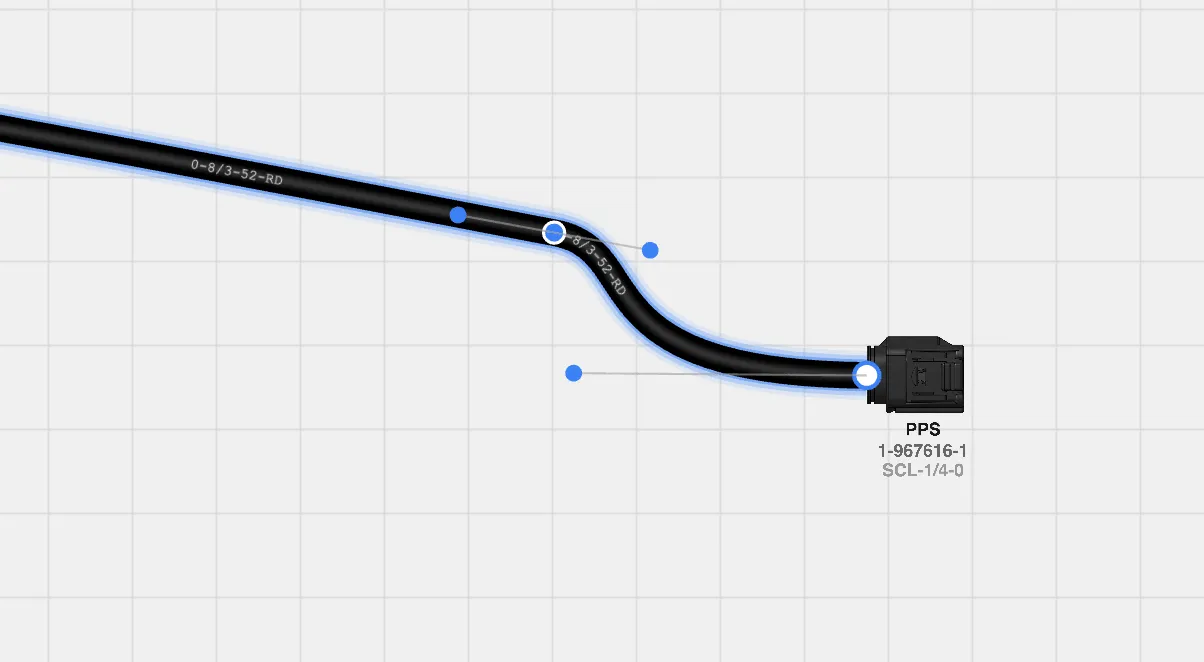
Cable Inspection
Select a cable on the canvas to open the Cable Inspect Panel — a floating panel that shows cable details and properties.
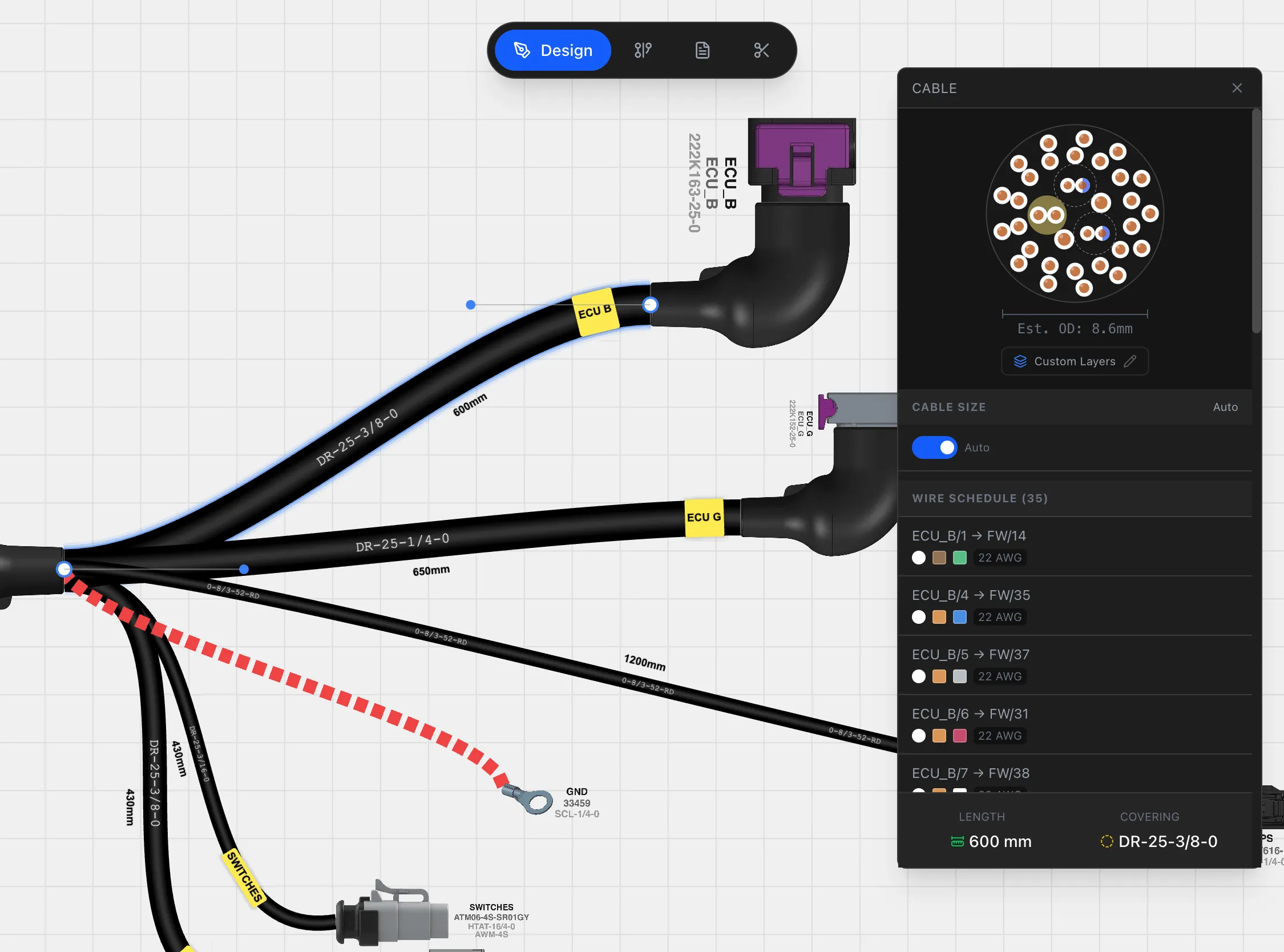
The panel displays:
- Cross-section diagram — Visual representation of the cable's internal wire arrangement
- Wire list — All wires in the cable with source, target, color, gauge, and shielded cable indicators
- Cable length — Editable length field in the current project units
- Covering — Select a covering part from the Parts Library
- Cable size override — Toggle between automatic sizing (based on wire count) and manual size control via a slider
- Layers — Opens the Cable Layer Editor for concentric layer assignment
Cable Size Override
By default, cable thickness on the canvas scales automatically based on the number of wires. To override this:
- 1
Toggle off the Auto switch in the inspect panel
- 2
Drag the slider to set a custom cable thickness
- 3
The canvas updates in real time as you adjust
Toggle Auto back on to return to automatic sizing.
Cable Properties
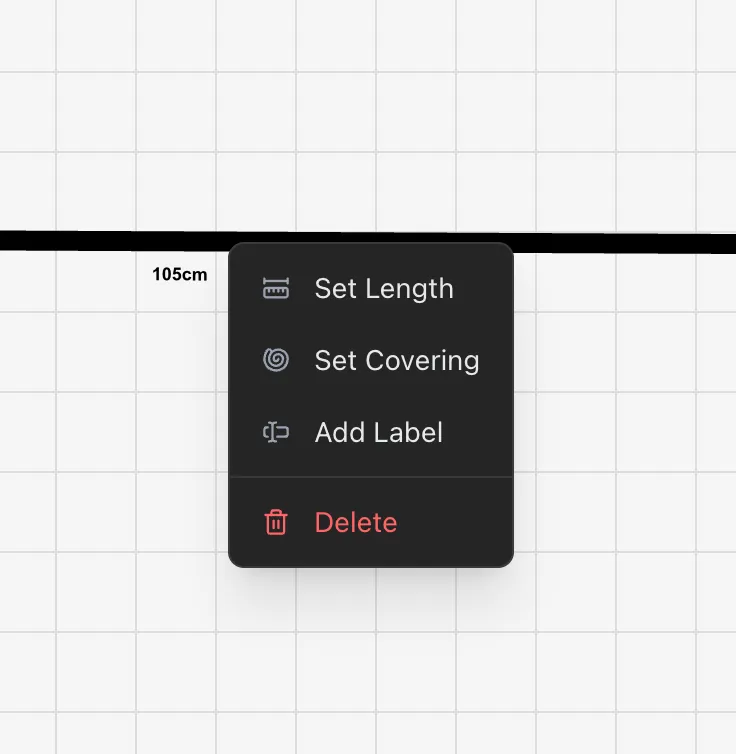
Right-click a cable to access its properties.
Length
Set the cable length in the current project units (metric or imperial). Lengths are stored internally as both centimeters and inches, so switching units in Project Settings does not lose precision.
- Metric display — Millimeters or centimeters
- Imperial display — Fractional inches (e.g., "3 1/4", "7/8")
Cable length feeds directly into the Cut List for wire length calculations.
Covering
Optionally assign a cable covering or sleeve from the Parts Library. The covering part appears in the BOM with its length matching the cable length. Use coverings for convoluted tubing, braided sleeving, or heat shrink over cable bundles.
Covering part numbers display directly on cable edges in the design canvas, making it easy to identify which covering is applied to each cable at a glance.
Labels
Attach one or more label parts to a cable. Labels are selected from the Parts Library and support background and foreground color properties. Label parts appear in the BOM with their lengths.
Length Label
A Length Label displays the cable length directly on the canvas. You can adjust its position along the cable (0 to 1 ratio from source to target) and its offset from the cable line. This is useful for creating readable design drawings.
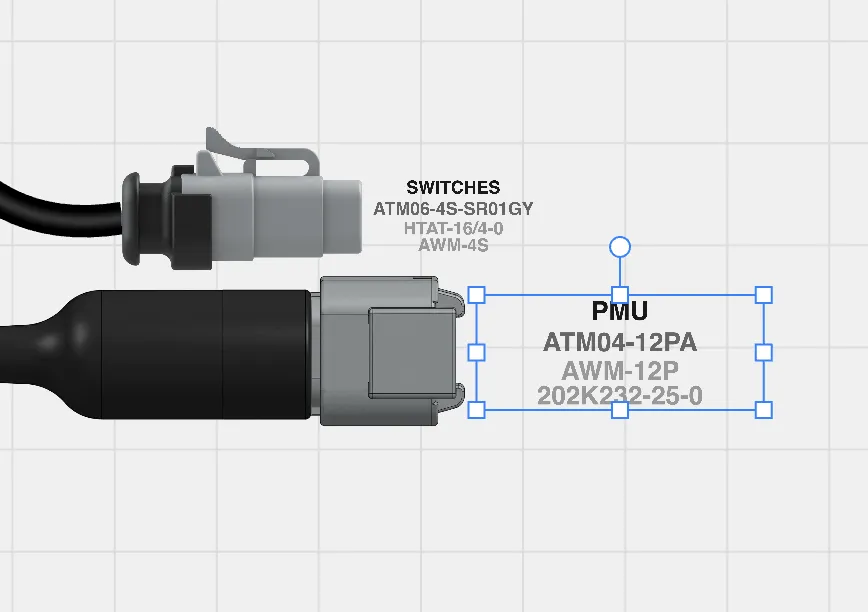
Component Labels
Toggle component labels to display part numbers beneath each node on the canvas.
- Right-click on an empty area of the canvas and enable Show Component Labels
- Labels show the component name and part number
Labels support independent positioning:
- Drag — Click and drag a label to reposition it relative to its component
- Rotate — Labels can be rotated independently from their parent component
- Scale — Adjust label size without affecting the component
Label transforms are saved per component and persist across sessions.
Undo and Redo
The Design View maintains a history stack for all operations.
- Undo — Press Cmd/Ctrl + Z to reverse the last action
- Redo — Press Cmd/Ctrl + Shift + Z to reapply a reversed action
The history tracks node creation, node deletion, edge creation, edge deletion, and property changes. Each operation stores both undo and redo functions, so you can step forward and backward through your design history.
Info
Undo/redo is only available in the Design View. Changes in the Wiring View and Pin Configuration are applied immediately. See Keyboard Shortcuts for all hotkeys.
Design View Keyboard Shortcuts
| Shortcut | Action |
|---|---|
| Delete / Backspace | Delete selected element(s) |
| Cmd/Ctrl + Z | Undo |
| Cmd/Ctrl + Shift + Z | Redo |
| Shift + click | Toggle node in multi-selection |
| Shift + drag | Marquee multi-select |
| Click (cable) | Add curve waypoint |
| Double-click (waypoint) | Remove waypoint |
| Right-click | Open context menu |
| Scroll wheel | Zoom in/out |
| Scroll wheel + Ctrl | Inverted zoom |
| Click + drag (empty area) | Pan canvas |
| Click + drag (component) | Move component |
| Click + drag (waypoint) | Reshape cable curve |
| Click + drag (tangent handle) | Adjust curve direction |
See the full Keyboard Shortcuts reference for all views.