Cable Shielding
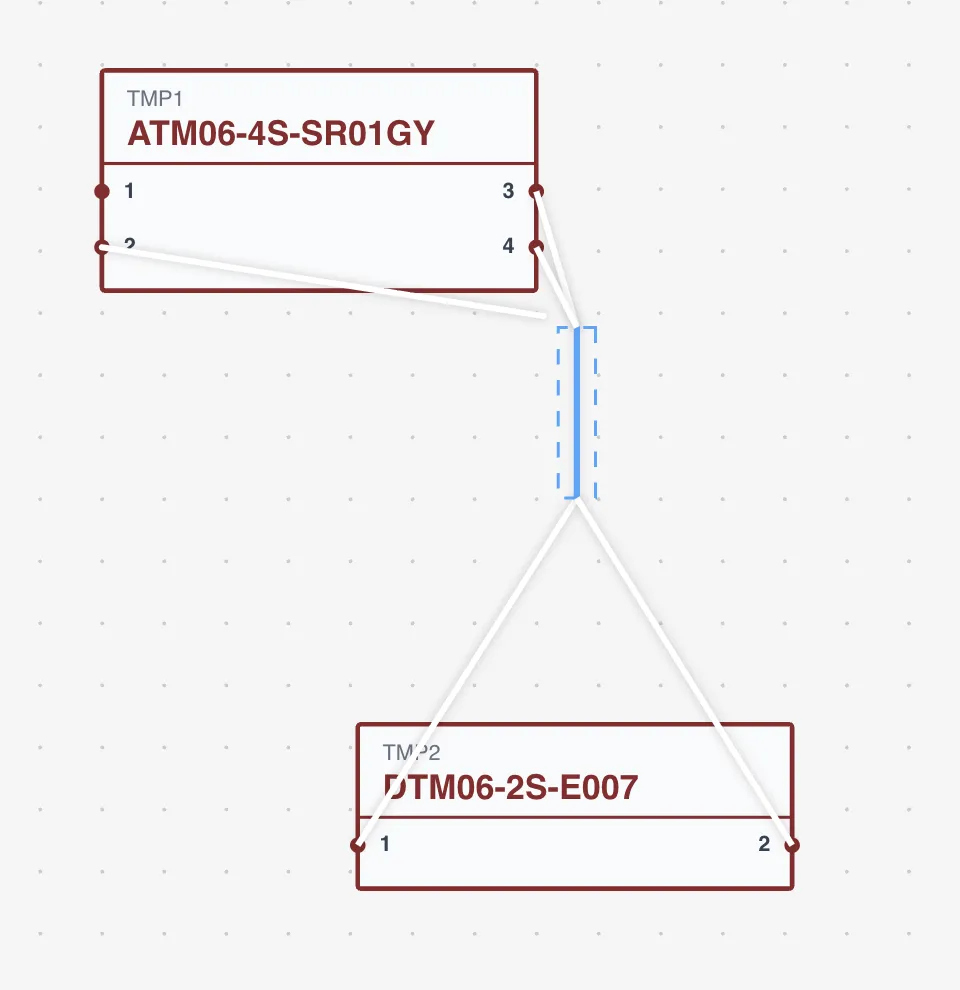
Shielded cables contain multiple inner conductors (strands) within an outer electromagnetic shield. They are common in automotive, aerospace, and industrial harnesses where signal integrity matters — sensor lines, communication buses (CAN, LIN), and audio circuits. Wiring Studio supports full multicore cable design with strand-to-pin mapping, shield termination, and integration with the BOM and Cut List.
Setting Up a Shielded Wire Part
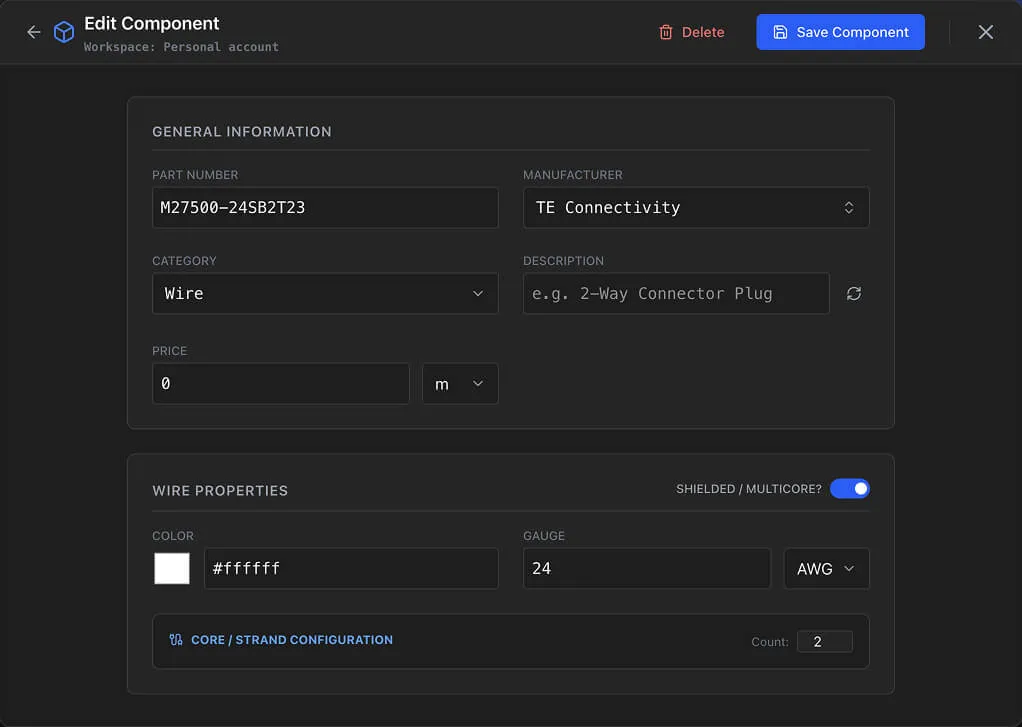
Before configuring a shielded cable in your design, you need a shielded wire part in the Parts Library.
- 1
Open the Parts Library
- 2
Click Add Part and select the Wire category
- 3
Fill in Manufacturer, Part Number, Description, and Price
- 4
Set the wire Gauge and Color
- 5
Enable isShielded — this marks the wire as a multicore shielded cable
- 6
Set strandsCount to the number of inner conductors (e.g., 2 for a twisted shielded pair, 4 for a quad-core cable)
- 7
Save the part
Tip
Name shielded wire parts descriptively (e.g., "2-Core Shielded 22AWG" or "4-Core Shielded 20AWG Teflon"). This makes them easy to identify when selecting parts in Pin Configuration.
Configuring a Shielded Cable
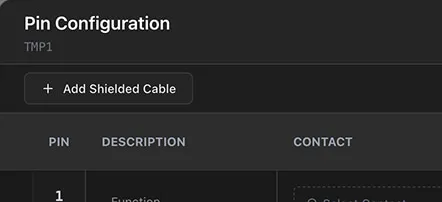
Shielded cables are configured through the Pin Configuration dialog.
Opening the Shielded Cable Dialog
- 1
Right-click a component and select Pin Configuration
- 2
Click the Add Shielded Cable button at the bottom of the dialog
- 3
Select a shielded wire part from the library
- 4
The shielded cable configuration dialog opens
Strand-to-Pin Mapping
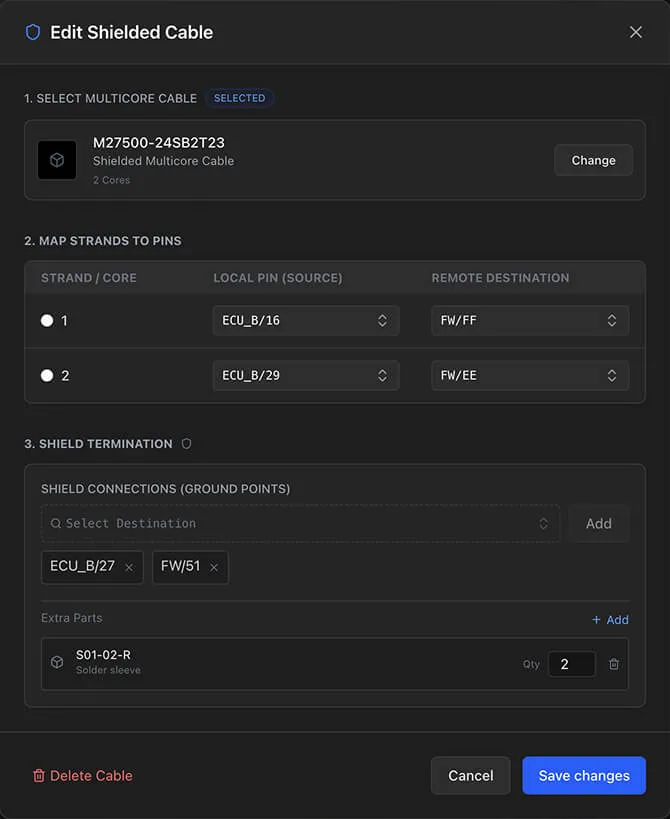
The dialog shows one row per strand (inner conductor). For each strand, you map:
- Source — Select the source component and cavity number
- Destination — Select the target component and cavity number
Both source and destination must be specified for the strand to create a wiring edge. The strand index determines order within the cable.
For example, a 4-core shielded cable connecting an ECU connector (J1) to a sensor connector (J2) might have:
| Strand | Source | Destination |
|---|---|---|
| 1 | J1 / Cavity 1 | J2 / Cavity 1 |
| 2 | J1 / Cavity 2 | J2 / Cavity 2 |
| 3 | J1 / Cavity 3 | J2 / Cavity 3 |
| 4 | J1 / Cavity 4 | J2 / Cavity 4 |
Shield Termination
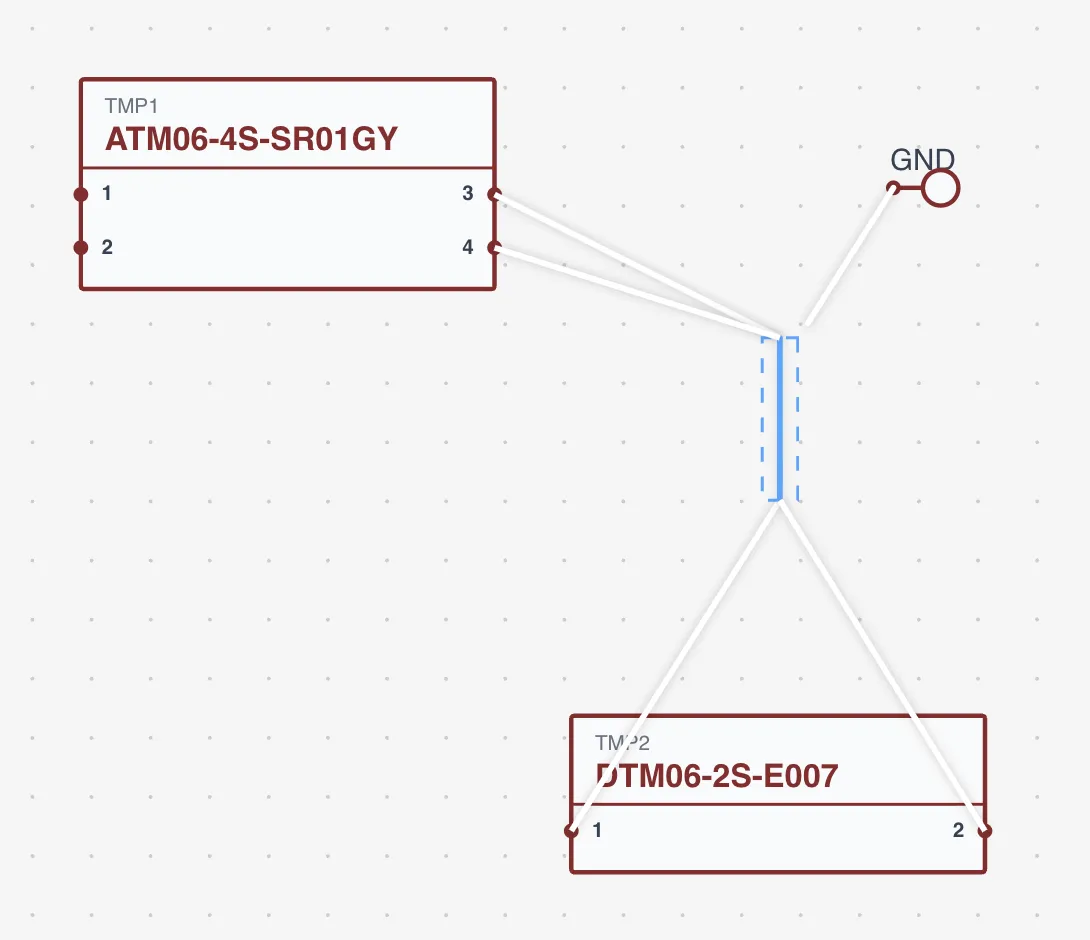
The cable shield needs a termination point — typically a ground connection via a drain wire. Shield connections use the special cavity -1 to represent the shield layer.
- Click Add Shield Connection in the dialog
- Select the termination component and cavity (e.g., a ground ring terminal)
- Multiple shield terminations are supported — for example, grounding the shield at both ends of the cable
Each shield connection creates a wiring edge in the Wiring View with a distinct visual style.
Info
Single-end vs. both-end shield grounding depends on your EMC strategy. Both configurations are supported. Plan your termination approach before mapping strands.
Extra Parts
Attach accessories to the shielded cable assembly using the Extra Parts section:
- Part — Select from the library (drain wires, ferrite cores, cable glands, grommets, shield termination lugs)
- Quantity — Number of items needed
- Length — Optional length for length-based parts
Extra parts appear in the BOM with their quantities and pricing.
Shielded Cables in the Wiring View
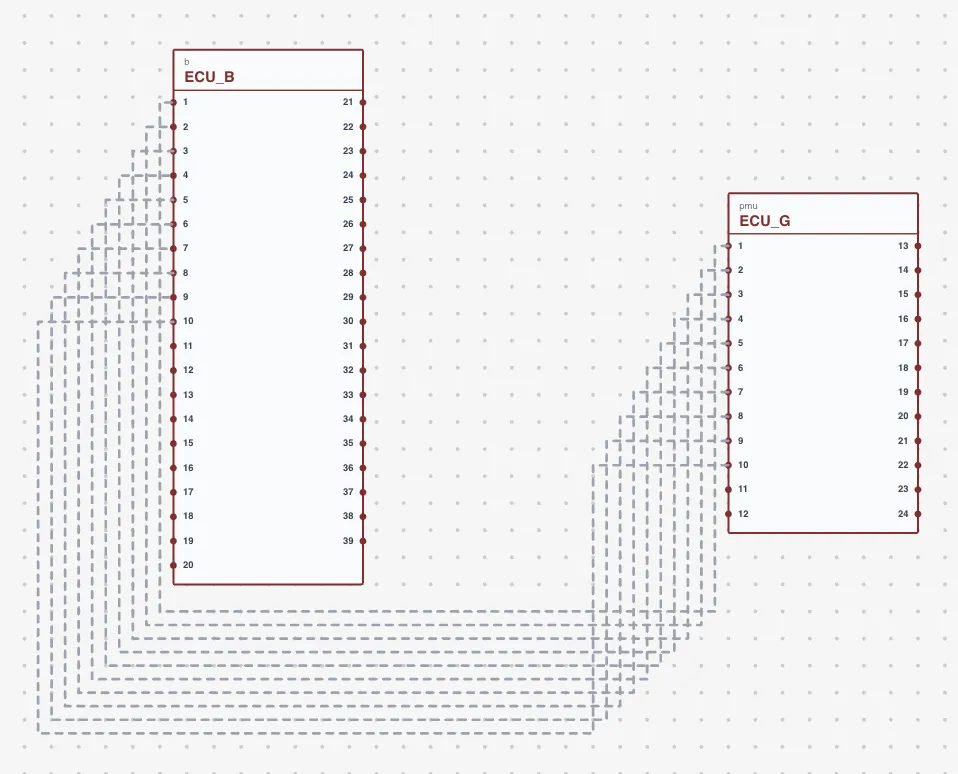
Once configured, shielded cable strands appear as individual wire connections in the Wiring View.
- Strand wires — Rendered individually, each connecting its mapped source and destination cavities
- Shield connections — Displayed with a distinct visual style to differentiate them from regular wires
- Control points — Drag polyline control points to adjust strand routing, the same as regular wire connections
- Color codes — Individual strands can have color code markers assigned in Pin Configuration
You can use auto-routing to generate clean wire paths for shielded cable strands alongside regular wires.
Shielded Cables in the BOM
The BOM tracks all shielded cable components:
- Shielded wire part — The cable itself, with length calculated from the design edge
- Strand contacts — Contact parts assigned to individual strands
- Strand seals — Wire seals or cavity plugs for strand cavities
- Color code markers — Heat shrink parts assigned to strands
- Extra parts — Drain wires, ferrites, and other accessories with their quantities
All items are grouped by part ID and aggregated as usual in the BOM.
Shielded Cables in the Cut List
The Cut List lists each strand as a separate entry:
- One row per strand — Source, target, length, and cut length
- Cut length — Base length multiplied by the cutlist multiplier from Project Settings
- Shield connections — May appear as separate entries
This gives your production team individual wire cut measurements for each inner conductor in the shielded assembly.
Per-Strand Wire Colors
Set individual colors for each strand inside a shielded cable. This is useful when the inner conductors of a multicore cable have different insulation colors (e.g., red, blue, green, white in a 4-core cable).
Strand colors are configured in the Pin Configuration dialog when editing shielded cable strands. Each strand can have its own primary color, stripe color, and color code markers. The assigned colors are reflected across:
- Wiring View — Strand wires render with their individual colors
- Pin Configuration — Color swatches shown per strand row
- PDF exports — Strand colors included in exported documentation
Cable Layer Editor
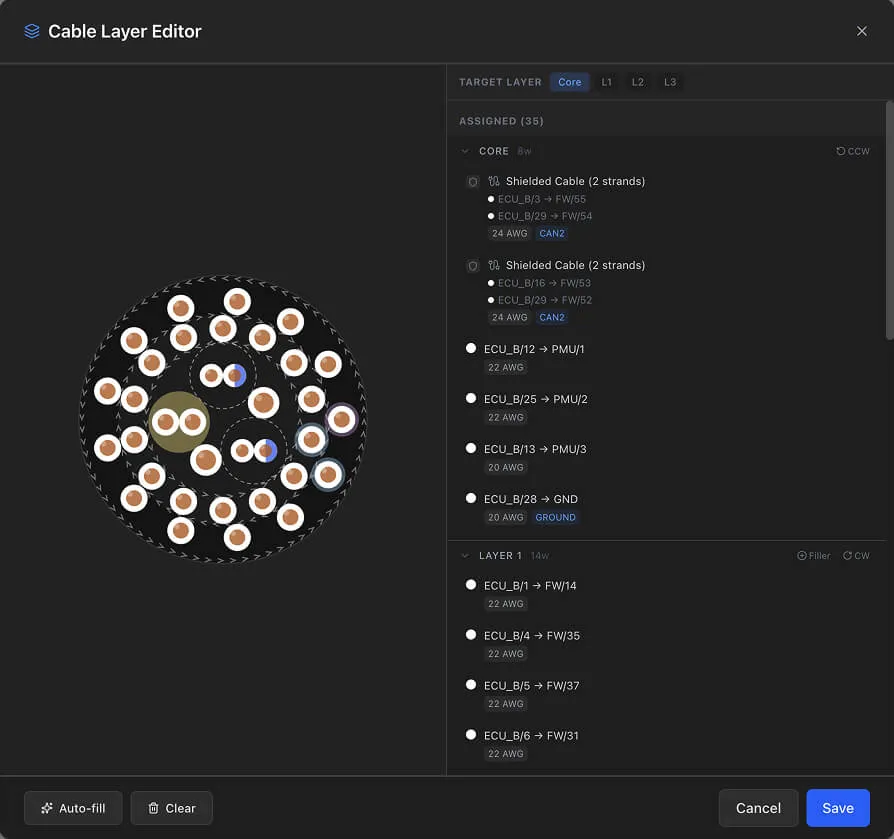
The Cable Layer Editor lets you manually assign wires to specific concentric layers in a cable. This is used for concentrically twisted harness construction where wire placement within the cable cross-section matters.
Opening the Layer Editor
- 1
Select a cable on the design canvas to open the Cable Inspect Panel
- 2
Click the Layers button in the inspect panel
Layout
The editor has a split layout:
- Left side — Cross-section visualization showing the cable structure with concentric rings
- Right side — Wire panel with layer tabs and wire assignments
Assigning Wires to Layers
- 1
Click a layer tab (Core, L1, L2, etc.) in the wire panel
- 2
Click an unassigned wire to add it to the selected layer
- 3
The wire appears in that layer's section and in the cross-section diagram
- 4
Click an assigned wire to unassign it
Lay Direction
Each layer (except Core) has a direction control:
- Clockwise or counterclockwise lay direction
- Toggle the direction using the button in the layer header, or click the chevron ring on the cross-section visualization
- Direction indicators (CW/CCW icons) show the current setting
Filler Wires
Add filler wires to any layer (except Core) to fill gaps in the cable cross-section.
- 1
Click the Filler button on a layer
- 2
Select a filler wire part from the Parts Library
- 3
The filler appears in the layer with its gauge and part number
Filler wires are included in the BOM and Cut List with accurate cable edge lengths. Click an assigned filler to remove it.
Tip
Use the auto-fill button to calculate optimal wire packing across layers automatically. Use the clear button to remove all assignments and start fresh.
Best Practices
- Plan terminations first — Decide on single-end or both-end shield grounding before mapping strands. This determines how many shield connections you need.
- Map all strands — Complete the strand-to-pin mapping before routing wires in the Wiring View. This ensures all connections are captured.
- Use extra parts — Add drain wires, shield termination lugs, and ferrite cores as extra parts. This keeps the BOM accurate for production costing.
- Document pin functions — Use the Description field in Pin Configuration to label strand functions (e.g., "CAN-H", "CAN-L", "Shield Drain"). This makes the design self-documenting.
- Review the BOM — After configuring a shielded cable, check the BOM to confirm all components (cable, contacts, seals, extras) are captured correctly.