Keyboard Shortcuts
This page lists all keyboard shortcuts, mouse controls, and canvas navigation commands in Wiring Studio. Shortcuts are organized by the view or area where they apply.
Design View Shortcuts
The Design View supports undo/redo and component deletion via keyboard.
| Shortcut | Action |
|---|---|
| Delete or Backspace | Delete selected element(s) |
| Cmd/Ctrl + Z | Undo the last action |
| Cmd/Ctrl + Shift + Z | Redo the last undone action |
| Shift + click (node) | Toggle node in multi-selection |
| Shift + drag (empty area) | Marquee multi-select |
| Click (cable) | Add curve waypoint |
| Double-click (waypoint) | Remove curve waypoint |
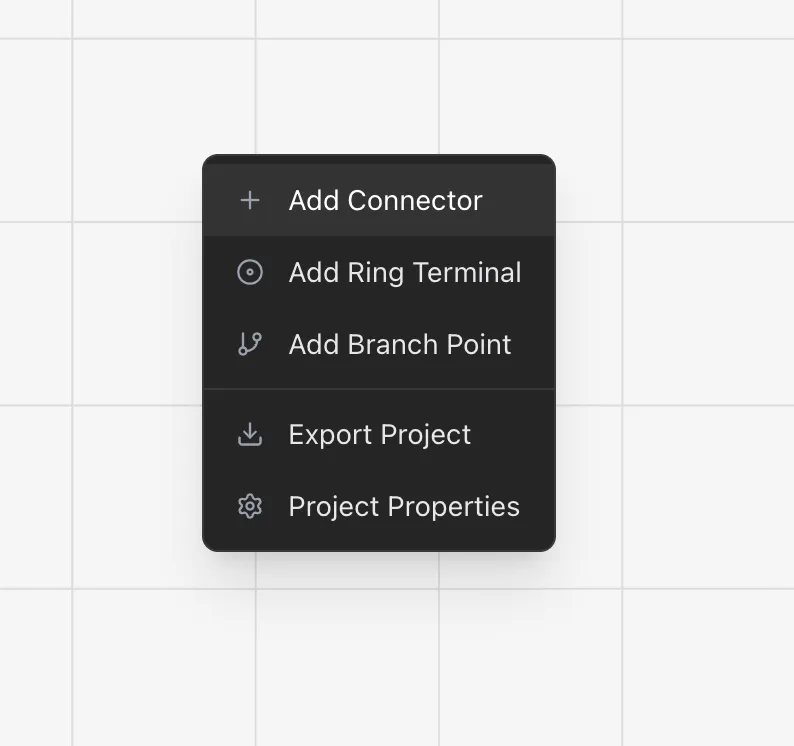
| Right-click (canvas) | Open context menu (Add Component, Insert Component, Save Sheet as Component) |
| Right-click (component) | Open component context menu (Rotate, Flip, Duplicate, Delete, Pin Config) |
| Right-click (cable) | Open cable context menu (Length, Covering, Labels, Reset Curve, Insert Branch Point) |
| Right-click (multi-selection) | Multi-select menu (Save as Component, Delete) |
Info
Undo/redo tracks node creation, node deletion, cable creation, cable deletion, and property changes. The full history is available for the duration of your session.
Wiring View Shortcuts
The Wiring View uses the context menu for most operations. There are no dedicated keyboard shortcuts for wiring actions.
| Shortcut | Action |
|---|---|
| Right-click (canvas) | Open context menu (Auto Route) |
| Right-click (wire) | Open wire context menu (Twist, Ungroup) |
| Right-click (component) | Open component context menu (Pin Configuration, Pin Layout) |
| Click (wire) | Select wire and show info panel, highlight connected network |
Info
The Wiring View does not have undo/redo. Wire connection changes made through Pin Configuration are applied immediately. Control point adjustments are saved automatically.
Sheet Bar Shortcuts
The Sheet Bar at the bottom of the workspace supports the following interactions:
| Shortcut | Action |
|---|---|
| Click tab | Switch to the selected sheet |
| Double-click tab | Start renaming the sheet |
| Right-click tab | Open sheet context menu (Rename, Delete) |
| Enter (while renaming) | Save the new sheet name |
| Escape (while renaming) | Cancel rename and revert to the previous name |
Mouse Controls
Mouse controls are consistent across both the Design View and Wiring View canvases.
Canvas Navigation
| Action | Effect |
|---|---|
| Scroll wheel | Zoom in and out (scale factor: 1.05 per increment) |
| Scroll wheel + Ctrl | Inverted zoom direction |
| Click + drag (empty area) | Pan the canvas viewport |
| Click (empty area) | Deselect all elements |
Design View Mouse Actions
| Action | Effect |
|---|---|
| Click + drag (component) | Move the component to a new position |
| Click (connection point) | Start drawing a cable from this point |
| Click (target connection point) | Complete the cable connection |
| Hover (near connection point while drawing) | Snap-to-connection activates (blue highlight) |
| Click (cable) | Add a curve waypoint at that position |
| Double-click (waypoint) | Remove the waypoint |
| Click + drag (waypoint) | Reshape the cable curve |
| Click + drag (tangent handle) | Adjust curve direction at a waypoint |
| Click + drag (label) | Reposition a component label |
Wiring View Mouse Actions
| Action | Effect |
|---|---|
| Click + drag (control point) | Adjust the wire routing path |
| Click (wire) | Select the wire and open info panel; highlights connected network |
Canvas Navigation Details
Both the Design View and Wiring View share the same canvas engine (React Konva) with these specifications:
- Zoom range — 0.1x (zoomed out) to 10x (zoomed in)
- Zoom factor — 1.05 per scroll wheel increment
- Design View grid — 40px spacing
- Wiring View grid — 20px spacing
- Ctrl modifier — Inverts zoom direction (scroll up zooms out instead of in)
The canvas viewport position and zoom level are maintained when switching between Design View and Wiring View within the same session.
Context Menu Summary
Most actions in Wiring Studio are accessed through right-click context menus. Here is a summary of what each context menu offers depending on what you right-click.
Design View Context Menus
- Empty canvas — Add Connector, Add Ring Terminal, Add Branch Point, Add Splice, Add Diode, Add Resistor, Add Custom Part, Insert Component, Save Sheet as Component, Show Component Labels, Export Project, Project Properties
- Component — Pin Configuration, Rotate, Flip Horizontal, Flip Vertical, Duplicate, Delete
- Cable — Set Length, Set Covering, Add Label, Insert Branch Point, Reset Curve, Delete
- Multi-selection — Save as Component, Delete
Wiring View Context Menus
- Empty canvas — Auto Route, Export Project, Project Properties
- Wire — Twist, Ungroup
- Component — Pin Configuration, Pin Layout
Tips
- Undo immediately — If you accidentally delete a component in the Design View, press Cmd/Ctrl + Z right away. The undo history includes all design changes.
- Right-click everything — Most actions in Wiring Studio are accessed through context menus. Right-click components, cables, wires, and the canvas to see available options.
- Zoom for precision — When routing cables or adjusting wire control points, zoom in to increase the snap-to-connection range and control point drag precision.
- Use keyboard shortcuts for speed — The Delete key and Cmd/Ctrl + Z undo shortcut in the Design View save time compared to right-click menu navigation when you are iterating quickly on a layout.