Parts Library
The Parts Library is your inventory of connectors, wires, contacts, seals, and other components used in wire harness designs. Every part you place on the design canvas or assign in Pin Configuration comes from the library. Parts include manufacturer data, pricing, and category-specific properties that feed into the BOM and Cut List.
Opening the Library
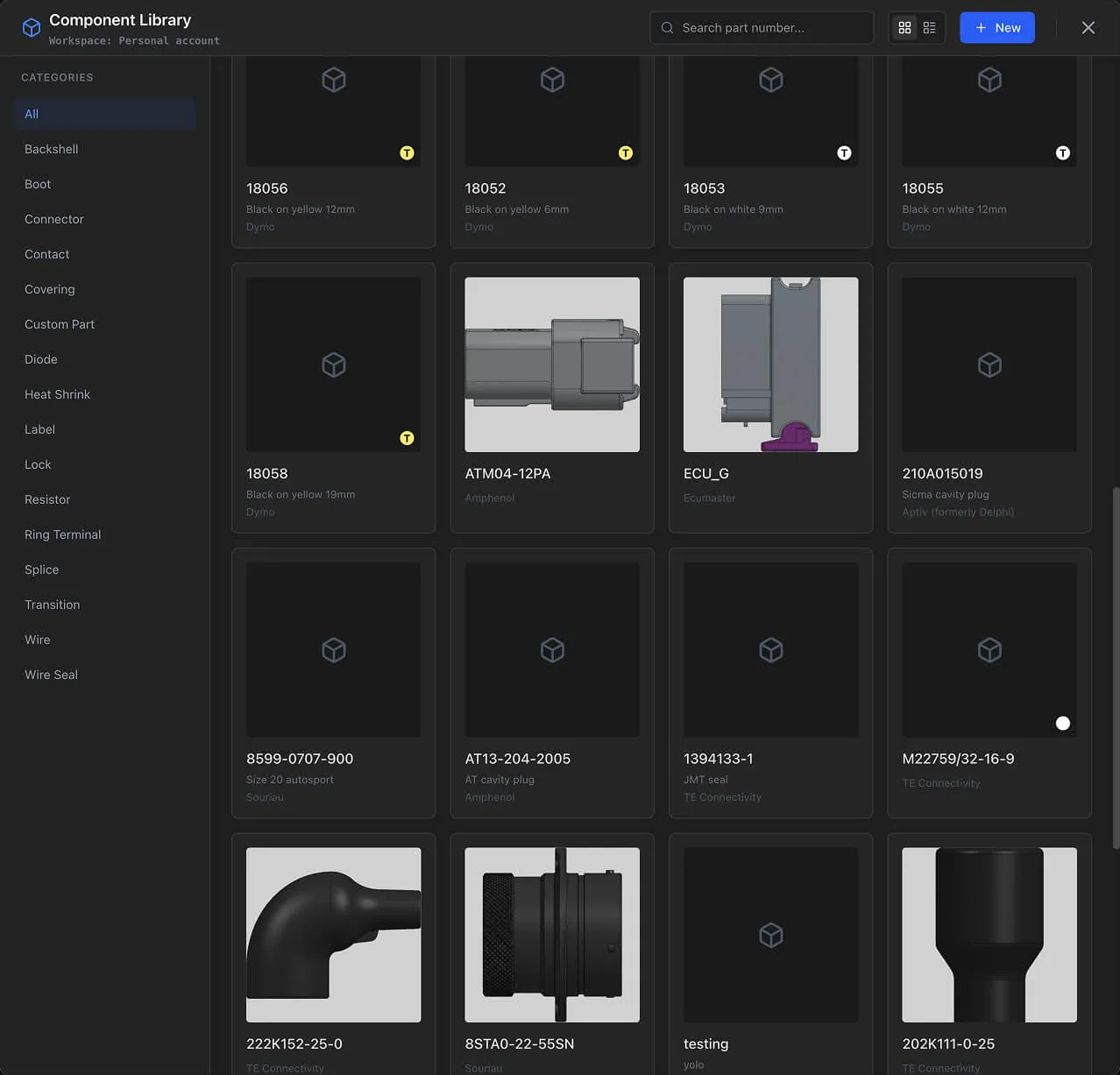
Access the Parts Library from the floating toolbar or the project menu. The library is scoped to your current workspace:
- Personal workspace — Your private parts library
- Organization workspace — Shared library accessible to all organization members
Info
Organization libraries are shared. Parts added by any member are available to everyone. See Collaboration for details on team features.
Browsing and Searching
- Category tabs — Filter parts by type (Connectors, Wires, Contacts, etc.)
- Search bar — Filter by manufacturer, part number, or description
- Part list — Displays matching parts with key fields visible
Part Categories
The library supports 16+ categories, each with specific properties.
Connectable Components
These categories create components you place on the design canvas:
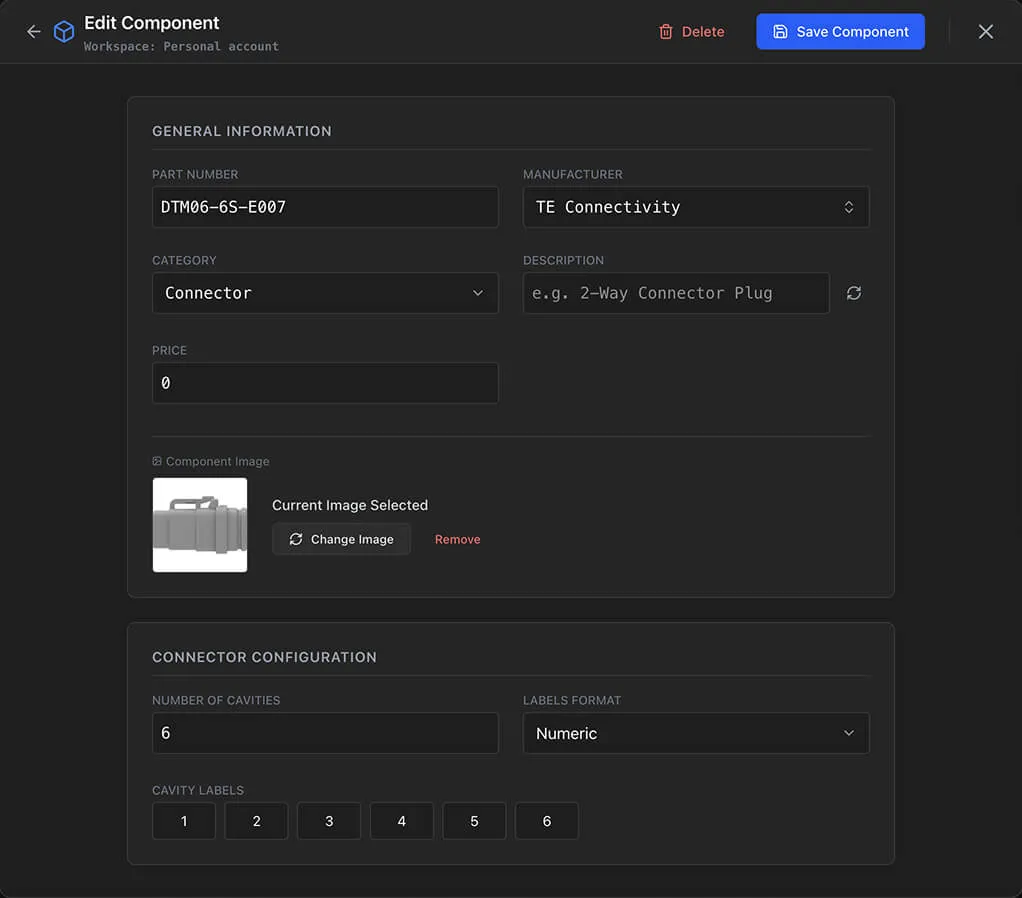
- Connectors — Electrical connectors with configurable cavity count, cavity labels (alphabetic, numeric, or custom), and image support. The primary component type in any harness design.
- Ring Terminals — Ring-style crimp terminals for bolt-on connections. Support images and gauge range validation.
- Branch Points — Cable routing branch or split points (transitions). Used where cables diverge in the harness layout.
- Splices — Wire joining components. Require a parent component. Have gauge range properties.
- Diodes — Electronic diodes with Anode/Cathode pins. Require a parent component.
- Resistors — Electronic resistors with two pins. Require a parent component.
- Custom Parts — User-defined component types for specialized components.
Wire and Cable Parts
- Wires — Wire parts with gauge, color, unit (AWG or mm²), shielded flag, and strands count. Length-based pricing (per meter or per foot). Used in Pin Configuration and the Cut List.
- Coverings — Cable coverings and sleeves (convoluted tubing, braided sleeving). Length-based pricing.
- Heat Shrink — Color-coded heat shrink markers for wire identification. Has a color property. Length-based pricing (per mm). See Wire Colors and Marking.
- Labels — Cable labels with background and foreground color properties. Length-based pricing.
Terminal and Sealing Parts
- Contacts — Terminal pins and sockets. Have gauge range properties (min/max in AWG or mm²) for validation against wire gauge.
- Wire Seal / Cavity Plug — Seals and plugs for connector cavities. No image support.
Accessories
- Backshells — Connector backshell assemblies
- Boots — Connector boots and strain reliefs
- Locks — Connector locking mechanisms
Accessories are added as extra parts on components and appear in the BOM.
Common Part Fields
Every part in the library has these base fields:
- Manufacturer — The part manufacturer. Uses auto-complete from existing manufacturers in your library.
- Part Number — The manufacturer's part number.
- Description — A short description of the part.
- Price — Numeric value. For length-based parts, the unit is per foot or per meter. For other parts, price is per piece.
- Image — Optional part image. Available for connectors, ring terminals, branch points, and custom parts.
Category-Specific Properties
Some categories have additional properties that affect how parts behave in the application.
Connector Properties
- Cavities — The number of connection cavities (e.g., 12, 24, 48)
- Cavity Labels — An array of custom labels for each cavity
- Label Type — How cavities are labeled: alphabetic (A, B, C...), numeric (1, 2, 3...), or custom
Wire Properties
- Color — Wire insulation color (CSS/hex value)
- Gauge — Wire gauge value
- Unit — Gauge unit: AWG or mm²
- isShielded — Whether the wire is a shielded/multicore cable
- strandsCount — Number of inner conductors (for shielded wires)
Contact Properties
- Gauge Range — Min and max gauge values with unit (AWG or mm²). When assigning contacts in Pin Configuration, the system validates that the wire gauge falls within the contact's range.
Heat Shrink Properties
- Color — The marker color (CSS/hex value). Displayed as color bands in the Wiring View.
Label Properties
- Background Color — Label background color
- Foreground Color — Label text/foreground color
Splice and Ring Terminal Properties
- Gauge Range — Min and max gauge values with unit for wire compatibility validation
AI Image Generation
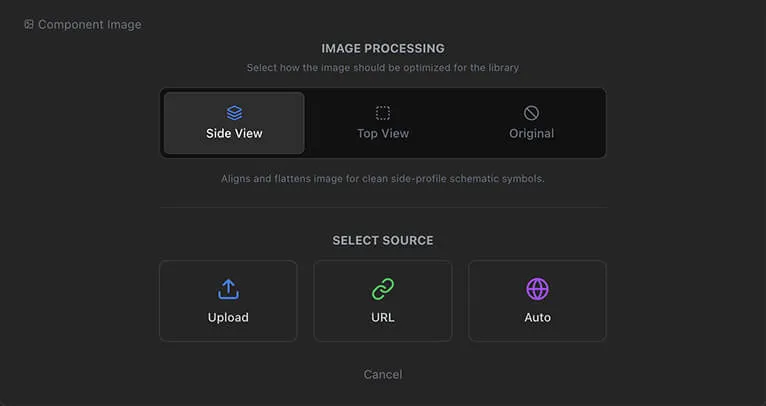
Parts that support images (connectors, ring terminals, branch points, custom parts) can use AI to generate part images.
- 1
Open the part editor and click the image area
- 2
Select the AI Generate option
- 3
Enter a text prompt describing the part (e.g., "12-pin automotive waterproof connector, black housing, dual-row")
- 4
The AI generates an image based on your prompt
- 5
Preview the result — accept to save, or enter a new prompt to regenerate
You can also add images by pasting a URL directly.
Info
AI image generation requires a Lite, Pro, or Team plan. See Pricing and Plans.
AI Description Generation
For parts with a manufacturer and part number filled in, you can use AI to generate a technical description.
- 1
Fill in the Manufacturer and Part Number fields
- 2
Click the AI generate button next to the Description field
- 3
The AI generates a description based on the part identity
This is useful for quickly populating descriptions when adding many parts from a manufacturer catalog.
Info
AI description generation requires a Lite, Pro, or Team plan.
Adding and Editing Parts
Adding a New Part
- 1
Open the Parts Library
- 2
Click Add Part
- 3
Select the part Category
- 4
Fill in the required fields (manufacturer, part number, description, price)
- 5
Set category-specific properties (cavities for connectors, gauge for wires, etc.)
- 6
Optionally add an image
- 7
Save the part
Editing an Existing Part
Click a part in the library to open its editor. Update any fields and save. Changes affect all components and pin configurations that reference this part — the BOM and Cut List update automatically.
Tip
When setting up a new project, populate the Parts Library with your commonly used connectors, wires, and contacts first. This streamlines the design process when adding components and configuring pins.