Wiring View
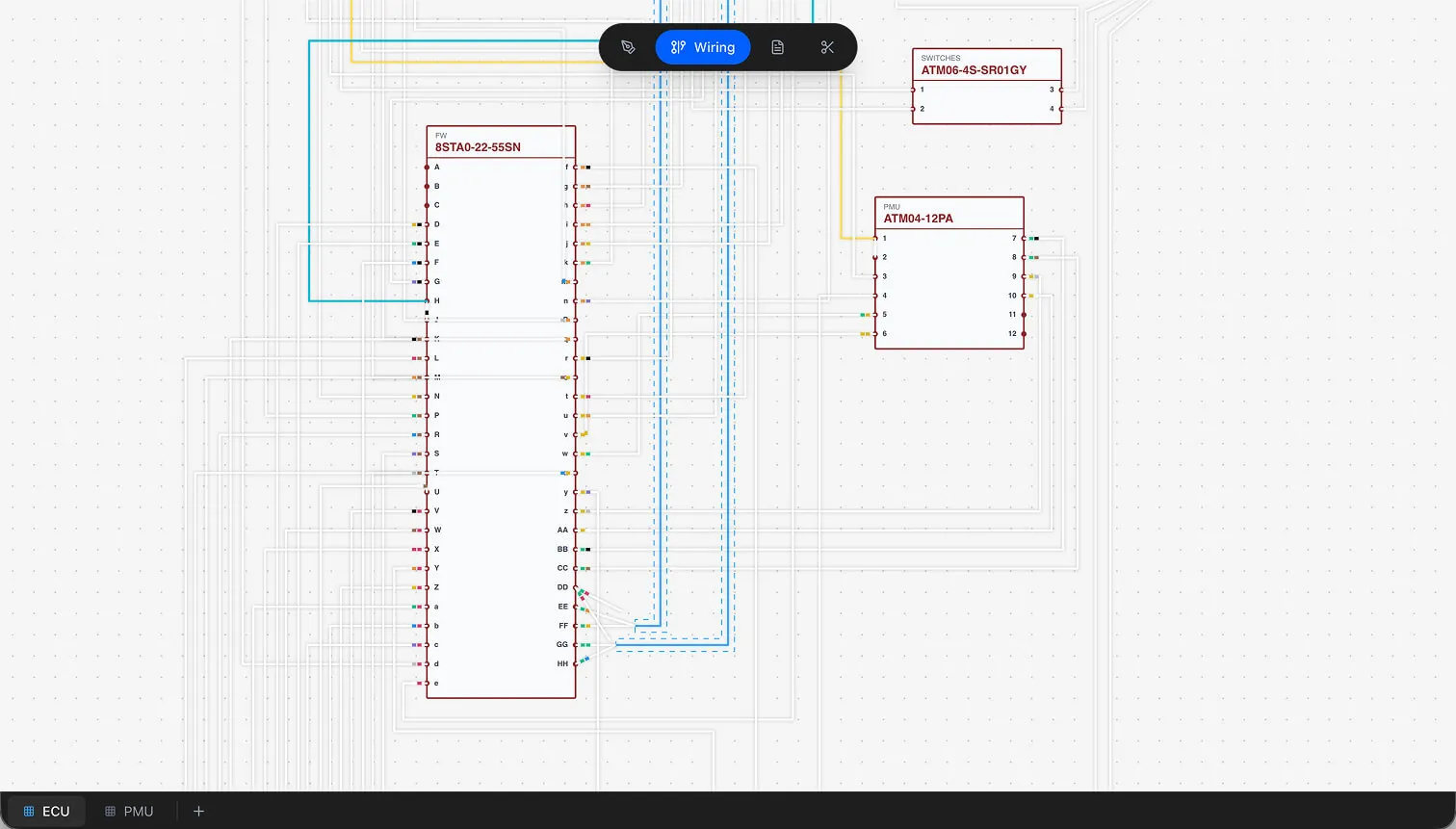
The Wiring View is the electrical diagram editor where you define and visualize pin-to-pin wire connections. While the Design View handles the physical layout, the Wiring View focuses on electrical connectivity — which pins connect to which, through which wires, with what color codes.
Canvas Navigation
The Wiring View canvas uses the same navigation controls as the Design View.
- Pan — Click and drag on an empty area to move the viewport
- Zoom — Scroll the mouse wheel to zoom in and out (0.1x to 10x range)
- Inverted zoom — Hold Ctrl while scrolling to reverse zoom direction
- Grid — A 20px background grid provides visual reference
- Deselect — Click on an empty canvas area to deselect all elements
Info
Canvas dragging is disabled while auto-routing is in progress. An overlay blocks interaction until routing completes. See the Auto-Routing section below for details.
Connector and Component Rendering
The Wiring View displays all connectors and components from your design. Each component renders with its cavity labels visible, making it easy to identify specific pins.
- Cavity labels — Displayed as alphabetic (A, B, C...), numeric (1, 2, 3...), or custom labels depending on the connector's label type setting in the Parts Library
- Position and rotation — Inherited from the Design View canvas layout
- Hidden components — Components without any wiring connections are hidden to reduce visual clutter
Rendering Order
The Wiring View layers elements in a specific order for clarity:
- 1
Non-splice nodes — Background layer (behind all edges)
- 2
Non-selected edges — Standard wire connections
- 3
Splice nodes — Above edges but below selected elements
- 4
Selected edges — Always rendered on top for visibility
This layering ensures that selected wires and splice points remain visible even in dense harness diagrams.
Pin-to-Pin Wire Routing
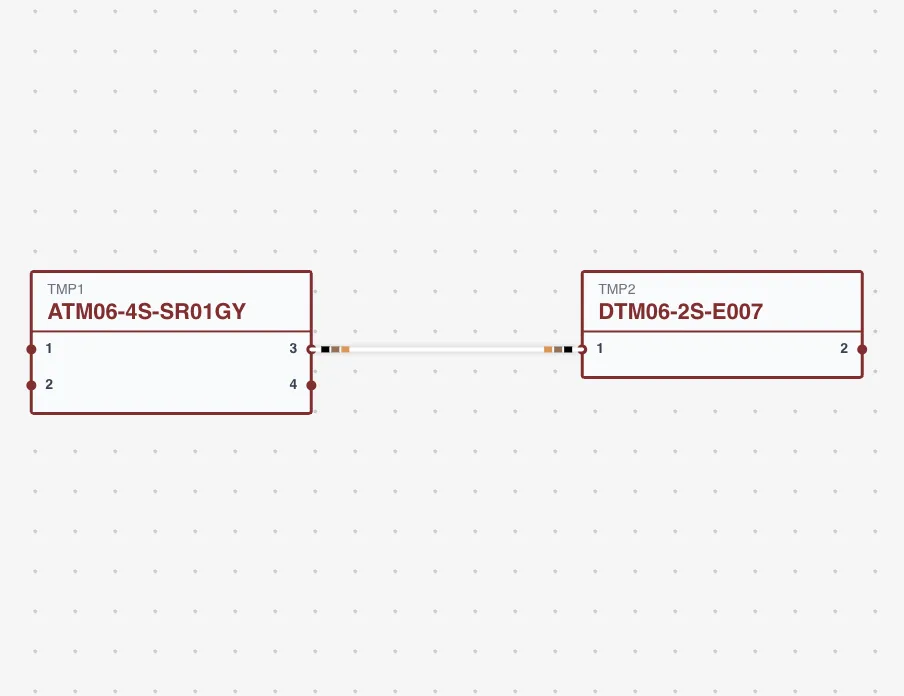
Each wire connection in the Wiring View links a specific source cavity to a specific target cavity. You can create connections in two ways: through the Pin Configuration dialog, or by routing directly on the canvas.
Wire Edge Data
Every wire connection carries the following data:
- Source — The source component and cavity number
- Target — The target component and cavity number
- Wire — The wire part from the Parts Library (gauge, color, type)
- Color code — Array of heat shrink color markers for wire identification
- Group — Twisted pair group assignment (ID and display color)
- Shielded cable — Reference to a multicore shielded cable configuration
- Control points — Polyline vertices that define the wire path on the canvas
Polyline Control Points
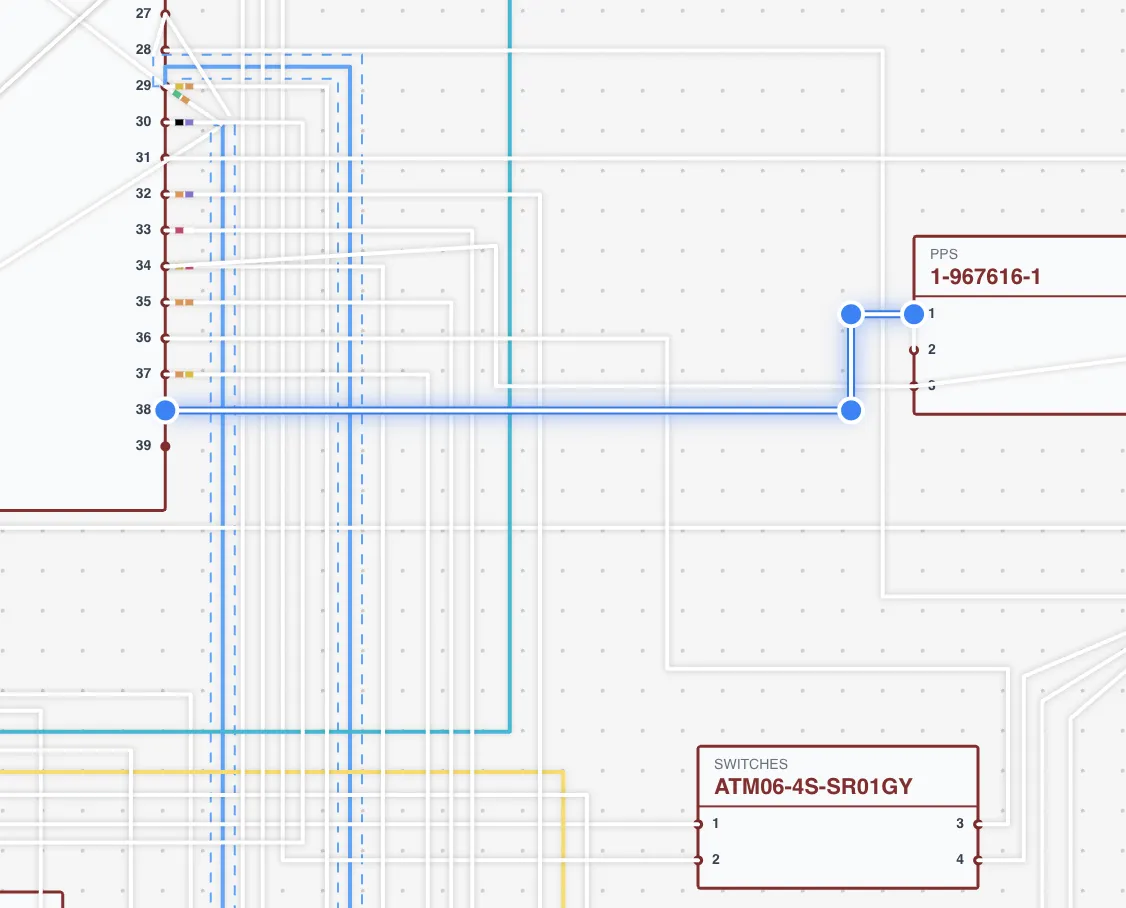
Wire paths are rendered as polylines — a series of connected line segments. Each wire has an array of control points (x, y coordinates in world space) that define its path.
- Drag control points — Click and drag any control point to adjust the wire routing
- Add points — Right-click on a wire segment to add a new control point
- Remove points — Right-click an existing control point to remove it
- Persistence — Control point positions are saved to the database automatically
Adjusting control points lets you create clean, readable wiring diagrams with organized wire routing. Avoid crossing wires where possible for clarity.
Twisted Pairs
Twisted pairs group two or more wires that are physically twisted together in the harness. The Wiring View provides tools to create and manage twisted pair groups.
Creating a Twisted Pair
- 1
Select two or more wire connections on the canvas
- 2
Right-click and select Twist
- 3
The wires are grouped and assigned a random color from the palette
The twist palette includes 10 colors: red, teal, blue, green, yellow, plum, mint, gold, purple, and light blue. Grouped wires share a visual color indicator on the canvas.
Twist Logic
The twist action handles several scenarios:
- All ungrouped — Creates a new twisted pair group with all selected wires
- One existing group + ungrouped wires — Adds the ungrouped wires to the existing group
- Multiple different groups — Merges all selected wires into a single new group, cleaning up the old groups
Ungrouping
Select grouped wires, right-click, and select Ungroup to remove them from the twisted pair group. If ungrouping leaves a group with only one wire, that orphaned group is automatically cleaned up.
Tip
You can also manage twisted pairs from the Pin Configuration dialog using the checkbox column and the twist/ungroup toolbar.
Shielded and Multicore Cables
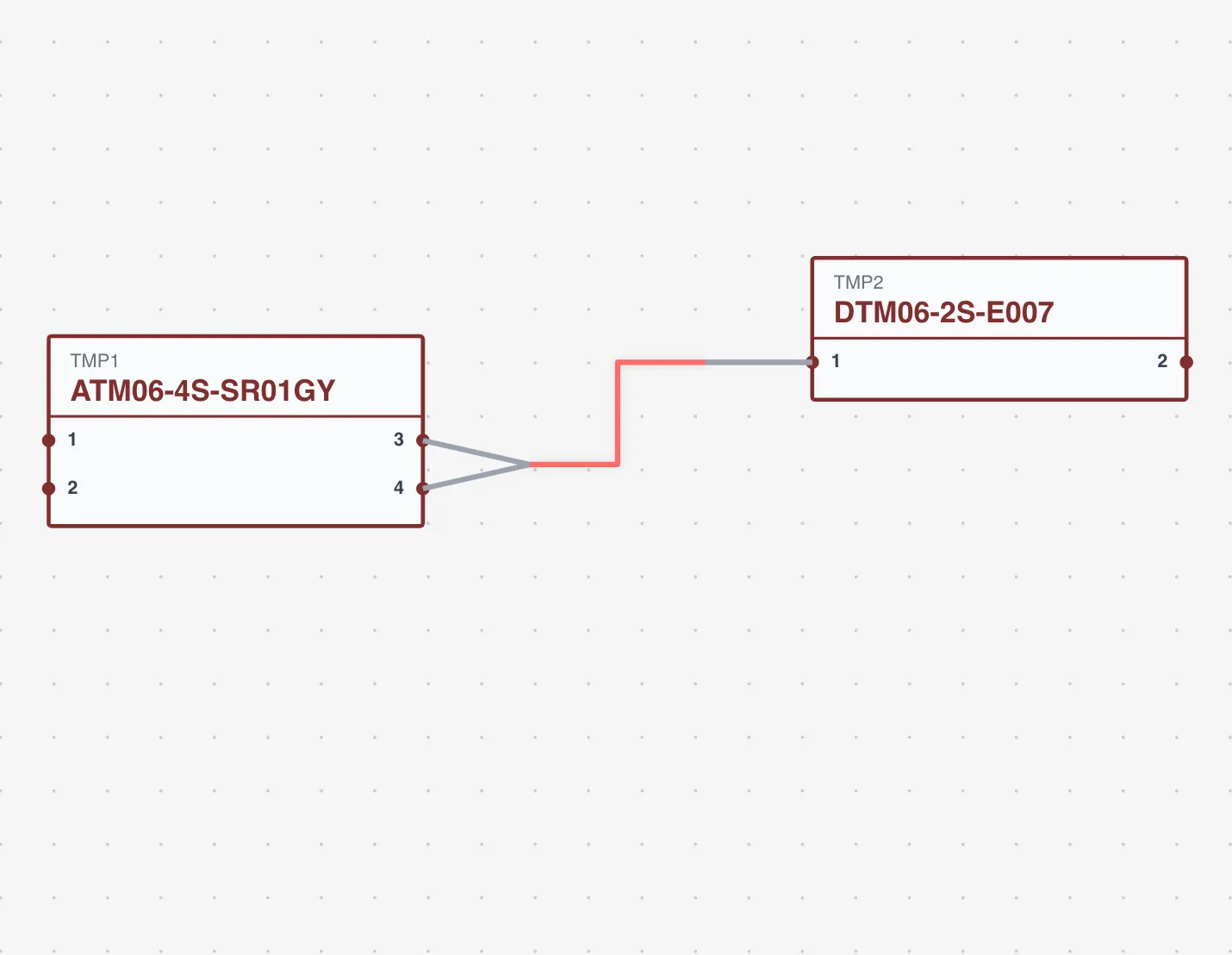
Shielded cables contain multiple inner conductors (strands) within a shared electromagnetic shield. The Wiring View supports full multicore cable configuration.
Requirements
- The wire part must have isShielded set to true in the Parts Library
- The wire part must have a strandsCount defining the number of inner conductors
Configuration
Shielded cables are configured through the Pin Configuration dialog using the Add Shielded Cable button. Each strand maps to a source and destination cavity, and shield terminations connect to ground points.
- Strand wires — Rendered individually with their assigned routing
- Shield connections — Displayed with a distinct visual style, using the special cavity -1
- Control points — Work the same as regular wire connections
See the Cable Shielding guide for a complete walkthrough of multicore cable setup.
Auto-Routing (AI)
The Wiring View includes an AI-powered auto-routing feature that generates wire paths for all connections on the current sheet.
Using Auto-Route
- 1
Right-click on the canvas and select Auto Route
- 2
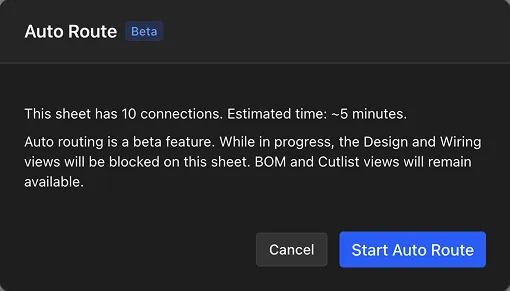
A confirmation dialog shows the number of edges that will be routed
- 3
Click Confirm to start the process
- 4
An overlay blocks canvas interaction during routing
- 5
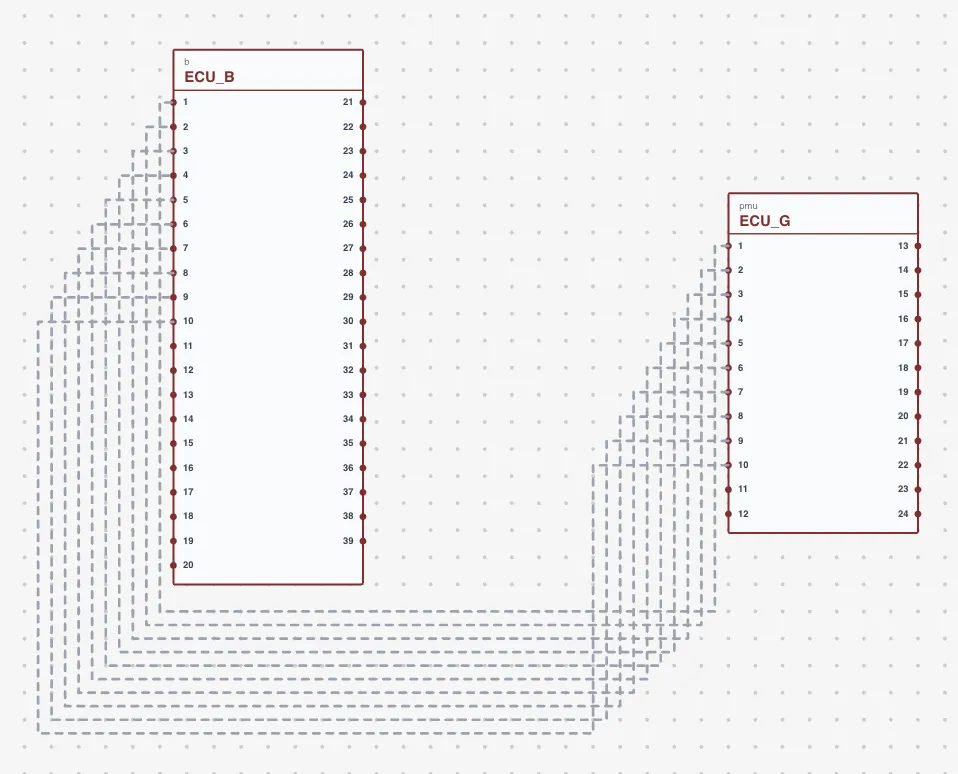
The AI generates optimized polyline control points for each wire
Auto-routing sends node positions and edge connection data to an AI model, which calculates clean, non-overlapping wire paths. The result replaces any existing control points on the affected edges.
Info
Auto-routing requires a Lite, Pro, or Team plan. The feature is not available on the Free tier. See Pricing and Plans for details.
Network Names
Assign a name to any connected group of wires to identify circuits and signal paths across your harness.
- 1
Select a wire in the Wiring View
- 2
Click the edit button (pencil icon) in the floating panel header
- 3
Type a name for the network (e.g., "CAN-H", "Ignition", "Sensor Ground")
- 4
Press Enter to save
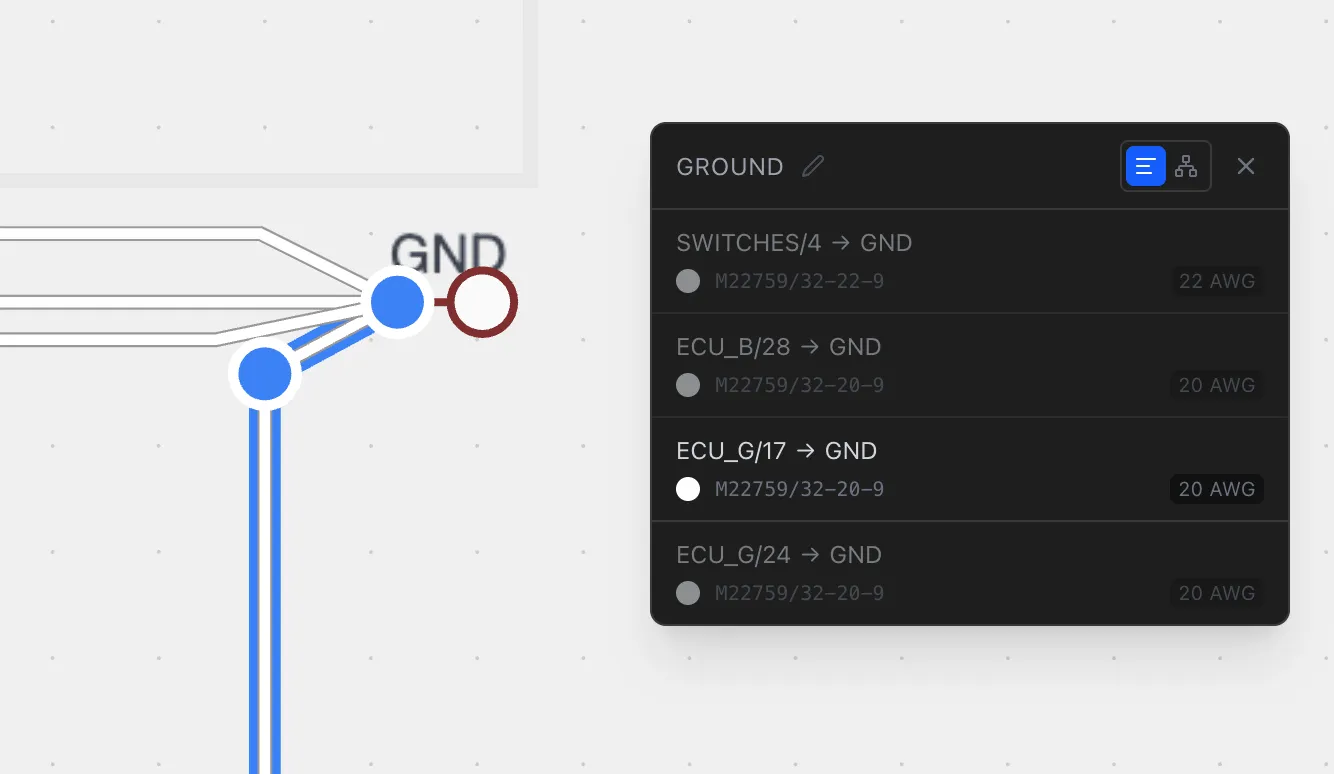
The name propagates automatically to all wires in the same connected network. Network names appear in the Pin Configuration dialog and PDF exports, making it easier to trace circuits across multiple connectors and sheets.
To clear a network name, edit the field and delete the text.
Wire Info Panel
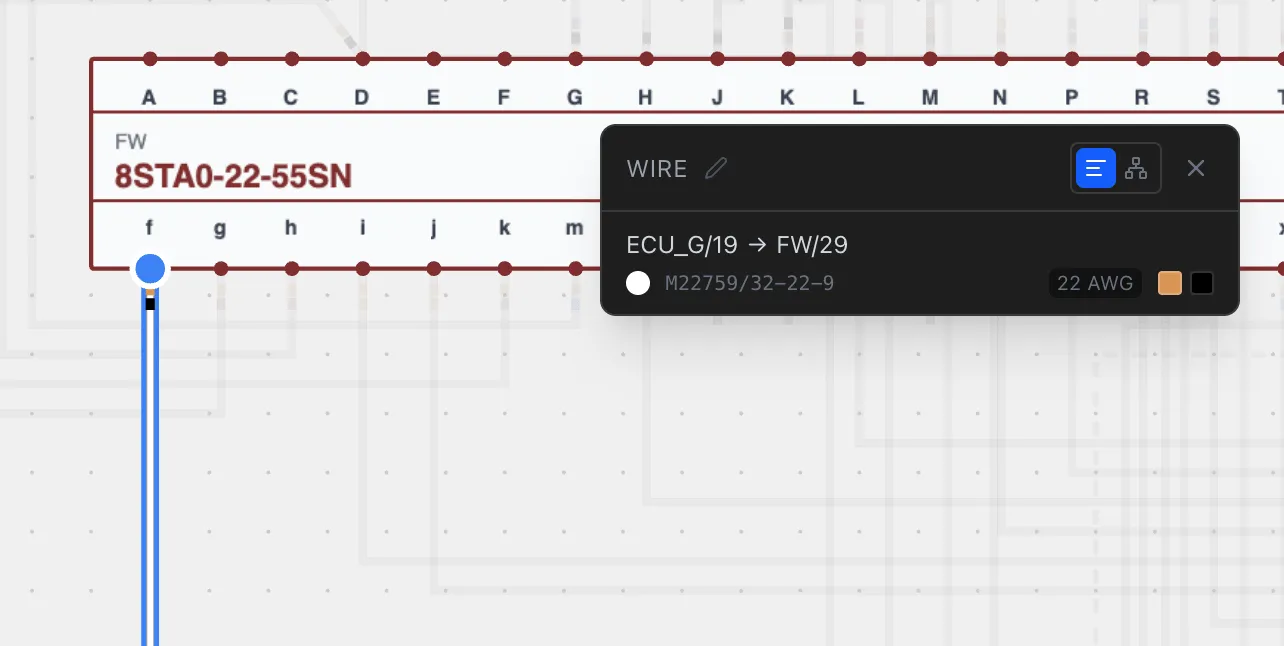
Selecting one or more wires in the Wiring View opens a floating info panel with wire details.
The panel has two layout modes, toggled with the buttons in the panel header:
Wire-Centric View
Lists each wire individually with:
- Source and target — Component names and cavity numbers
- Wire color — Visual swatches showing primary color, stripe, and color code markers
- Gauge— Wire gauge in AWG and mm²
- Network name — Blue badge showing the assigned network name
- Description — Cavity description if configured
Connection-Point View
Groups wires by connector, showing a pin-by-pin breakdown:
- Cavity index and description
- Target— Connected component and pin
- Wire details — Color, stripes, color codes, gauge, and part number
Tip
Use the wire-centric view when tracing individual wires across the diagram. Use the connection-point view when reviewing all connections at a specific connector.
Wire Network Highlighting
Selecting a wire highlights its entire connected network and dims all unrelated wires. This makes it easy to trace a circuit path through a complex diagram without losing context.
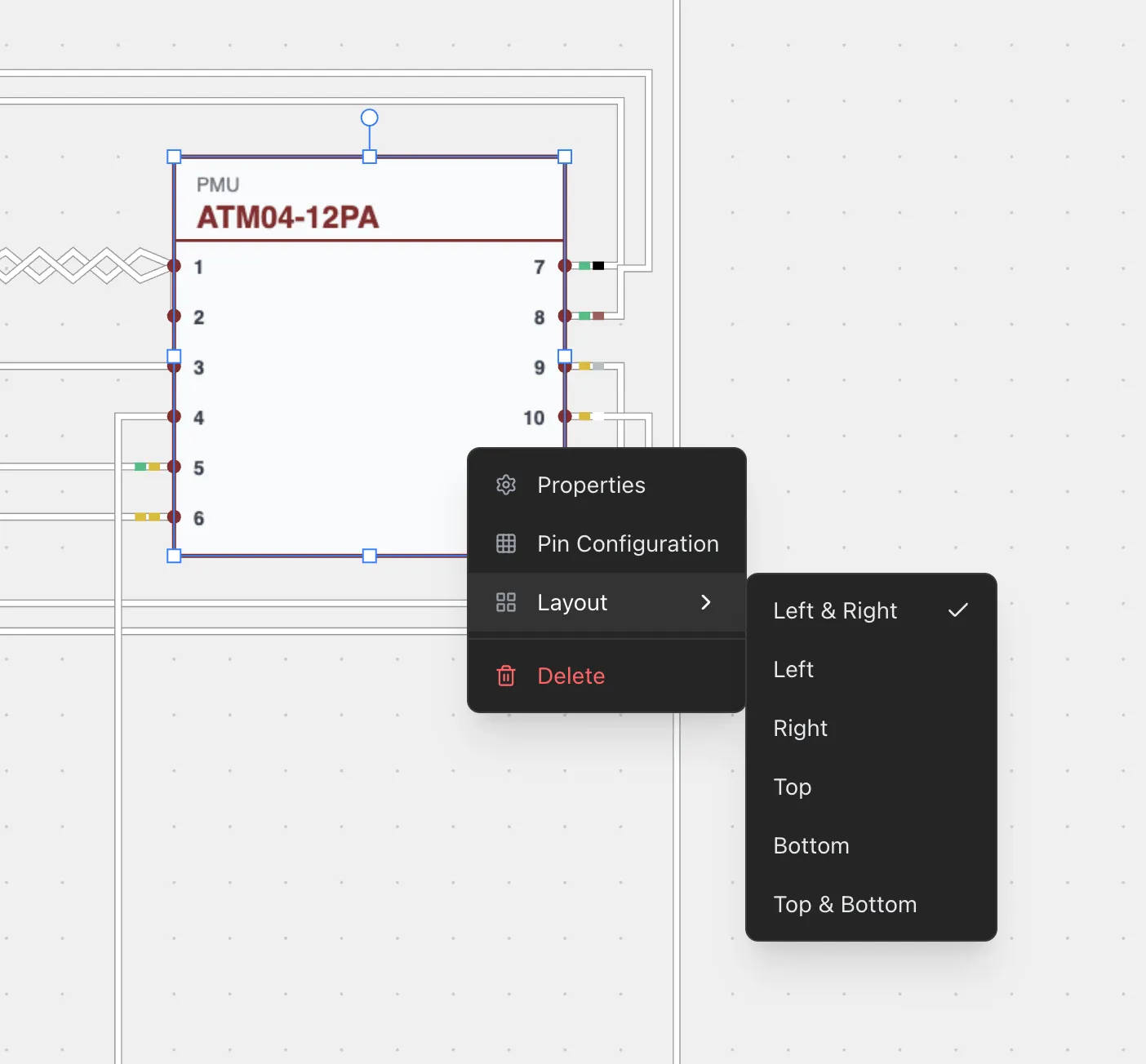
Connector Pin Layout
Configure how connector pins are arranged in the Wiring View by choosing from six orientation options.
- 1
Right-click a connector in the Wiring View
- 2
Select Pin Layout
- 3
Choose an orientation:
- Left — Pins arranged on the left side
- Right — Pins arranged on the right side
- Top— Pins arranged along the top
- Bottom — Pins arranged along the bottom
- Left-Right — Pins split between left and right sides
- Top-Bottom — Pins split between top and bottom
Pin layout is set per connector and persists across sessions. Use different layouts to organize your wiring diagram for readability — for example, set ECU connectors to Left-Right to show inputs on one side and outputs on the other.
Wiring View and Other Views
The Wiring View is tightly connected to other parts of the application:
- Design View — Component positions and cable lengths flow from design to wiring
- Pin Configuration — Wire assignments, contacts, and color codes are defined in pin config and rendered in the wiring view
- BOM — All wire parts, contacts, seals, and color codes from wiring connections appear in the bill of materials
- Cut List — Wire lengths from the design, combined with wiring edge data, generate cut list entries
Changes in the Wiring View (control point adjustments, twist groups) are applied immediately. There is no undo/redo in this view — use the Pin Configuration dialog for connection changes.