Reusable Components
Reusable components let you save parts of a harness design and insert them into any project. Build a connector assembly, sensor sub-harness, or standard wiring pattern once, then drop it into new projects with a single click. All design nodes, wiring connections, pin configurations, and cable properties are copied automatically.
Saving a Component
There are two ways to create a reusable component from an existing design.
Save a Selection
- 1
Select one or more nodes on the design canvas using multi-select (Shift-click or Shift-drag)
- 2
Right-click the selection and choose Save as Component
- 3
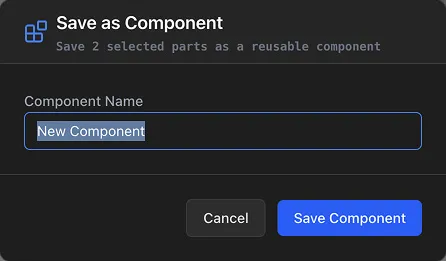
Enter a Component Name in the dialog (e.g., "ECU Connector Assembly" or "Standard Sensor Harness")
- 4
Click Save Component
The selected design nodes, their cables, wiring connections, pin configurations, and associated parts are extracted into a new component. A toast notification confirms the save with an Open link to view the component.
Save an Entire Sheet
- 1
Right-click on an empty area of the design canvas
- 2
Select Save Sheet as Component
- 3
Enter a Component Name and click Save Component
This saves everything on the current sheet as a single reusable component.
Tip
Name components descriptively — include the connector type, circuit function, or harness zone (e.g., "Driver Door Harness", "CAN Bus Pigtail 4-Pin"). This makes them easy to find later.
Browsing Components
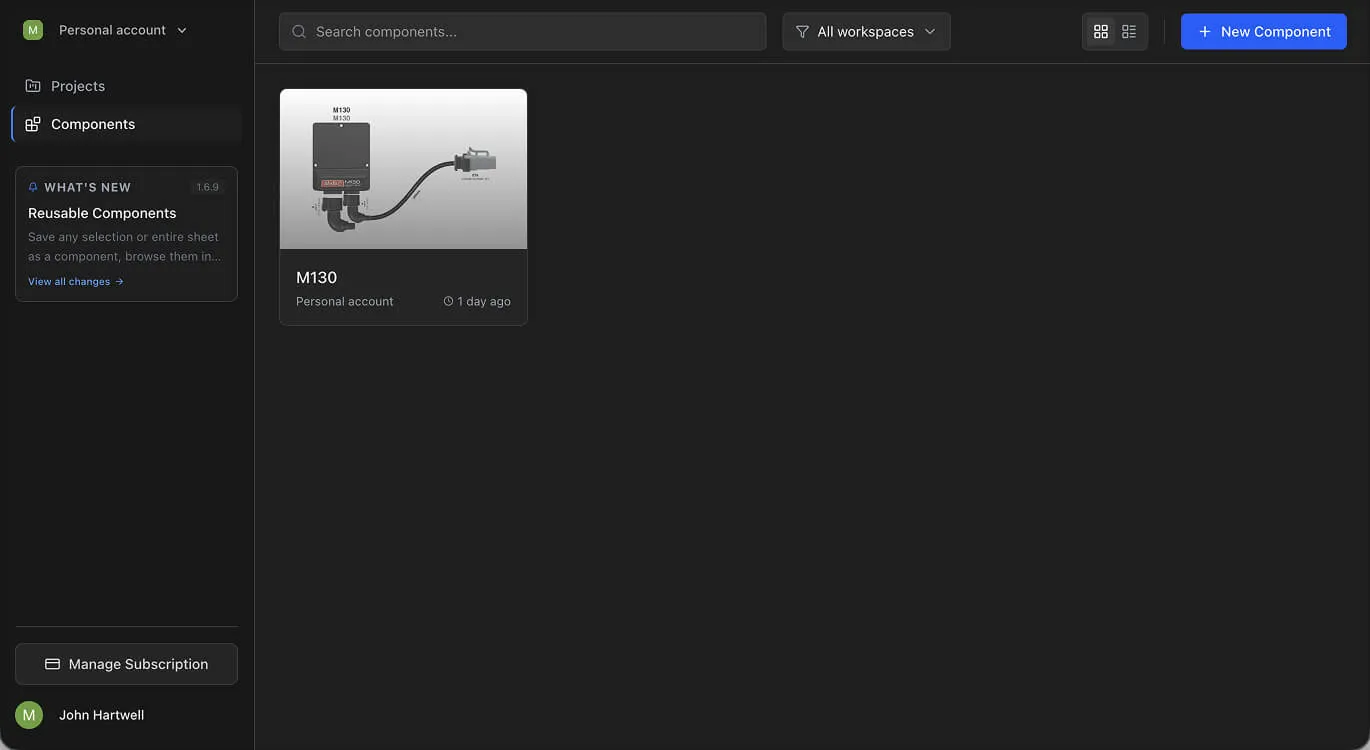
Your saved components are listed in the Components section, accessible from the sidebar navigation alongside Projects.
The components page shows a searchable grid of your saved components. Each card displays the component name and a thumbnail preview when available.
- Search — Type in the search field to filter components by name
- New Component — Click New Component to create a blank component from scratch
- Open — Click a component card to open it in the editor
Components use the same editor as projects — you can modify the design, wiring, and pin configuration of any saved component. Each component has exactly one sheet.
Inserting a Component into a Project
- 1
Open a project and switch to the Design View
- 2
Right-click on an empty area of the canvas
- 3
Select Insert Component
- 4
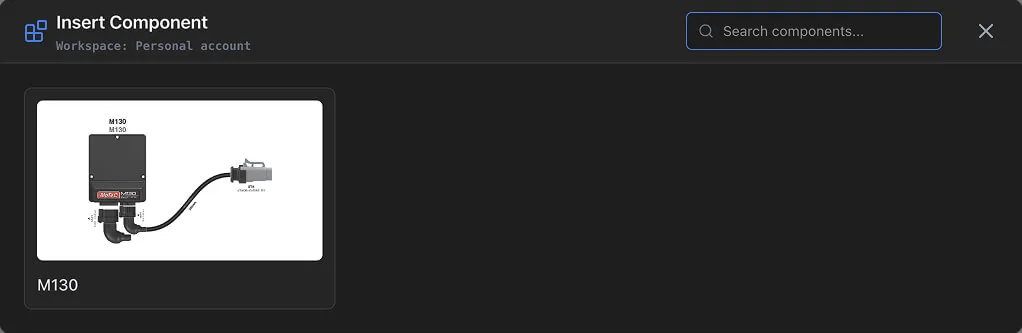
The Insert Component dialog opens with a grid of your saved components
- 5
Use the search field to filter by name
- 6
Click a component card or the Use this component button
- 7
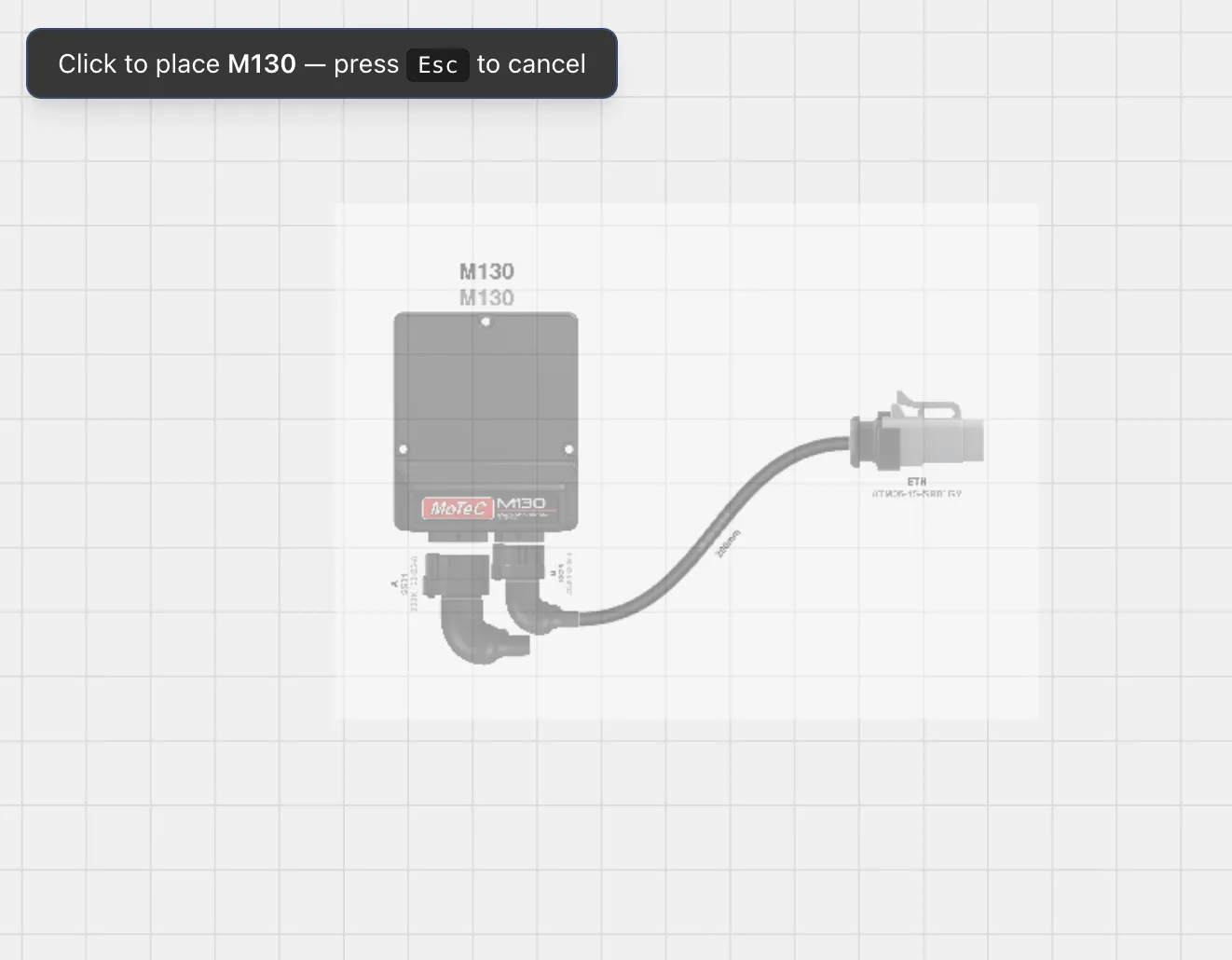
Click on the canvas to place the component at the desired position
The component is deep-copied into your project. All design nodes, cables, wiring edges, pin configurations, shielded cables, labels, and extra parts are duplicated with new IDs. Library part references (connectors, wires, contacts) stay the same — they point to the same parts in your Parts Library.
After placement, the inserted nodes are independent of the source component. Editing the placed nodes does not affect the saved component, and updating the saved component does not change previously inserted copies.
Info
Insert Component is only available in projects, not inside other components. You can insert the same component into multiple projects or multiple times within the same project.
Plan Limits
Component creation has separate limits from project creation.
| Plan | Components |
|---|---|
| Free | 5 |
| Lite | 25 |
| Pro | Unlimited |
| Team | Unlimited |
When you reach your plan's component limit, the New Component button and Save as Component options are disabled. Upgrade your plan or delete unused components to free up capacity. See Pricing and Plans for full tier details.
There is no limit on how many times you can insert a component into projects.
Best Practices
- Start with common assemblies — If you reuse the same connector-to-splice pattern or sensor harness across projects, save it as a component early
- Keep components focused — A component representing one sub-assembly (e.g., a single connector with its pigtail wires) is more versatile than one containing an entire harness
- Update the source — When a standard assembly changes (new connector part, updated pin count), update the saved component so future insertions use the latest version
- Use descriptive names — Include enough detail in the component name to distinguish it without opening the editor (e.g., "4-Pin Sensor Pigtail 22AWG" vs "Sensor")