Collaboration & Organizations
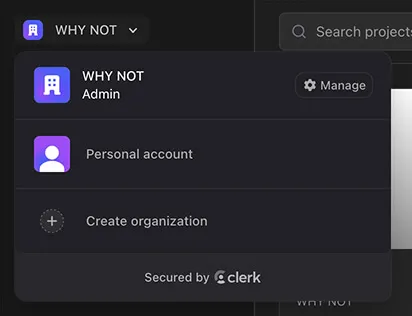
Wiring Studio supports team collaboration through Organizations. An organization gives your team a shared workspace with common projects and a shared Parts Library. All organization members can access org-owned projects, making it straightforward to collaborate on wire harness designs.
Organizations
An organization is a shared workspace that groups team members, projects, and parts together. Organizations are managed through the authentication system (Clerk).
Creating an Organization
- 1
Click the workspace dropdown in the header
- 2
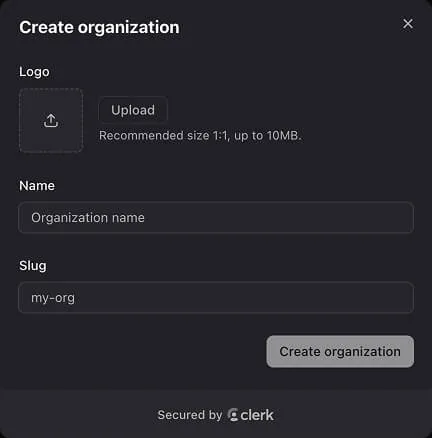
Select Create Organization
- 3
Enter an organization name
- 4
The organization is created and you become the admin
Inviting Team Members
- 1
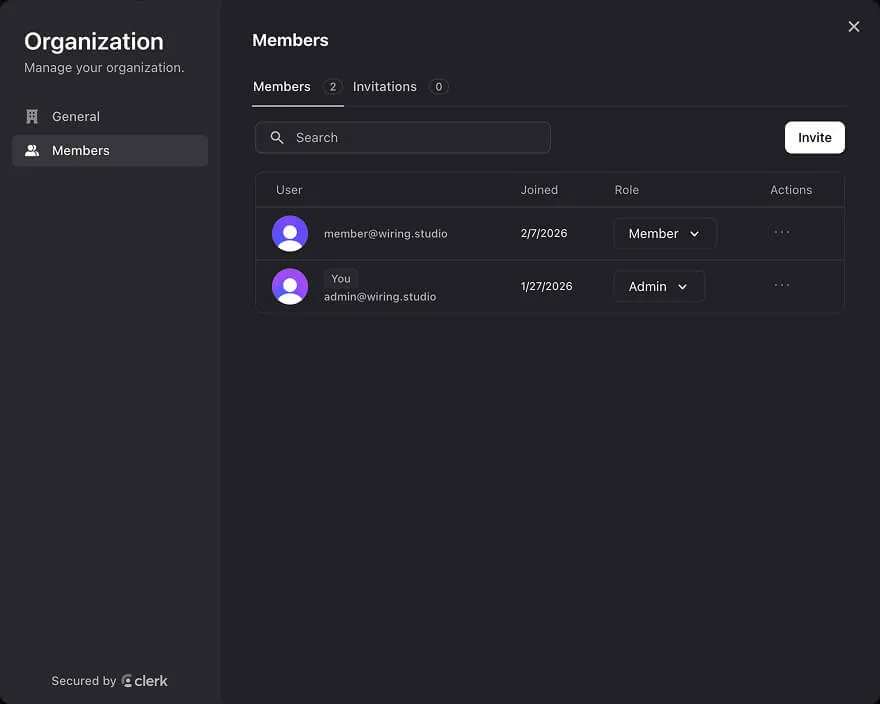
Open your organization settings
- 2
Invite members by email address
- 3
Invited members receive an email with a join link
- 4
Once joined, members have access to all org projects and the shared library
Switching Between Workspaces
Use the workspace dropdown in the header to switch between:
- Personal — Your private workspace with personal projects and library
- Organization — The shared workspace with team projects and library
The Projects page and Parts Library update to show the selected workspace's data. You can belong to multiple organizations and switch between them.
Shared Projects
Projects owned by an organization are accessible to all organization members.
Creating Organization Projects
When your active workspace is set to an organization, new projects are automatically created in that organization's workspace. All members can open, edit, and export these projects.
Transferring Existing Projects
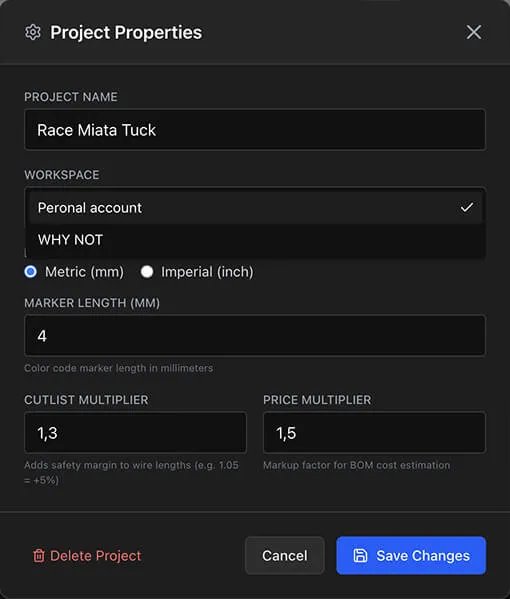
To move a personal project to an organization (or vice versa):
- 1
Open the project
- 2
Go to Project Properties
- 3
Change the Workspace setting to the target organization
- 4
Save
The project's ownership changes immediately. For personal-to-org transfers, all org members gain access. For org-to-personal transfers, other members lose access.
Warning
Transferring a project to an organization makes it accessible to all organization members. Transferring from an organization to personal removes access for other members.
Shared Parts Library
Each organization has its own Parts Library, separate from any member's personal library.
- Shared access — Parts added by any member are available to all members
- Workspace scoping — When working in the organization context, you use the org library. Your personal library remains separate.
- No duplication — The same connector part added once is available for all team projects
This means your team works with a consistent set of parts — same manufacturers, same part numbers, same pricing. There is no need to manually share or import part data between team members.
Tip
Designate one team member to set up the initial parts library with your organization's standard connectors, wires, and contacts. All other members can then use those parts immediately.
Team Workflows
Concurrent Design
Multiple team members can work on organization projects simultaneously. The Convex serverless backend provides real-time synchronization:
- Changes from one user are reflected immediately for others
- No manual save or sync step required
- All views (Design, Wiring, BOM, Cut List) update in real time
Design Review
Use the four views to review harness designs as a team:
- 1
One member designs the physical layout in the Design View
- 2
Another reviews and adjusts wiring in the Wiring View
- 3
The team reviews the BOM together for part accuracy and cost
- 4
Production reviews the Cut List for wire preparation
Parts Standardization
The shared Parts Library enforces consistency across team projects. When your organization uses a standard set of connectors and wires, all team members select from the same catalog. This prevents part number errors and inconsistent pricing.
Access Control
Organization access is managed at the membership level:
- Organization admin — Manages membership (invite, remove members) via organization settings
- Organization members — Full access to all org-owned projects and the shared library
- Non-members — No access to organization projects or library
There are no per-project permission levels within an organization. All members have equal access to all organization projects.
Organization Billing
Organization features require a Team plan subscription.
Pricing
- Per-seat billing — Each organization member counts as one seat
- Minimum seats — 2 (organizations must have at least 2 members for billing purposes)
- Billing interval — Monthly or annual (annual saves on per-month cost)
- Separate subscription — Organization billing is managed separately from personal subscriptions
Managing the Subscription
The organization admin manages billing through the Stripe customer portal. Access it from the organization settings or billing section.
Without a Team Plan
Organizations without an active Team subscription enter read-only mode:
- All org-owned projects display a yellow warning banner
- Members can view all data and export PDFs
- All create, update, and delete operations are blocked
- Subscribe to the Team plan to restore editing access
See Pricing and Plans for full tier comparison and upgrade details.
Info
Personal subscriptions (Free, Lite, Pro) are separate from organization subscriptions. You can have a Pro personal plan and be a member of an organization with a Team plan — both operate independently.