From an empty sheet to a released cutlist
How Wiring Studio models a harness, what it derives from that model, and how each view feeds the bill of materials and the cutlist.
Chapters
Last updated 3 September 2026
Collaboration
An organisation is a shared workspace. Its members see the same projects and work from the same parts library, and changes reach everyone as they happen. It is the difference between one designer with a library and a team with a standard.
Setting up an organisation
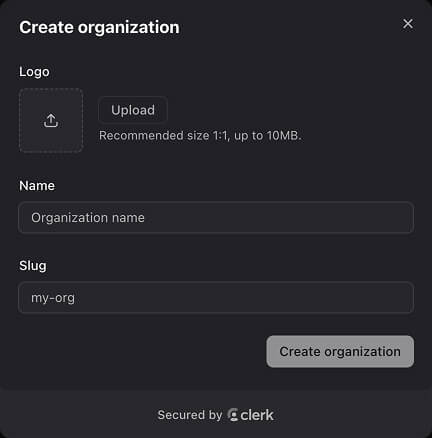
You become its admin.
Inviting people
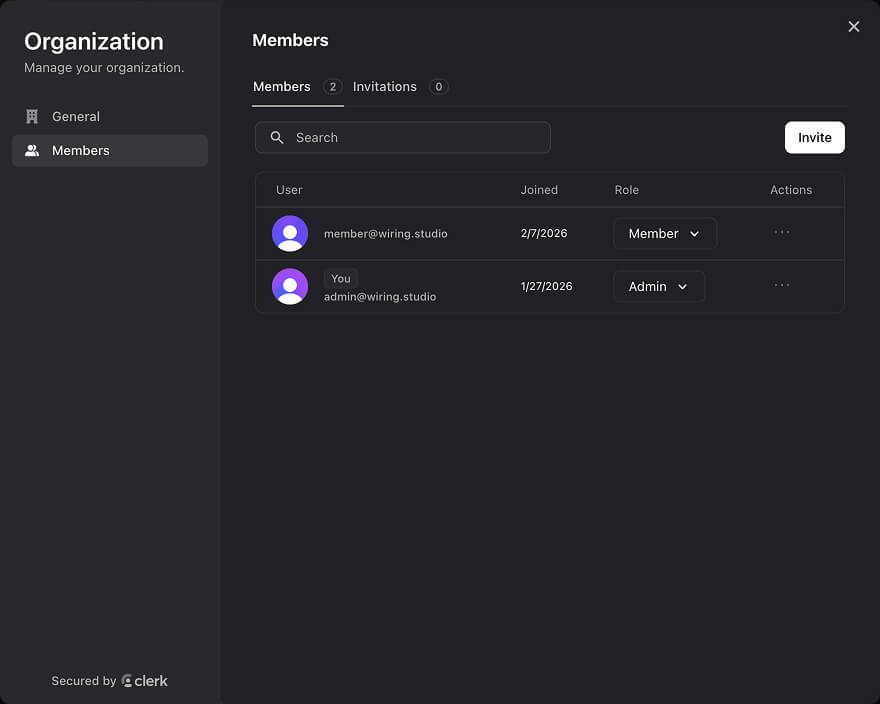
Once someone joins they have access to every project the organisation owns and to its parts library.
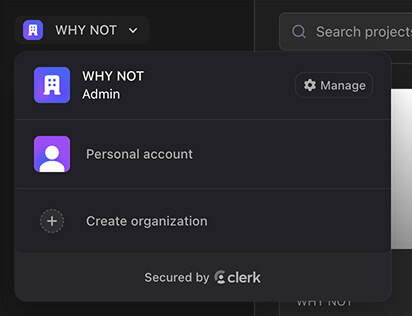
Switching workspace
The workspace control switches between your personal workspace and any organisation you belong to. What you see — projects, components, library — follows that choice, and the Projects page can filter by workspace as well.
Shared projects
Create a project while an organisation is the active workspace and it belongs to the organisation from the start. That is the simplest route, and it means everyone has it from day one.
Moving an existing project
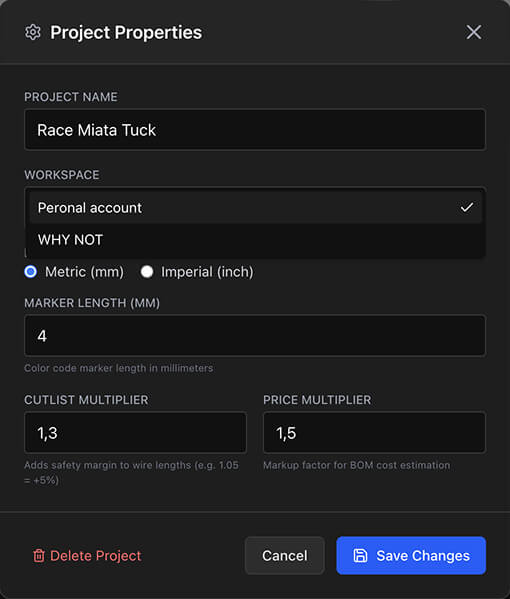
Moving a project into an organisation gives every member access to it. Moving it back out removes their access.
The workspace change goes through the server, so it needs a connection — the control is disabled offline in the desktop app.
The shared library
Each workspace has its own parts library, and an organisation's is shared. A part added by anyone is available to everyone, immediately, in every organisation project.
- Your personal library stays separate and private.
- The same connector added once serves every team project.
- Editing a part changes it everywhere it is used, so prices and descriptions stay consistent.
Have one person set up the standard connectors, wires, contacts and heat shrink colours before anyone starts designing. It is much easier than reconciling three people's near-duplicate parts later.
Working as a team
Working at the same time
Several people can have the same project open. Changes made by one appear for the others as they happen — there is no save button and no sync step, and all four views update together.
Splitting the work
- One person lays out the physical harness in the Design view.
- Another works the connectivity in Pin Configuration and the Wiring view.
- The design rule checks give both of them the same list of what is still outstanding.
- The BOM is reviewed together for part accuracy and cost before anything is quoted.
In the desktop app, work done offline is queued and sent in order when you reconnect, so a colleague on a bad connection is not blocked — their changes simply arrive later.
Access control
- Admins manage membership — inviting and removing members — from the organisation's settings.
- Members have full access to every project the organisation owns and to its library.
- Everyone else has no access to either.
Access is checked on every request, not only at sign-in, so removing someone takes effect immediately rather than at their next session.
Billing
Organisations are billed per seat on the Team plan: one seat per member, minimum two, monthly or annual. It is a separate subscription from your personal plan — being on Pro personally does not cover an organisation, and vice versa.
The admin manages it through the Stripe billing portal, reached from the workspace's billing controls. Seats added mid-cycle are prorated; reductions apply at renewal.
An organisation without an active Team subscription is read-only. Its projects can still be viewed and exported, but not edited, until the subscription is in place. See Pricing and plans.
Related chapters
Where this chapter leads next, and what it assumes you have already read.
Sheets and workspaces
Splitting a harness across sheets, mating connectors between them, and who owns the projects above that.
Pricing and plans
What Free, Lite, Pro and Team each allow: limits, AI features, organisations and what happens at a limit.
Parts and the library
Sixteen part categories, with the manufacturer data, pricing and properties the BOM and cut list report.