From an empty sheet to a released cutlist
How Wiring Studio models a harness, what it derives from that model, and how each view feeds the bill of materials and the cutlist.
Chapters
Last updated 3 September 2026
Keyboard shortcuts
Every shortcut in the app, grouped by where it applies. The canvas and mouse controls work everywhere; the view, sheet, project and tab shortcuts are desktop-only, because the browser has already claimed most of those chords for itself.
Design canvas
These work on the Design canvas in both apps.
| Shortcut | Action |
|---|---|
| Delete or Backspace | Delete the selection |
| Cmd/Ctrl + Z | Undo |
| Cmd/Ctrl + Shift + Z | Redo |
| Cmd/Ctrl + A | Select every component on the sheet |
| Cmd/Ctrl + C | Copy the selection |
| Cmd/Ctrl + V | Paste at the pointer |
| Escape | See the note below |
| Shift + click | Add or remove one component from the selection |
| Shift + drag | Marquee select |
Escape resolves in order: it cancels a placement in progress; then, if a dialog is open, the dialog takes it; then it clears the selection; and finally it clears a pinned wire trace. So pressing it twice after tracing a wire clears the selection and then the trace.
The actions panel keeps the most-used ones on screen under Shortcuts, so you do not have to come back here for them.
Wiring canvas
The Wiring view is driven by its context menus and its selection panel rather than by keys, and it has no undo of its own.
| Action | What it does |
|---|---|
| Click a wire | Selects it, opens the panel, highlights its network |
| Right-click the canvas | Add Splice, Diode, Resistor; Auto Route |
| Right-click a wire | Twist, Ungroup |
| Right-click a component | Pin Configuration, Pin Layout |
| Drag a control point | Adjust the wire's path |
Views and zoom
Available in the desktop app, where each one also appears beside its command in the menu bar.
| Shortcut | Action |
|---|---|
| Cmd/Ctrl + Alt + 1 | Design view |
| Cmd/Ctrl + Alt + 2 | Wiring view |
| Cmd/Ctrl + Alt + 3 | BOM |
| Cmd/Ctrl + Alt + 4 | Cutlist |
| Cmd/Ctrl + = or Cmd/Ctrl + + | Zoom the canvas in |
| Cmd/Ctrl + − | Zoom the canvas out |
| Cmd/Ctrl + Alt + 0 | Fit the drawing to the screen |
Cmd/Ctrl + 0 is a different thing: it resets the zoom of the application window, not the canvas. Canvas zoom runs from 0.1× to 10×.
Project and sheet commands
Also desktop-only, and greyed out in the menu when they do not apply — a command is offered only when the current view can actually run it.
| Shortcut | Action |
|---|---|
| Cmd/Ctrl + D | Duplicate the selection |
| Cmd/Ctrl + E | Open the export dialog |
| Cmd/Ctrl + I | Open project properties |
| Cmd/Ctrl + Shift + S | Save the selection as a component |
| Cmd/Ctrl + Shift + N | Add a sheet |
| Cmd/Ctrl + Alt + → | Next sheet |
| Cmd/Ctrl + Alt + ← | Previous sheet |
Tabs
The desktop app opens each project in its own tab and answers to the chords a browser does.
| Shortcut | Action |
|---|---|
| Cmd/Ctrl + N or Cmd/Ctrl + T | New project in a new tab |
| Cmd/Ctrl + W | Close the current tab |
| Ctrl + Tab | Next tab |
| Ctrl + Shift + Tab | Previous tab |
| Cmd/Ctrl + Shift + ] or Ctrl + Page Down | Next tab |
| Cmd/Ctrl + Shift + [ or Ctrl + Page Up | Previous tab |
| Cmd/Ctrl + 1 to Cmd/Ctrl + 8 | Jump to that tab |
| Cmd/Ctrl + 9 | Jump to the last tab |
| Mouse action | Effect |
|---|---|
| Middle-click a tab | Close it |
| Double-click a tab | Rename the project |
| Drag a tab | Reorder |
Canvas navigation
| Action | Effect |
|---|---|
| Scroll wheel | Zoom, at 1.05× per increment |
| Ctrl + scroll | Zoom, inverted |
| Drag empty canvas | Pan the viewport |
| Click empty canvas | Deselect everything |
- Zoom range is 0.1× to 10× on both canvases.
- The wheel steps by 1.05×; the keyboard shortcuts step by 1.2×, which is deliberately coarser because a trackpad fires the wheel dozens of times per gesture.
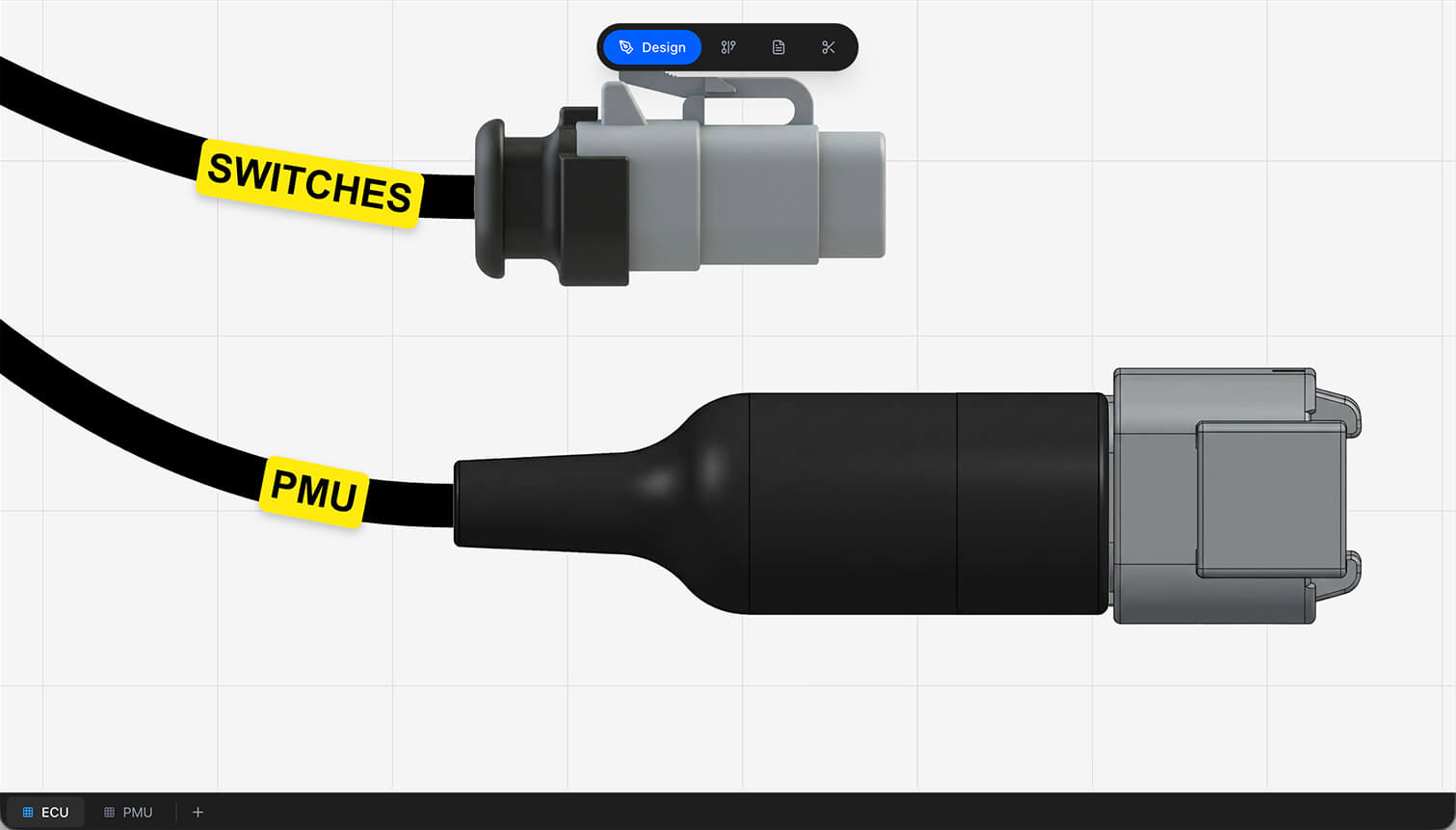
- The Design grid is 40 px and is a visual reference only — nothing snaps to it. The Wiring grid is 20 px and nodes do snap to it as you drag, with wire bend handles snapping to a finer 10 px.
- Each canvas keeps its own viewport, so switching views does not lose your place.
Design canvas mouse actions
| Action | Effect |
|---|---|
| Drag a component | Move it |
| Click a connection point | Start drawing a cable |
| Click the target point | Complete the cable |
| Click a cable | Add a curve waypoint |
| Double-click a waypoint | Remove it |
| Drag a waypoint | Reshape the curve |
| Drag a tangent handle | Change the curve direction at that point |
| Drag a label | Reposition it relative to its component |
| Hover a strand in a cable's cross-section | Trace that wire |
| Click a strand | Pin the trace |
Context menus
| Where you right-click | What you get |
|---|---|
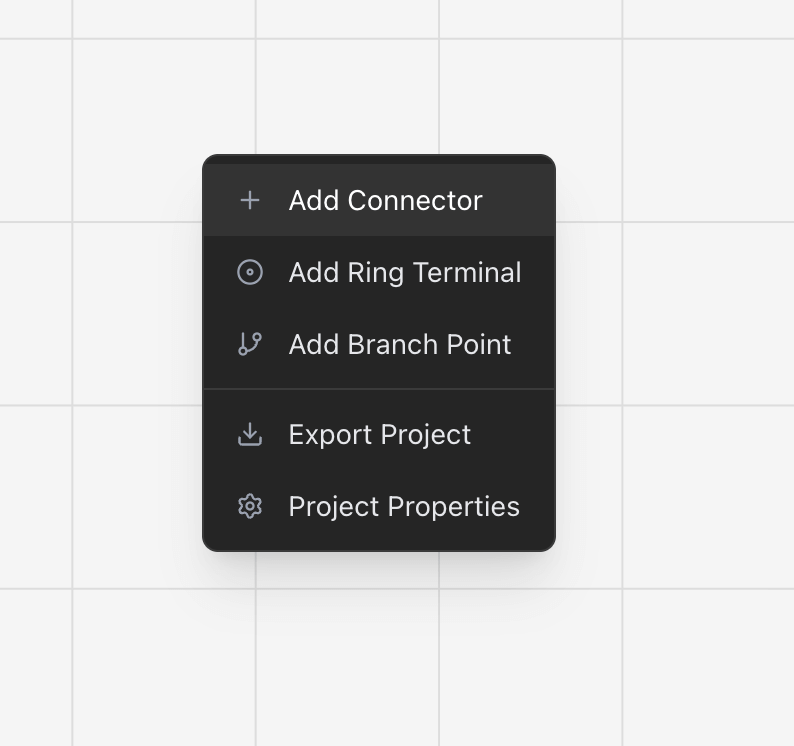
| Design canvas | Add Connector, Ring Terminal, Branch Point; Insert Component; Save Sheet as Component; Paste; Auto-Scale Layout; Show Details; Export; Project Properties |
| A component | Properties, Pin Configuration, Mating Connector, Pin Layout (wiring only), Flip H, Flip V, Duplicate, Copy, Save as Component, Delete |
| A cable | Set Length, Set Covering, Add Label, Add Branch Point, Reset Curve, Delete |
| A multi-selection | Save as Component, Delete |
| Wiring canvas | Add Splice, Diode, Resistor; Auto Route; Export; Project Properties |
| A wire | Twist, Ungroup |
| A sheet tab | Rename, Delete |
Worth knowing
- Undo immediately. If you delete the wrong component, Cmd/Ctrl + Z brings it and its wiring back. The history covers the whole session.
- Right-click everything. Most of the app is reachable from a context menu, and the menu you get depends on what is under the cursor.
- Zoom in for precision. Snap range is measured in screen distance, so zooming in makes connection points easier to hit.
- Check the menu bar. On desktop, every shortcut on this page is displayed beside its command, so there is nothing to memorise.
In the docs, Cmd/Ctrl + K puts the cursor in the search field at the top of any chapter.
Related chapters
Where this chapter leads next, and what it assumes you have already read.
Drawing the harness
The formboard canvas: placing components, routing and shaping cables, and setting the lengths those carry.
Connections and routing
The schematic: what connects to what, network names, routing, twisted pairs and shielded cables.
The desktop app
Project tabs, a native menu bar, automatic updates and designing offline, on macOS, Windows and Linux.