From an empty sheet to a finished cut list
How Wiring Studio models a harness, what it calculates from that model, and how each view feeds the bill of materials and cut list.
Chapters
Last updated 25 September 2026
Revisions
A revision is a read-only, numbered snapshot of a project. It freezes a milestone while the project itself stays fully editable.
What a revision is
A revision is a full copy of a project at a moment you choose: every sheet, every component, all the wiring and pin configuration, and the project settings. It is read-only from the moment it is created. Revisions are numbered from 1 upward, and a number is never reused, even after you delete the revision that had it.
Use a revision to freeze a design sent to manufacturing, a version shown at a review, or a state a customer signed off, then carry on editing the live project. Duplicating a project makes an unrelated copy that counts toward your project limit. A revision stays linked to its project and does not count toward that limit.
Creating a revision
You can create a revision from three places:
- Canvas — right-click empty space on the Design or Wiring canvas and choose Create Revision or Revisions.
- Actions panel — click Revisions, then Create Revision inside the dialog.
- Desktop app — the Project menu has Create Revision and Revisions.
The dialog shows the new revision's number and the project it belongs to, with an optional name and note. Leave the name blank to keep the project's name. Click Create Revision and Wiring Studio copies every sheet and the project settings into the revision. A Revision {n} saved message confirms it.
The Revisions dialog
Revisions shows the project as a timeline: the Current version at the top, with its revisions below, newest first. Each revision shows its number, its name and note if it has them, and the date it was saved. The one you have open, if any, is marked Viewing.
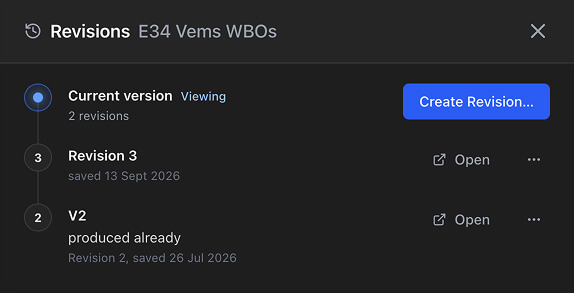
- Create Revision — saves a new revision.
- Open — opens the revision, read-only.
- ⋯ — Edit Name and Note, Restore and Delete.
Under Current version, a usage line reads {used} of {max} revisions on {Tier}, or only the count on a plan with no limit. Free has no usage line because it cannot create revisions: Create Revision carries a Lite badge and opens the upgrade dialog.
Opening a revision
A revision opens in the same editor as any project. A banner across the top shows its name (Revision 3 of Main Harness, or the name you gave it), when it was saved, its note and a Read-only tag. The banner has two actions: Open Current Version returns you to the live project, and Restore brings the revision back into it.

You cannot change anything in a revision. The canvases refuse edits, the sheet bar cannot add, rename, delete or reorder sheets, and the design rule checks dialog and pin configuration open read-only. Any attempted edit shows Revisions are read-only.
Everything else works as usual: switch views, run the design rule checks and export. PDF, GLB and formboard exports work as they do from the live project, with two differences for PDF and formboard files: the title block prints the revision number instead of 1.0, and the filename ends in _Rev3 (for revision 3).
Restoring a revision
Restore, from the banner or the ⋯ menu, replaces the live project's contents with the revision's: every sheet with its wiring, pin configuration and cables, and the project settings. The project keeps its name, its workspace and all of its revisions.
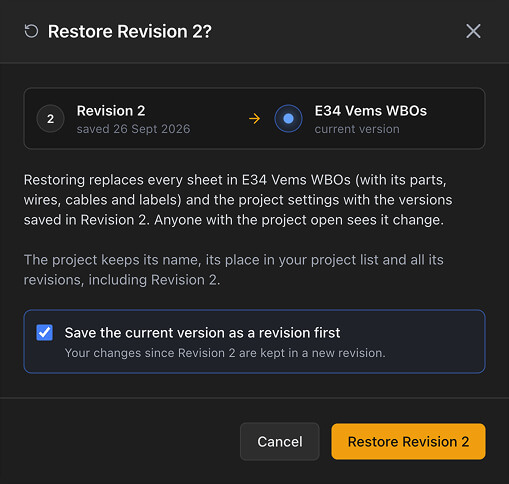
Undo cannot reverse a restore. Unless you save the current version first, changes made since the revision are lost. Anyone else with the project open sees it change, and their edits that have not synced yet are refused. Restoring needs a connection, so it is not available offline.
The checkbox is disabled, with the reason shown, when the project is at your plan's revision limit or you are on Free.
A very large revision may be too big to restore in place. The dialog then offers Duplicate as New Project, which copies the revision into a new project and leaves the live one untouched.
Deleting
Delete a revision from its ⋯ menu. This cannot be undone, and the number is not reused.
Deleting a project deletes all of its revisions too, and you cannot keep any of them. The confirmation, for example from Delete Project in Project settings, says how many revisions will go.
Plan limits
| Plan | Revisions per project |
|---|---|
| Free | None |
| Lite | 5 |
| Pro | Unlimited |
| Team | Unlimited |
The limit is per project, not per workspace. Revisions never count toward your plan's project limit. See Pricing and plans.
Going over the limit never makes anything read-only. It only blocks creating another revision. After a downgrade, to a lower limit or to Free, your existing revisions stay: you can still open, export and delete them, and restore them unless the project is read-only or the revision has more sheets than your new plan allows. To save a new one, delete revisions until you are under the limit, or upgrade.
Good to know
- Library parts are shared, not copied. A revision uses the same library parts as the live project. Editing or deleting a library part later changes what an old revision's BOM and design rule checks show, as it does on the live project.
- Offline, only opened revisions are available. In the desktop app, a revision is available offline once you have opened it while connected. A revision you have never opened cannot be viewed offline.
- Components have no revisions. Create Revision and Revisions never appear for reusable components.
MCP
An AI assistant can create, list and restore revisions through three MCP tools: create_revision, list_revisions and restore_revision. See MCP server.
Related chapters
Where this chapter leads next, and what it assumes you have already read.
Sheets and workspaces
Splitting a harness across sheets, mating connectors between them, and who owns the projects above that.
Pricing and plans
What Free, Lite, Pro and Team cost and allow: limits, AI features, organizations and what happens at a limit.
The MCP server
Connect Claude, ChatGPT or any MCP client and an AI assistant works on your harness projects as you.